Sonos Remote for TC002
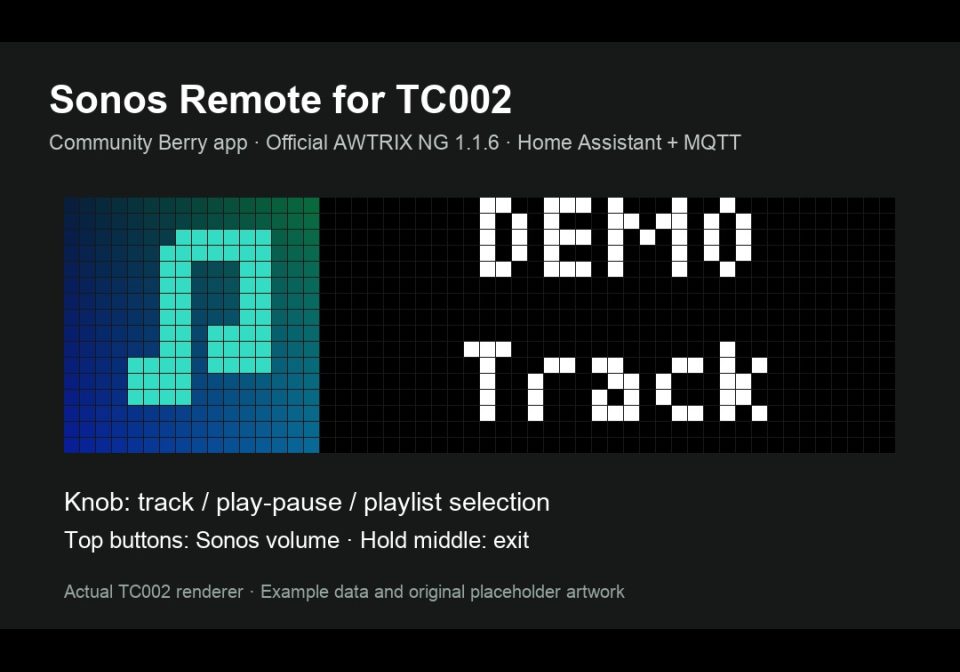
On your display
Control a Home Assistant Sonos player with the TC002 knob: tracks, play/pause, volume, ten playlists and native 16×16 album art. Requires HA + MQTT.
- Topic
- Smarthome
- Includes
- Script
Runs on
- Does not run on 32×8 (TC001 & DIY) Made for 52×16 (TC002).
- Runs on 52×16 (TC002)
- Does not run on 32×8 with AWTRIX 3 (TC001 & DIY) Made for AWTRIX NG.
Choose your display in the next step.
Flow description
Sonos Remote for TC002
Turn your Ulanzi TC002 into a physical remote for one Home Assistant Sonos player. A community Berry app for official AWTRIX NG TC002 beta 1.1.6, using the native on-demand framework. Version 3.3.1. No separate bridge add-on or firmware patch is required.
What it does
- White artist and track text in two rows, with a 16×16 album cover at the left.
- Track selection, play/pause and Sonos volume with the physical controls.
- Up to ten user-configured playlists or Sonos favourites.
- Optional global artist abbreviations after one full-name scroll; complete names keep scrolling by default.
- Native JPEG/PNG artwork download and resizing through
icon()on beta 1.1.6. Missing artwork uses a built-in animated meter; no icon pack is required.
Install on the clock
Send this script to a TC002 running official beta 1.1.6. Use sonos_remote as the script name, especially when updating an existing installation. Choose Install with dependencies in the Hub (or Install all in the clock web UI) when prompted to install Sonos Playlists (sonos_playlists) and Sonos Artist Names (sonos_artist_names) alongside the app. If installing manually, save the two modules under those exact names first, then save the main script as sonos_remote. The clock download does not configure Home Assistant.
Set up Home Assistant
- Enable Home Assistant's Sonos and MQTT integrations. Use the same MQTT broker on HA and the TC002.
- Import the companion blueprint and create one automation. Select your Sonos media player and a unique MQTT root. Enable it.
- In the app settings, enter that same player entity and MQTT root. Copy the clock's System → MQTT → Topic prefix into AWTRIX MQTT topic prefix.
- For covers, disable the blueprint's Use fallback icon instead of album artwork option and set Home Assistant URL for native album artwork to an HTTP(S) address reachable from the clock. Relative
entity_picturepaths are resolved there. Self-signed HTTPS is unsupported. - In Apps → Modules → Sonos Playlists, enter
Name|content id|content typeper slot. Leave unused slots empty. Use content supported by your Sonos integration; test it with HA'smedia_player.play_mediafirst. Artist rules are optional and empty by default.
Use one unique root and blueprint automation per remote/player pair. Stop any older command handler using the same root to avoid duplicate commands. HA credentials and Spotify sign-ins are not stored on the clock.
Controls
- Enter: hold the middle of the three top buttons for about one second, then choose Scripts → Sonos Remote. If playlists are configured, entry opens the picker; otherwise it shows now playing.
- Rotate the knob: previous/next track; in the picker, previous/next playlist.
- Short knob press: play/pause; in the picker, confirm and start the selected entry.
- Hold and release the knob (default 1.2 seconds): open the playlist picker from music, or cancel an open picker without starting its highlighted entry.
- Left/right top buttons: lower/raise Sonos volume with percentage feedback.
- Hold the top middle button: exit and return to the normal carousel.
On-demand entry belongs to the firmware's Scripts menu; this version does not add an inactive global knob shortcut. It uses knob MQTT events while active.
Compatibility and support
Tested on a TC002 with official beta 1.1.6 and Home Assistant 2026.9.4. The actual Berry class passed 106 runtime checks. Hub installation with both modules initially absent was verified on beta 1.1.6, including empty module defaults and restoration of existing user settings. Physical controls were previously verified on official beta 1.1.5; no second-clock or TC001 certification is claimed.
Source, setup, protocol and test records: https://github.com/lucaamo/tc002-sonos-remote
Report issues: https://github.com/lucaamo/tc002-sonos-remote/issues
The preview uses example metadata and original placeholder artwork captured from the actual TC002 renderer. No album covers or personal configuration are distributed.
License: PolyForm Noncommercial 1.0.0, supplied in the repository. Required Notice: Copyright © Stephan Mühl (Blueforcer) https://github.com/Blueforcer/awtrix-ng. Community contribution by lucaamo; this is not an officially bundled or endorsed app.
Sign in to view and copy the code of this flow.
Discussion 0
Ask a question, suggest a change or share how you use it.
No comments yet. Start the conversation.
More flows for AWTRIX NG Scripts or Smarthome
Something wrong with this flow? Report it.
Have an idea?
Sign in to ask questions and join the conversation.