Solar App V2
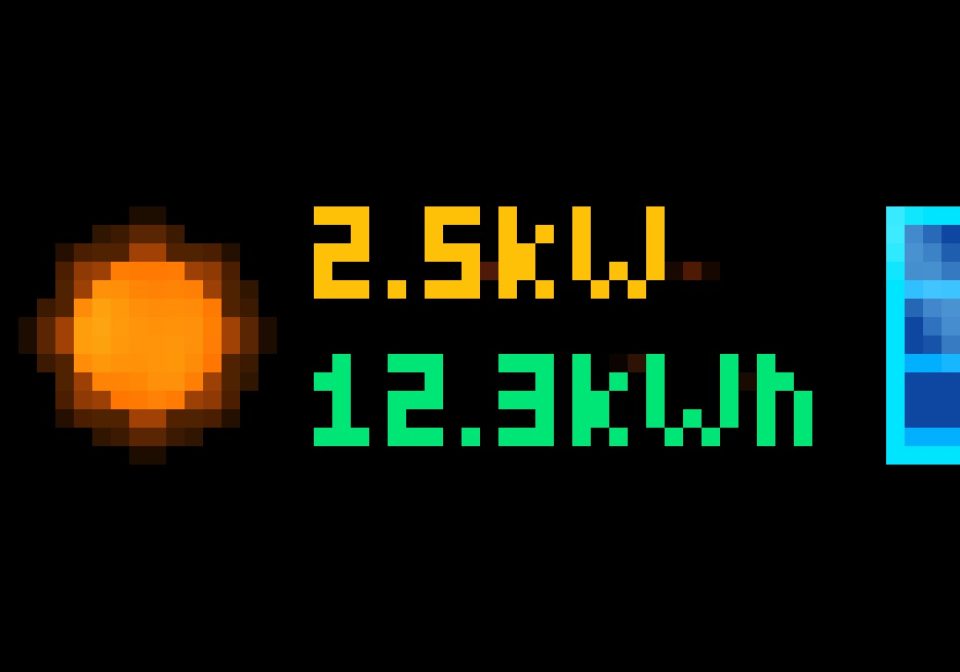






On your display
Animated solar, battery, house load and grid power dashboard for AWTRIX NG on TC002, using your MQTT data.
- Topic
- Smarthome
- Includes
- Script
Runs on
- Does not run on 32×8 (TC001 & DIY) Made for 52×16 (TC002).
- Runs on 52×16 (TC002)
- Does not run on 32×8 with AWTRIX 3 (TC001 & DIY) Made for AWTRIX NG.
Choose your display in the next step.
Script description
Description
Turn your Ulanzi TC002 into a compact energy dashboard. Solar App V2 is a remix of SolarApp with rotating views for your solar production, battery, house load and grid connection.
- Solar: current production and today's yield, with a choice of two animated sun styles.
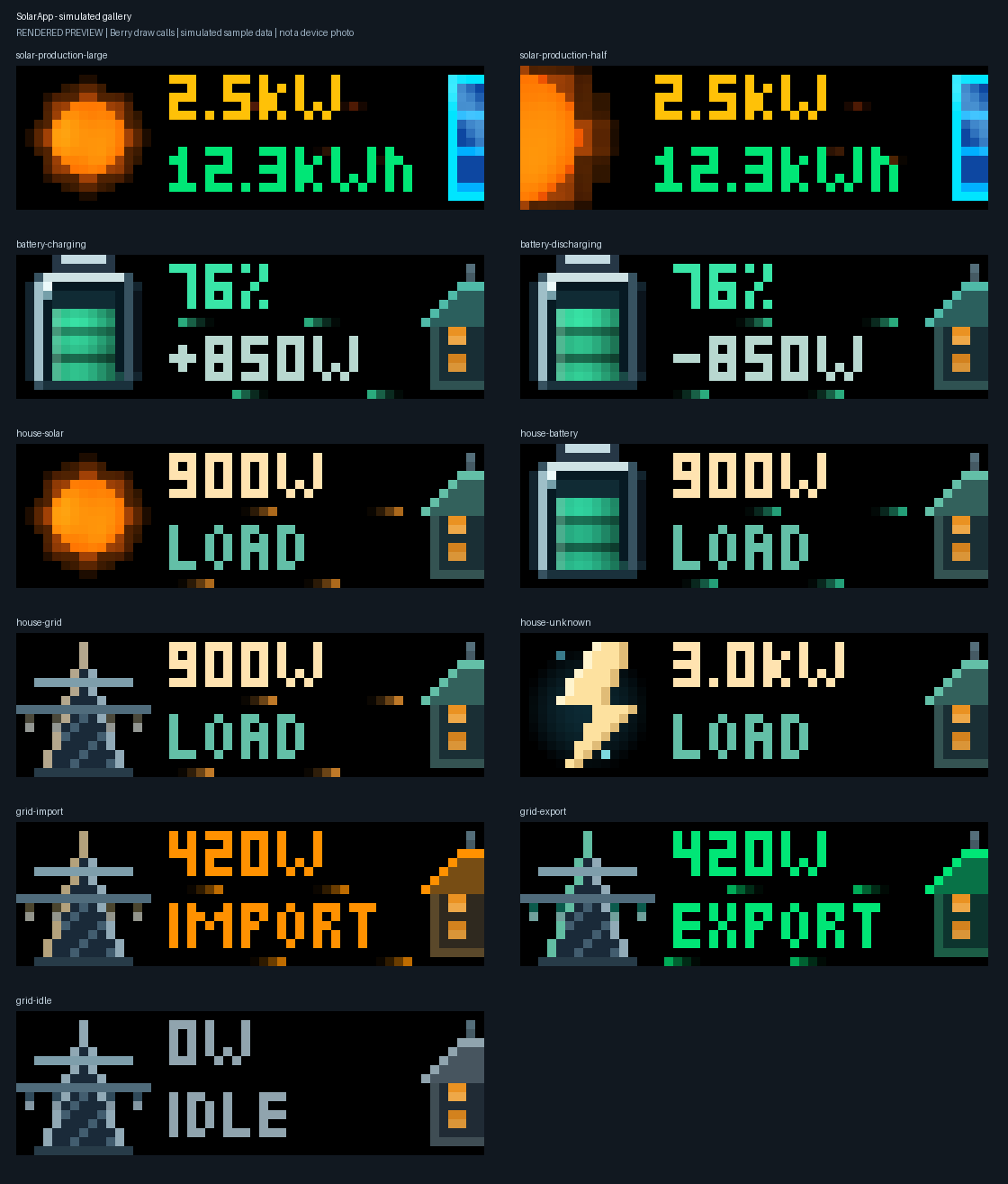
- Battery: state of charge and optional signed charge/discharge power. Illuminated cells follow the reported charge, and particles show the direction of charging or discharging.
- House: measured house load with an animated scene. The illustration reflects an available measured source, or uses a generic electricity symbol when the source is unknown; it does not calculate an energy mix.
- Grid: signed net power with import, export or idle status and directional energy particles.
The default rotation is Solar → Battery → House → Grid, five seconds per view. Press Select to advance. You can choose the starting view, rotation time, solar style, animation speed and which views are enabled. Solar is skipped when production is zero, below its threshold or stale; other views are skipped when their primary data is missing or stale. If no view is available, the app shows NO DATA / MQTT.

The images and animations are simulated previews rendered from the script with sample MQTT data, not recordings of a physical TC002. Actual colors, timing and appearance can differ on the device.
Screens and animations
| View | Screenshot | Animation |
|---|---|---|
| Solar — large sun | PNG | GIF |
| Solar — half sun | PNG | GIF |
| Battery charging | PNG | GIF |
| Battery discharging | PNG | GIF |
| House — solar available | PNG | GIF |
| House — battery discharging | PNG | GIF |
| House — grid import | PNG | GIF |
| House — source unknown | PNG | GIF |
| Grid import | PNG | GIF |
| Grid export | PNG | GIF |
| Grid idle | PNG | GIF |






















View the complete screenshot gallery · Source and full guide
Setup
Requirements: AWTRIX NG on a 52×16 TC002, an MQTT broker configured on the clock, and a source that publishes your energy readings to MQTT. No separate icons or sounds are required.
- Install the remix through AWTRIX Hub, or import SolarApp.ax in the clock's Scripts tab and save it.
- Open the script settings and enter the MQTT topics you use. Disable a view or leave its primary topic empty if you do not use it.
- Set the yield input unit and the grid/battery sign conventions to match your publisher. Adjust the per-view switches, rotation time and data timeouts as needed.
- Compare the displayed values and directions with your inverter, battery and grid meter. Use Select to cycle through available views.
| Setting | Expected input | Example |
|---|---|---|
| Power MQTT Topic | Solar production in watts | 2500 or {"P_AC":2500} |
| Daily Yield MQTT Topic | Today's production, in Wh by default | 12345 or {"YieldDay":12345} |
| Consumption MQTT Topic | Actual house load in watts | 900 or {"consumption":900} |
| FVE Battery Capacity MQTT Topic (%) | State of charge, 0–100% | 76 or {"soc":76} |
| FVE Battery Power MQTT Topic (W) | Optional signed charge/discharge power | 850 or {"battery_power":850} |
| Grid Power MQTT Topic (W) | Signed net grid power | -420 or {"grid_power":-420} |
All power inputs are watts. By default, positive grid power means import and negative means export; positive battery power means charging and negative means discharging. Each sign convention can be reversed in settings. The battery and grid idle thresholds default to 10 W.
The yield input defaults to Wh; select kWh if your publisher uses kWh. Its display unit is configured separately. Live readings expire after 120 seconds and yield after 3600 seconds by default; increase these for slower publishers or set a timeout to 0 to disable expiry. A retained message is considered fresh when received, even if it was published long ago.
Numeric MQTT payloads and JSON objects with numeric values or numeric strings are supported. For custom JSON keys, enter the exact top-level field name in the Optional JSON fields settings. The same JSON topic can be used for multiple readings. Nested JSON paths and separate unsigned import/export topics are not supported; publish a signed net grid value. House load must be an actual house measurement, not net grid power.
Example shared payload:
{"pv":2500,"today":12345,"house":900,"soc":76,"battery":850,"grid":-420}
Configure the same topic for the six inputs and set their JSON fields to pv, today, house, soc, battery and grid, respectively. See the full setup and troubleshooting guide for more details.
Sign in to view and copy the code of this script.
Discussion 0
Ask a question, suggest a change or share how you use it.
No comments yet. Start the conversation.
Have an idea?
Sign in to ask questions and join the conversation.