EV Status for Tesla
On your display
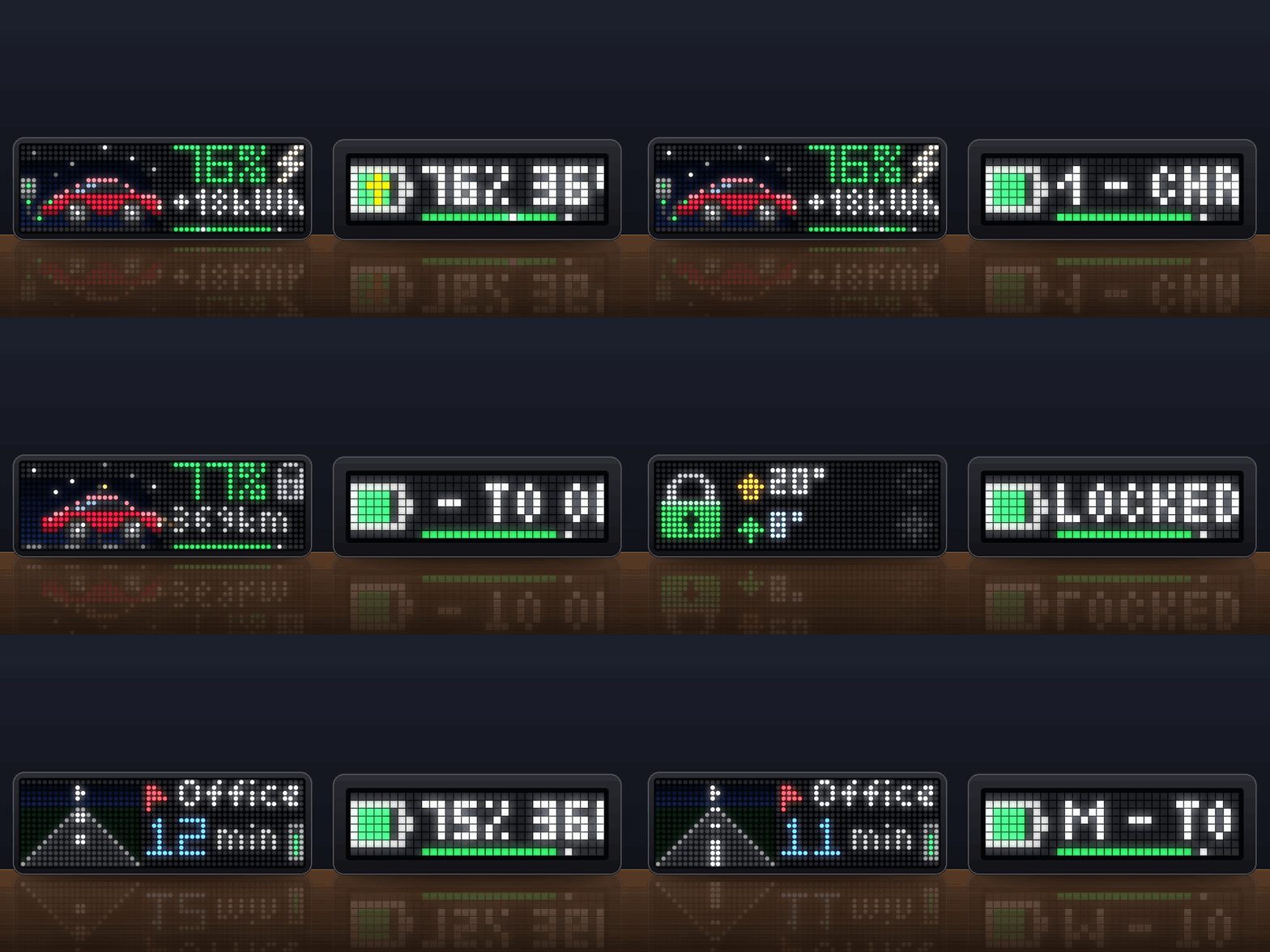
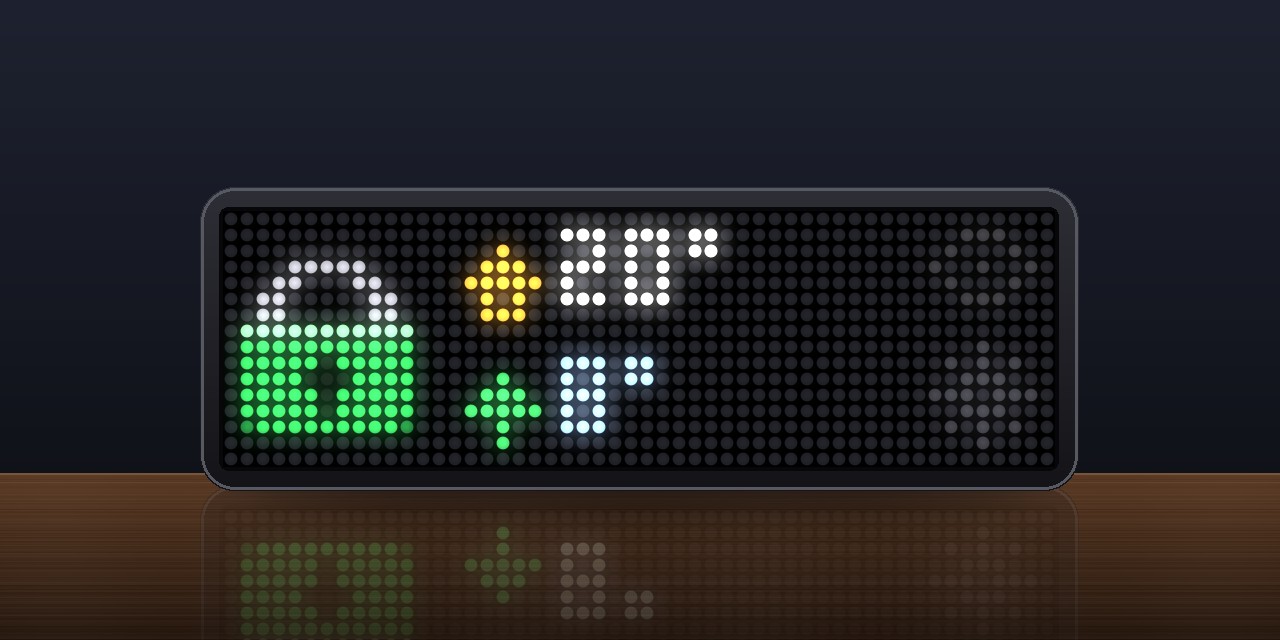
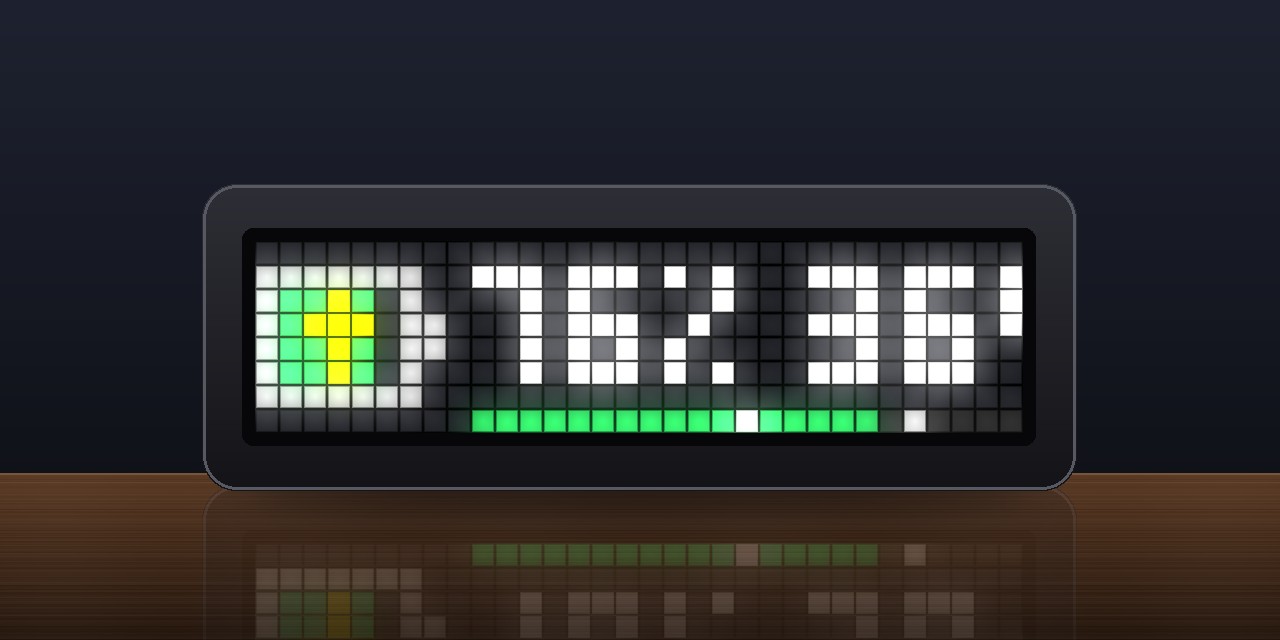
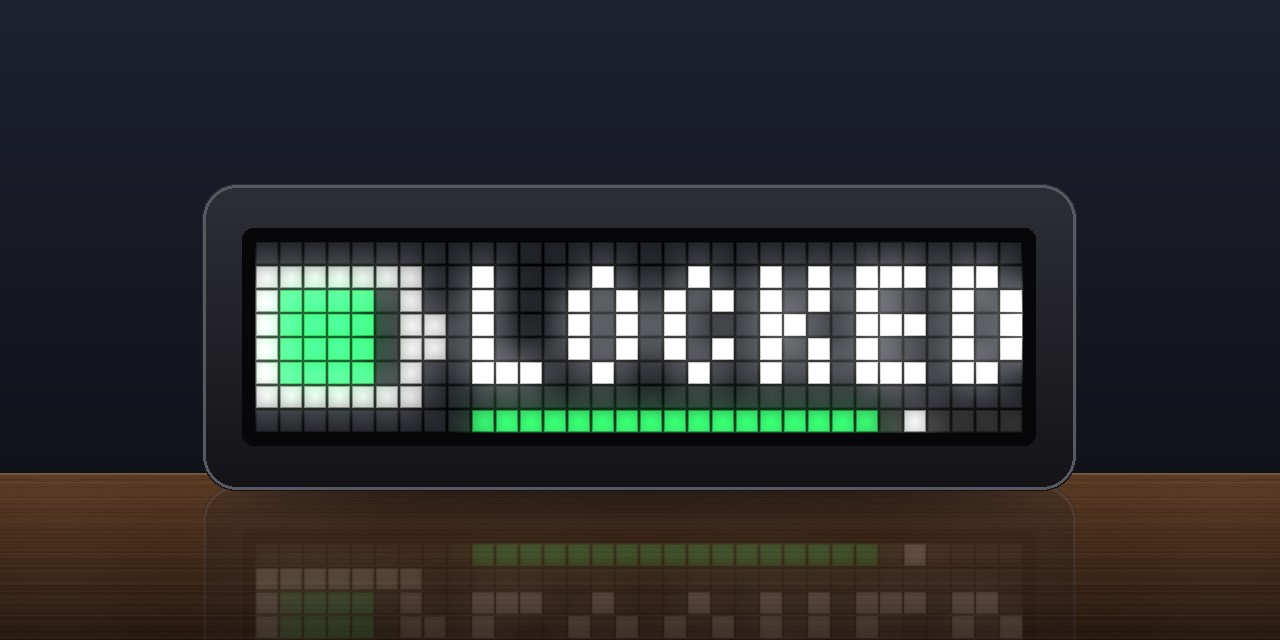
Your Tesla on an AWTRIX NG clock. It shows the charge, the range and charging (power, the time it is full, the energy added), whether the car is locked, the temperatures, the place and a route while driving. It reminds you when charging is done.
- Topic
- Smarthome
- Includes
- Script
Runs on
- Runs on 32×8 (TC001 & DIY) 32×8 (TC001 & DIY) version
- Runs on 52×16 (TC002)
- Does not run on 32×8 with AWTRIX 3 (TC001 & DIY) Made for AWTRIX NG.
Choose your display in the next step.
Script description
Features
Both clocks
- Charge and range, in km or miles. The charge is green, yellow from 50 % down and red under
20 %, and a bar shows it with the charge limit as a mark. - Charging: a light runs through the bar, with the power, the time it is full and the energy
added ("Charging 11 kW - full 22:30 - +7 kWh"). - Status:
- plugged in, with the start of a scheduled charge;
- charged up to the limit;
- parked or asleep, with the place;
- driving, with the speed, or with the destination and the minutes left while it navigates.
- Details: locked or unlocked, Sentry Mode, climate, and inside and outside temperature.
- Reminders, each with a sound and each can be turned off:
- charging is done;
- the charge drops below a level while unplugged;
- the car is not plugged in at an hour you choose, at home and below its charge limit;
- the car is parked and unlocked for a number of minutes;
- a software update is waiting, once per version.
- For other scripts: the app shares
tesla.soc,tesla.range,tesla.chargingand
tesla.statuswithshared.get(), for a dashboard or an automation script. - Offline: the last values stay after a restart. A red mark says the newest could not be
fetched. - Languages: English and German.
TC002 (52x16, knob)
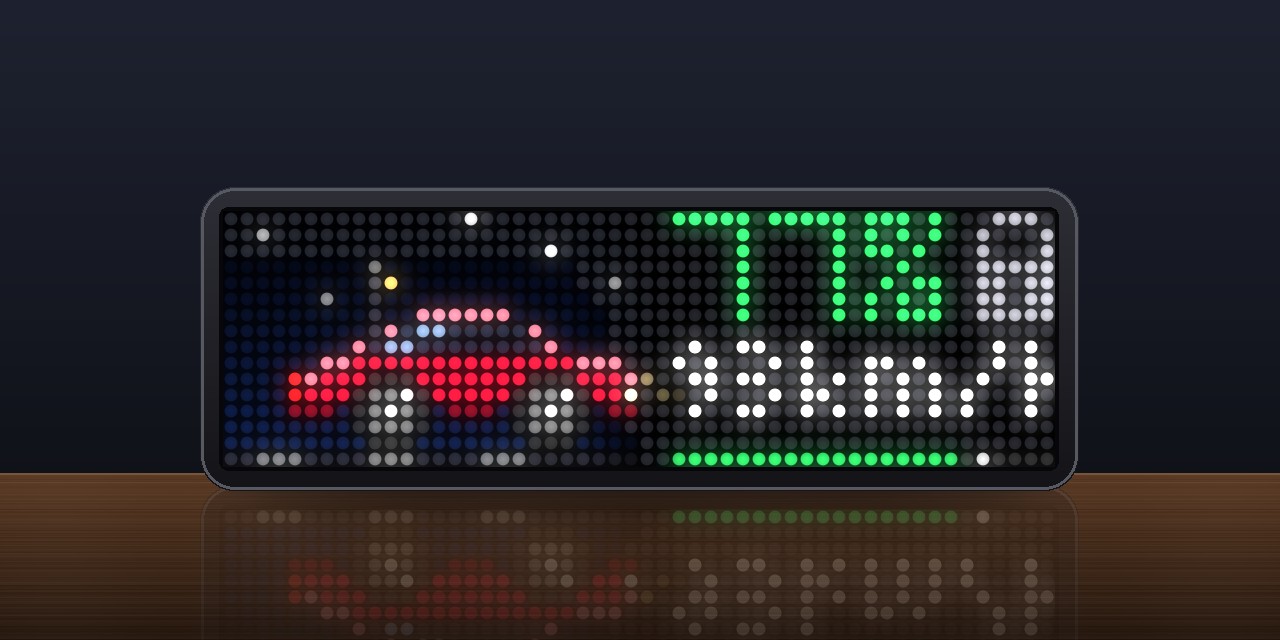
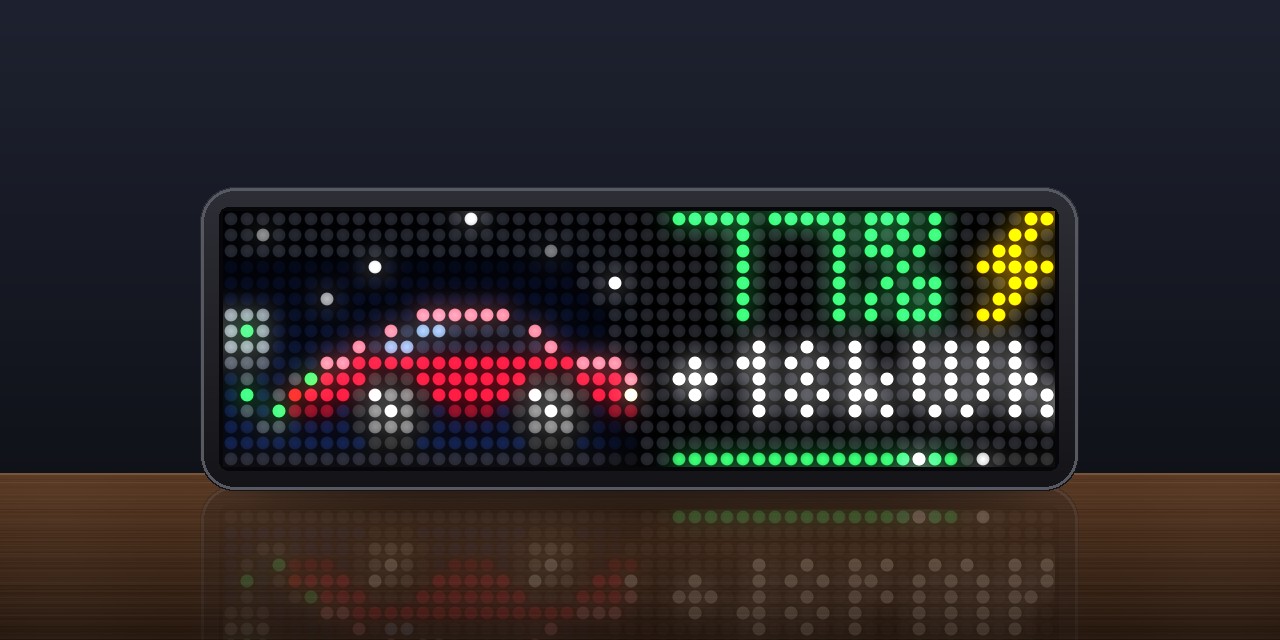
- Battery view: the car in a little scene on the left; on the right the charge, counting up
when the view appears, a sign for charging or the lock, one line of details at a time (power,
the time it is full, the energy added, the range, the place) and the bar.- The car: a Model S or 3, or a taller Model X or Y, in its paint. TeslaMate gives the color
and the model; otherwise choose them under Color and Body. - The sky follows the hour: night with twinkling stars, dawn and dusk, day.
- Charging: a wall charger, energy running along the cable, the charge port glowing green
(solid green when done, blue while it waits for a scheduled start). - Driving: the wheels turn, the road and street lights go by, the head light shines at
night. - Asleep: the car dims and Zzz rise from it. Sentry Mode shows a red light, the climate a
shimmer over the roof.
- The car: a Model S or 3, or a taller Model X or Y, in its paint. TeslaMate gives the color
- Status view: a padlock that clicks shut (green) or stands open (orange), inside and outside
temperature, Sentry Mode as a glowing red eye, the climate as a flickering flame or a glinting
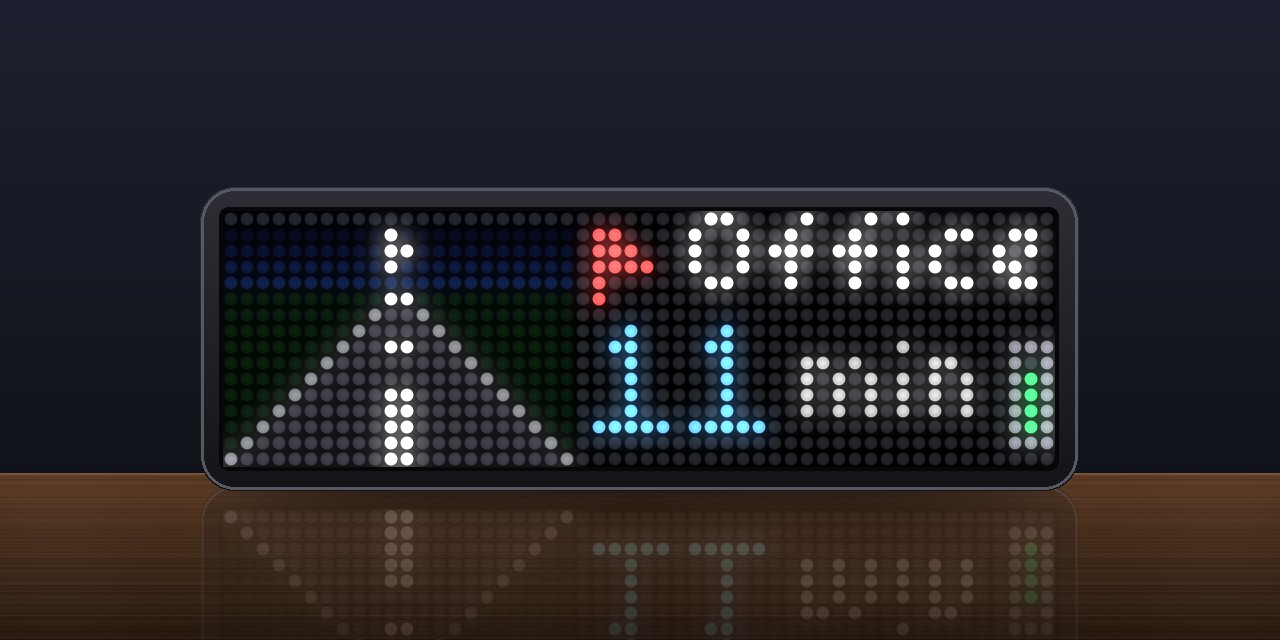
snowflake. - Trip view: while navigating, a road running to the horizon, the destination, the minutes
left and a small battery for the charge on arrival; otherwise the odometer, counting up, with
the place or a waiting update. - The views slide from one to the next.
- Knob: press for the next view, hold to fetch again, turn to switch between two cars; the
next car drives in. - Reminders with a chime on the synthesizer.
TC001 (32x8, buttons)
- An 8x8 battery in the charge's color, with a flash while charging. Next to it the charge, the
range and the status as running text, and the bar in the bottom row. - Select switches between the battery and the status.
- Reminders with a melody on the buzzer.
- About 34 KB of the 96 KiB all scripts on a TC001 share.
Setting it up
Choose the Source and enter the Car in the app's settings.
TeslaMate (recommended)
TeslaMate logs your car and publishes its values over MQTT. The app reads them from the broker the
clock is already connected to. It sends no request to Tesla, costs nothing and never wakes the car.
- In TeslaMate, turn on MQTT and point it at your broker.
- On the clock, set up MQTT with the same broker (System → MQTT).
- In the app: source
teslamate, car1(TeslaMate's number for the car; the second car is
2). If TeslaMate uses a namespace, set the topic toteslamate/<namespace>.
Home Assistant
With Home Assistant's Tesla Fleet, Teslemetry or Tessie integration, the app reads the
car's entities with one request to /api/template.
- In Home Assistant, create a long-lived token (your profile → Security).
- In the app: source
home-assistant, the address (such ashttp://homeassistant.local:8123),
the token, and as car the prefix of the car's entities. Forsensor.model_y_battery_level
that ismodel_y.
It reads these entities; missing ones are left out:
sensor.<car>_battery_level,_battery_range,_charging,_charger_power,
_time_to_full_charge,_charge_energy_added,_inside_temperature,_outside_temperature,
_speedand_odometer;number.<car>_charge_limit,lock.<car>_lock,climate.<car>_climate,
device_tracker.<car>_location,update.<car>_updateandswitch.<car>_sentry_mode.
Tessie
Tessie is a paid service that reads the car through Tesla's API. It answers from its cache, so the
app does not wake the car.
- At dash.tessie.com/settings/api, create an access
token. - In the app: source
tessie, the car's VIN, and the token.
The app reads the vehicle's state section by section with AWTRIX's find, five small requests
per refresh (every 2 minutes by default).
Tokens are stored as plain text in the app's settings, and anyone who can reach the clock
can read them. Set a login for the clock (System → Web login). For Home Assistant, use a user
with as few rights as possible.
Sign in to view and copy the code of this script.
Discussion 0
Ask a question, suggest a change or share how you use it.
No comments yet. Start the conversation.
Have an idea?
Sign in to ask questions and join the conversation.