ScriptAWTRIX NG
YearPixels
On an AWTRIX display
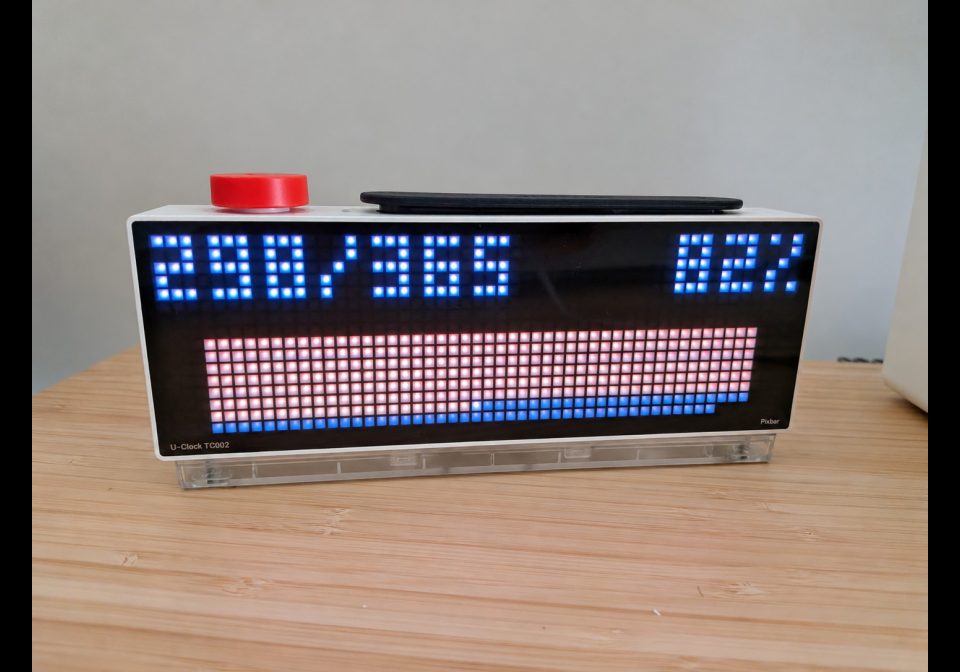
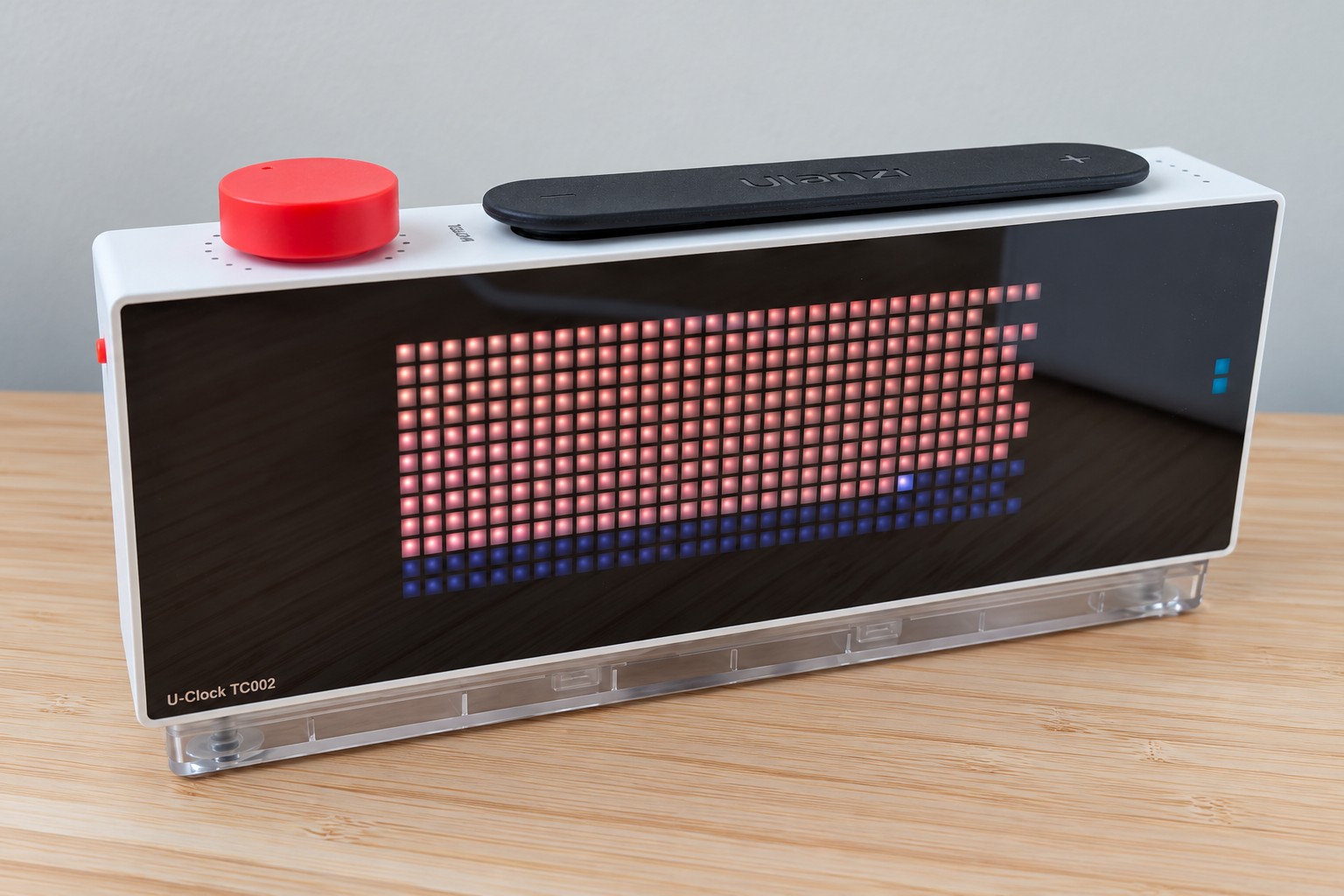
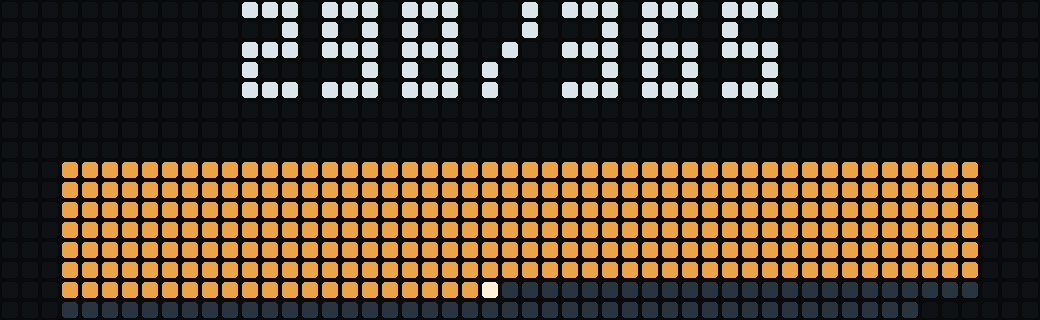
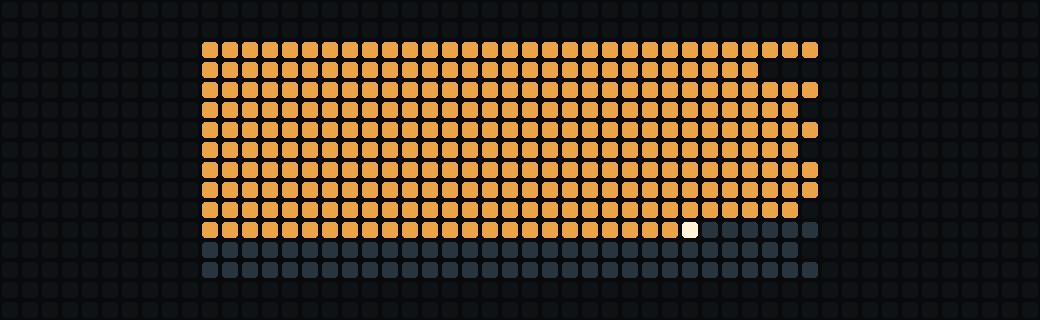
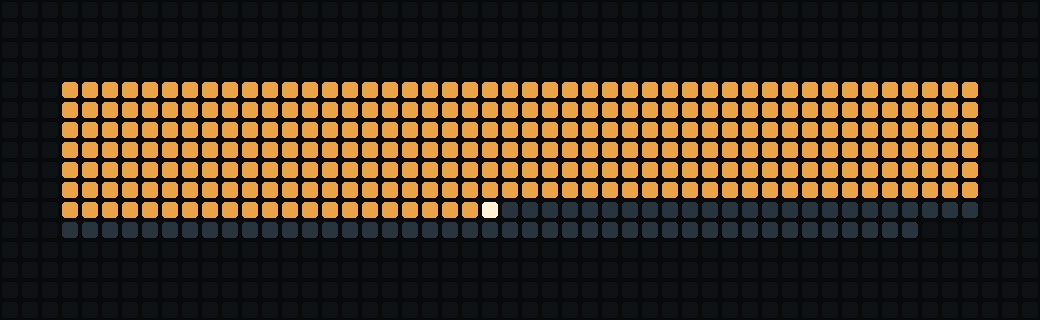
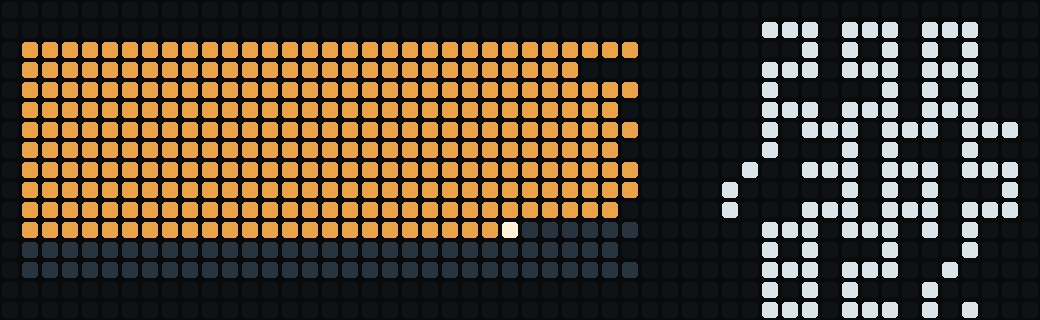
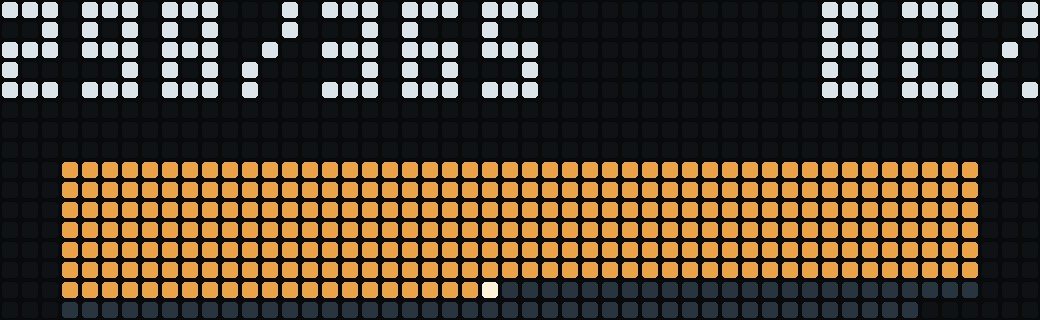
On your display
Your year at a glance: one pixel per day, two layouts, and fully customizable colors
Which AWTRIX do you have?
See below where it runs, or choose your device.
- Topic
- Miscellaneous
- Includes
- Script
Runs on
- Does not run on 32×8 (TC001 & DIY) Made for 52×16 (TC002).
- Runs on 52×16 (TC002)
- Does not run on 32×8 with AWTRIX 3 (TC001 & DIY) Made for AWTRIX NG.
Choose your display in the next step.
Script description
See the whole year in a single glance. YearPixels gives every day its own pixel, with separate colors for past days, today, and the days still ahead.
Choose between two layouts:
- Original: a continuous grid that fills from left to right, top to bottom.
- Months: one row per month, from January at the top to December at the bottom. Each row contains exactly as many pixels as that month has days.
Show the day counter and year percentage, keep just one, or hide both for a clean, automatically centered calendar.
Features - Optional counter: day/total, day of the year, or days remaining.
- Optional percentage: elapsed or remaining.
- Separate color pickers for past days, today, future days, the counter, the percentage, and the background.
- Automatic date changes and leap-year support.
- Configurable appearance interval and time on screen.
- Uses the clock's local date. No account, API key, external service, extra icons, or companion script required.
Setup
- Install on a Ulanzi TC002 running AWTRIX NG (52 × 16).
- Open Apps, find YearPixels, and click its gear button.
- Choose your layout, indicators, and colors, then save.
By default, YearPixels appears once after installation or a restart, then at the next rotation after 30 minutes have passed since its previous appearance. Set Appearance interval to 0 to show it on every rotation. This is an interval, not a schedule at fixed minutes of the hour.
Display duration defaults to 0, which uses the device's global app duration. Set a value in seconds to override it for YearPixels.
How to read it
The default colors are amber for past days, warm white for today, and dim blue-gray for future days.
For example, 298/365 means today is the 298th day of the year. The elapsed percentage includes today and rounds to the nearest whole percent. Days remaining excludes today. In the Months layout, the full day/total counter is split across two lines to fit.
If the calendar shows the wrong date, check the clock's time zone and date/time settings. After changing the app's settings, it restarts and can appear once immediately.
Sign in to view and copy the code of this script.
Community
Discussion 0
Ask a question, suggest a change or share how you use it.
No comments yet. Start the conversation.
More scripts in Miscellaneous
Something wrong with this script? Report it.
Have an idea?
Sign in to ask questions and join the conversation.