EVCC Battery Status via MQTT
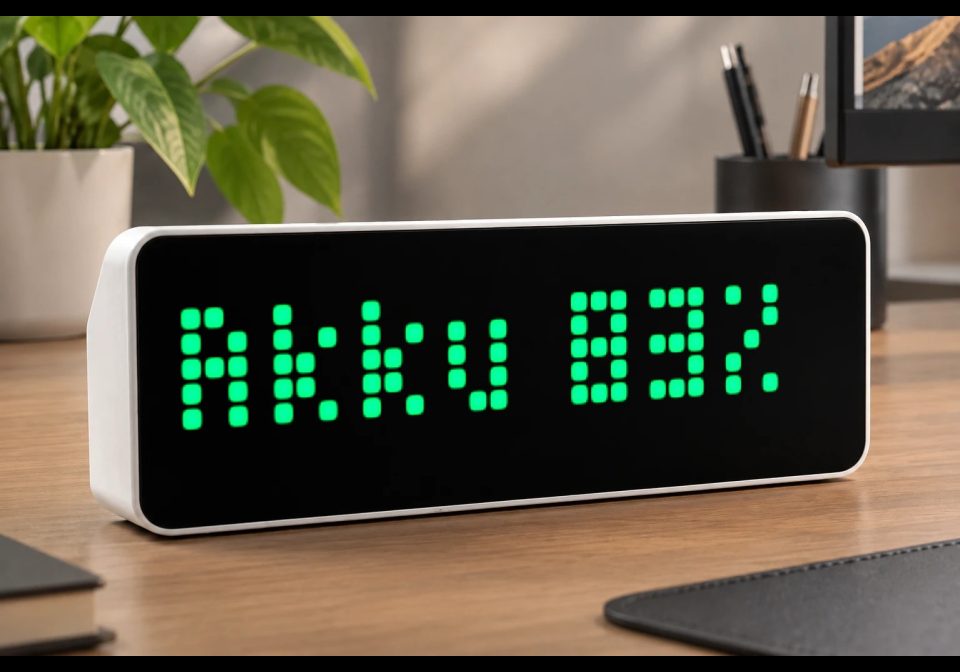
On your display
Shows EVCC battery SOC and live charge/discharge power directly on AWTRIX NG.
- Topic
- Smarthome
- Includes
- Script
Runs on
- Runs on 32×8 (TC001 & DIY)
- Runs on 52×16 (TC002)
- Does not run on 32×8 with AWTRIX 3 (TC001 & DIY) Made for AWTRIX NG.
Choose your display in the next step.
Is this your script?
If you created this script, open your saved edit link to add it to your account. You can then manage it whenever you sign in. Adding it to your account replaces the edit link.
Script description
Displays the current EVCC home-battery state of charge and live charge/discharge power as a permanently rotating AWTRIX NG script app.
Requirements
- AWTRIX NG connected to the same MQTT broker as EVCC
- EVCC battery topics enabled
MQTT topics
- evcc/site/battery/soc — state of charge in percent
- evcc/site/battery/power — battery power in watts (positive = discharging, negative = charging)
Setup
- Open the AWTRIX NG web interface.
- Go to Scripts and create a new script.
- Paste the code and save it.
- Add the script to the app rotation if it is not enabled automatically.
The text is green while charging, orange while discharging, and gray while idle. Values update immediately when EVCC publishes new MQTT messages. The ±50 W threshold prevents small standby fluctuations from changing the status.
Sign in to view and copy the code of this script.
Discussion 0
Ask a question, suggest a change or share how you use it.
No comments yet. Start the conversation.
Have an idea?
Sign in to ask questions and join the conversation.