OSU!Stats

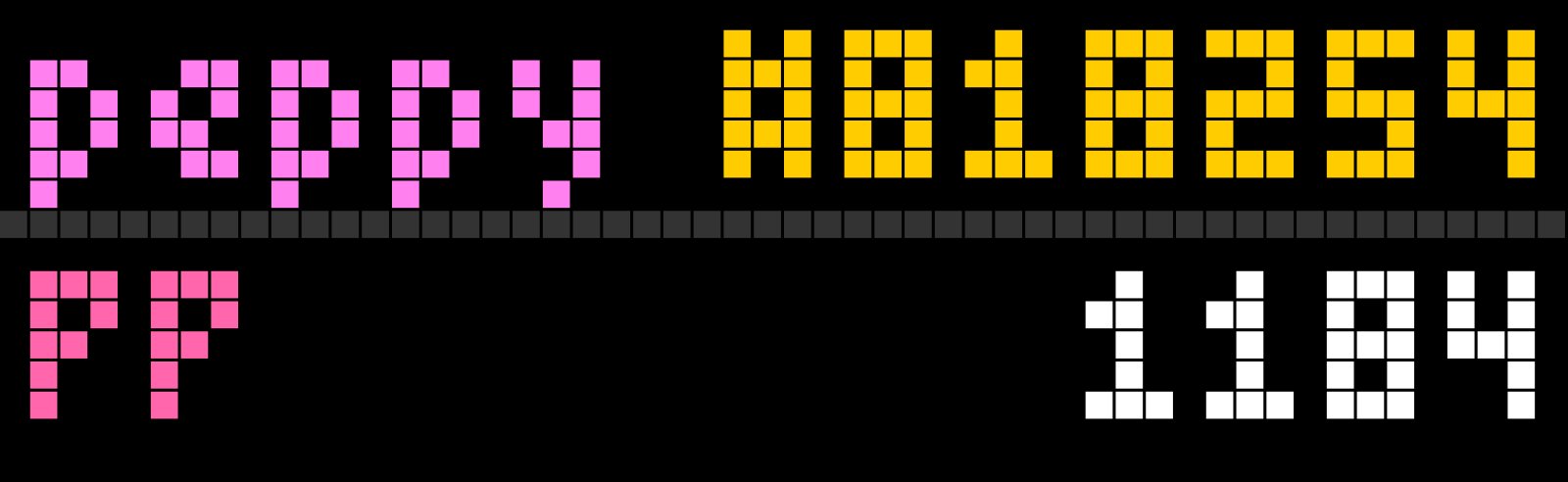
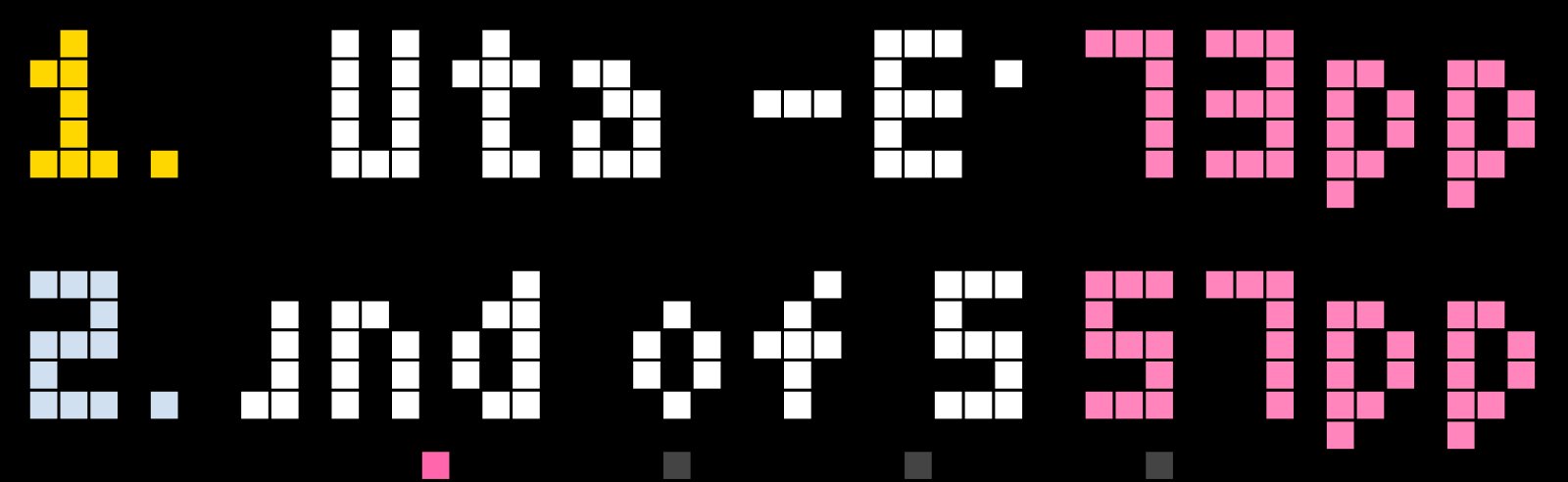
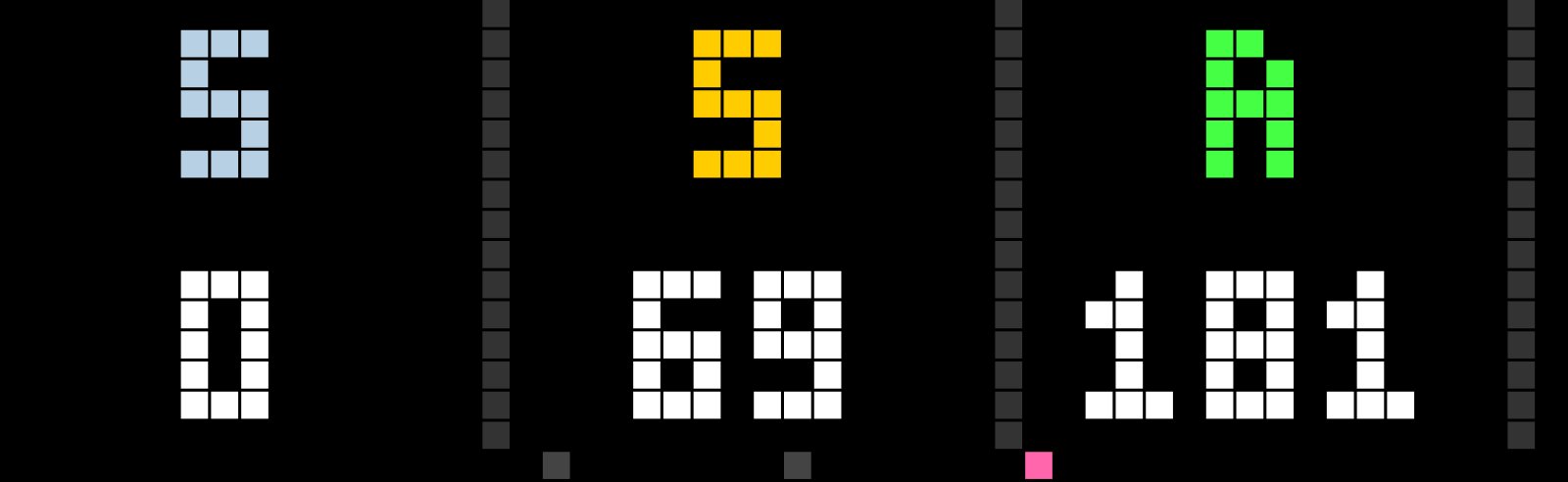
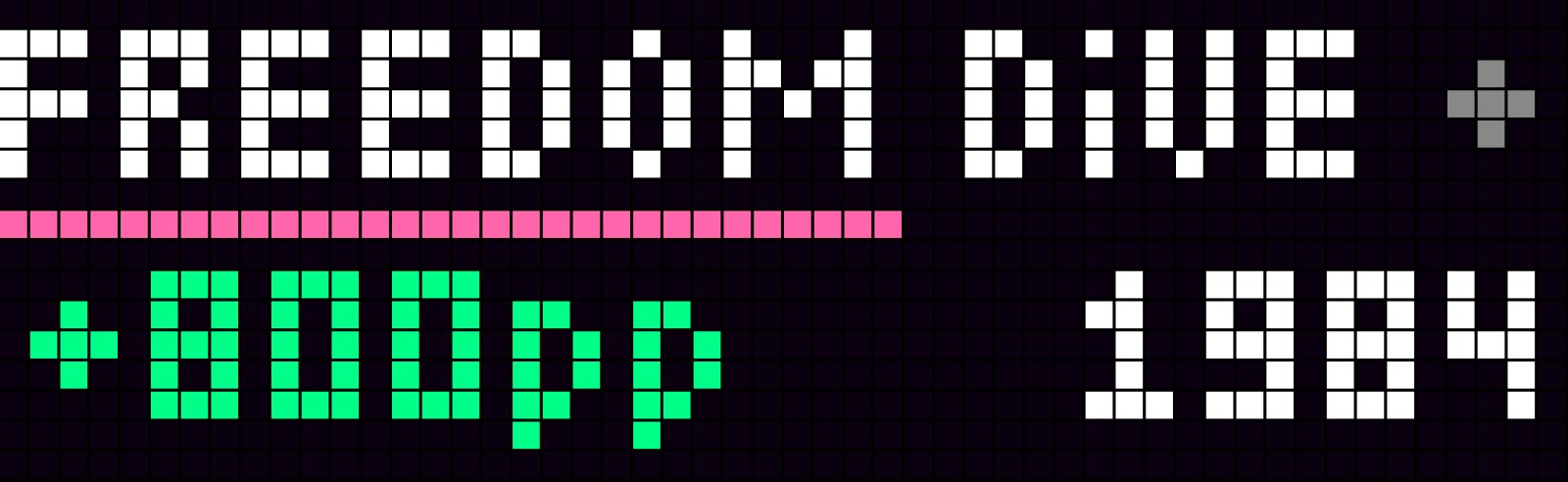
On your display
Shows PP (performance points), notify about scores, and etc.
- Topic
- Gaming
- Includes
- Script
Runs on
- Does not run on 32×8 (TC001 & DIY) Made for 52×16 (TC002). Needs an AWTRIX that keeps API keys.
- Runs on 52×16 (TC002) API key: open the app's settings on your AWTRIX and enter your key.
- Does not run on 32×8 with AWTRIX 3 (TC001 & DIY) Made for AWTRIX NG.
Choose your display in the next step.
Script description
HOW TO SETUP
-
Create an osu! OAuth Application
Sign in to osu.ppy.sh
→ Account Settings → OAuth → New OAuth Application.
Enter any Application Name (e.g. AWTRIX Stats) and http://localhost in URL callback
Leave Application Callback URL blank (not required for Client Credentials).
Click Register application, then copy your numeric Client ID and Client Secret. -
Configure the App in AWTRIX
Open the Apps tab in AWTRIX Web UI and click the gear icon on the osu! Stats row:
API keys:
osu! Client ID: paste your numeric Client ID (no spaces).
osu! Client Secret: paste your Client Secret.
General settings:
osu! Username (peppy): your osu! nickname.
Game Mode: standard (osu), taiko, catch, or mania.
osu! Client: lazer or classic
Top Plays (5, range 3–10): number of top plays to load.
Optional groups:
Colors: customize Username Color , PP Color , and Top Plays PP Color.
Scrolling: Scrolling (both / auto / knob), Auto-Scroll (sec) (1–30), and Top Text Speed (25%–300%).
Maps & Mods: choose what appears in beatmap names (Artist, Song Title, Mapper, Difficulty, Enabled Mods) and set Mod Color Mode (by_mod or a fixed color).
Notifications:
Check Interval (sec) (5, range 3–60) & Alert Duration (sec) (8, range 3–30)
Alert Scroll Speed (25%–300%)
PP Alert Sound: melody (plays from AWTRIX Audio → Melodies via Melody Name without .txt, or built-in tone if blank), mp3 (plays MP3 Name / URL without .mp3), or off (mute).
Test Notification: turn on and click Save to preview a PP gain alert.
Click Save at the bottom of the settings page. -
Controls on the Clock
Select / Left / Right buttons: switch between the 3 screens (Profile & PP → Top Plays → Grade Counts), or dismiss an active PP alert.
Knob (TC002): scroll manually through Top Plays and Grade Counts (when Scrolling is both or knob).
Sign in to view and copy the code of this script.
Discussion 0
Ask a question, suggest a change or share how you use it.
No comments yet. Start the conversation.
Have an idea?
Sign in to ask questions and join the conversation.