Sonos Cloud Now Playing
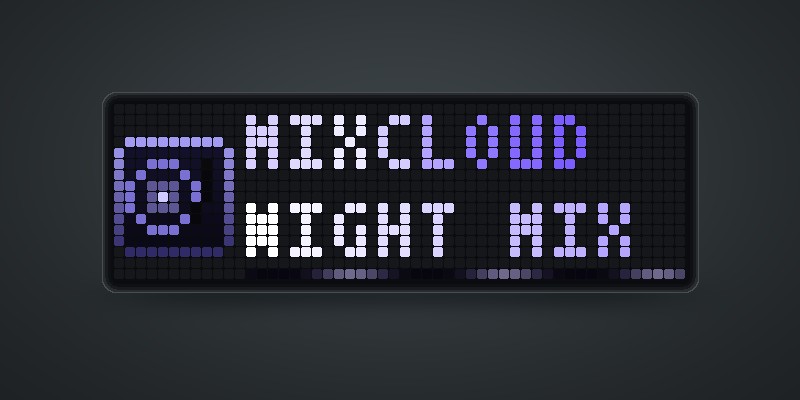
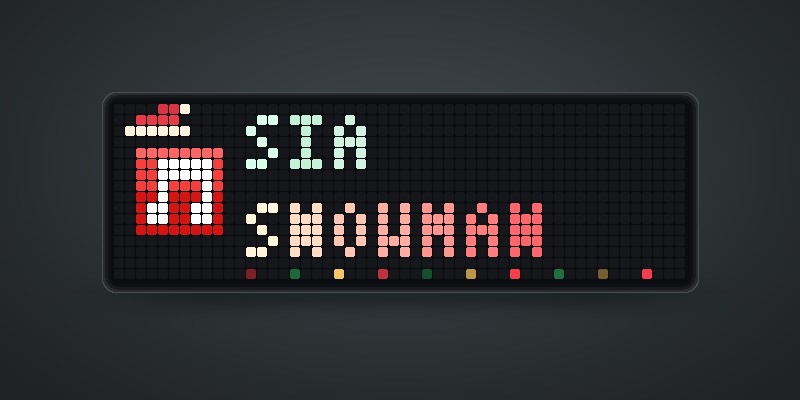
On your display
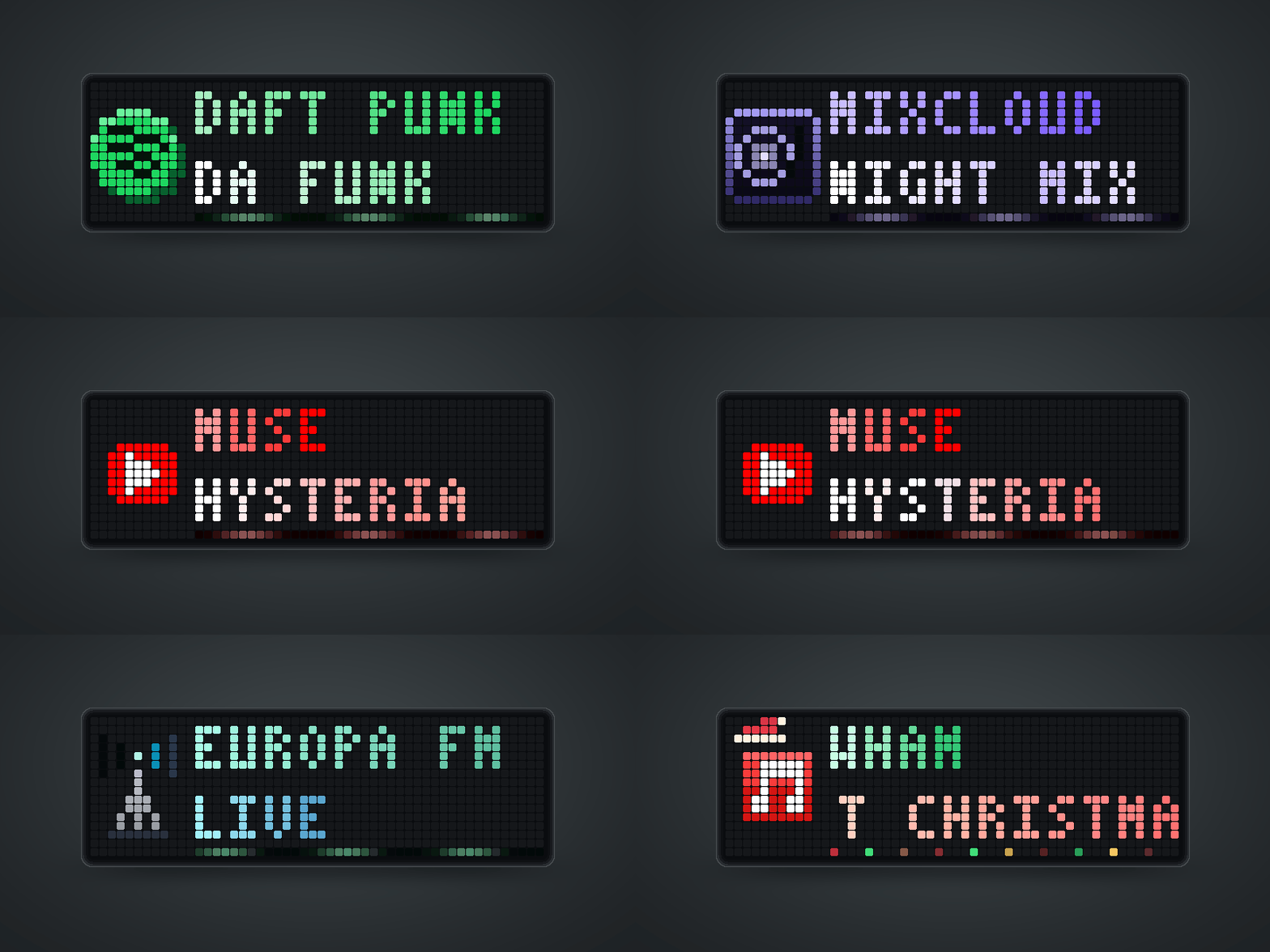
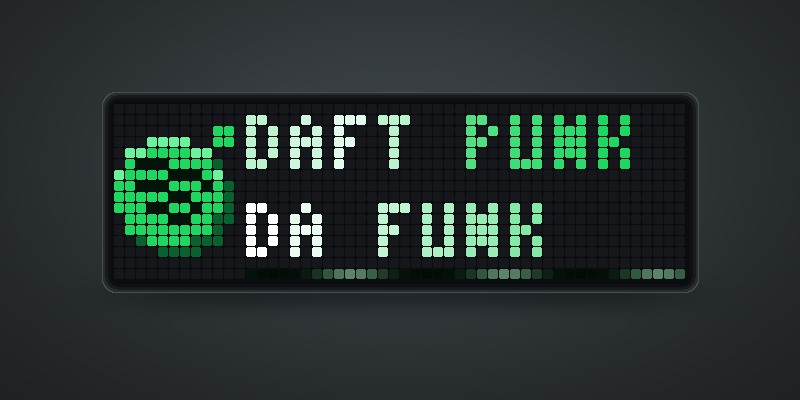
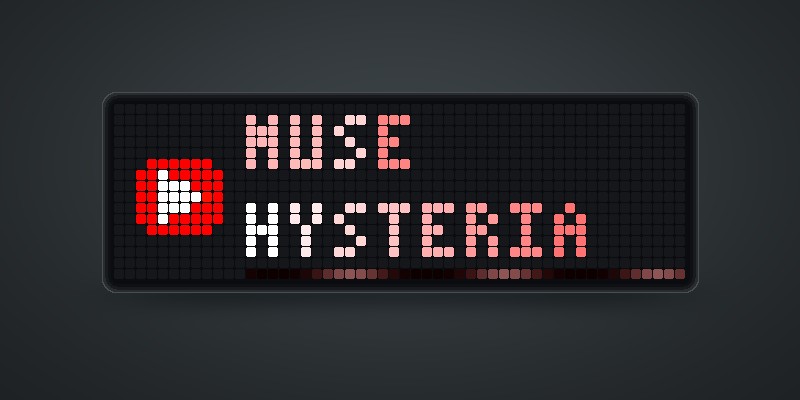
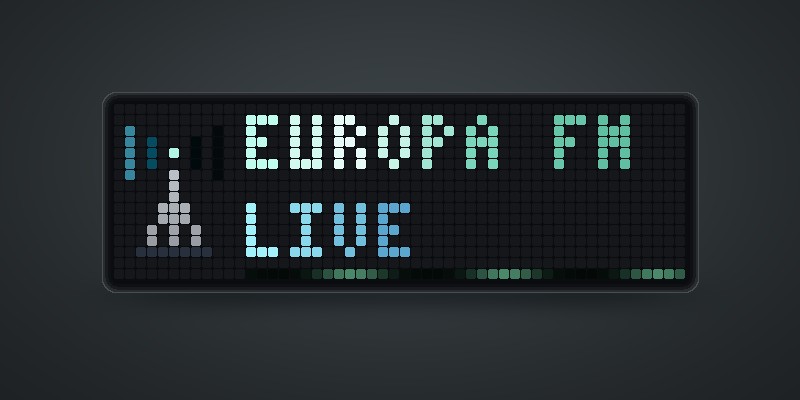
What's playing on your Sonos, with its own icon and colours per source. Straight from the Sonos cloud, no Home Assistant.
- Topic
- Multimedia
- Includes
- Script
Runs on
- Does not run on 32×8 (TC001 & DIY) Needs an AWTRIX that signs in to services.
- Runs on 52×16 (TC002) Sign-in: open the app's settings on your AWTRIX, enter your client ID and press Sign in.
- Does not run on 32×8 with AWTRIX 3 (TC001 & DIY) Made for AWTRIX NG.
Choose your display in the next step.
Script description
What's inside
- Artist and title of whatever your Sonos is playing, with a gradient across the letters and a glint that runs over them.
- In the rotation only while music plays. When Sonos is silent, or the soundbar is on TV audio, the app steps aside.
- A hand-drawn, animated icon for every source, and an own icon and colour scheme for four services.
- A Christmas look that switches itself on for the season.
- No Home Assistant, no MQTT, no second computer. The clock signs in to Sonos and asks the Sonos cloud directly, so it also works when the clock cannot reach your speakers on the local network.
The icons
Each source has its own 11 × 12 pixel icon on the left, and each one moves.
| Source | Icon | What moves |
|---|---|---|
| Music | a speaker | the woofer pulses and sound waves light up one after the other |
| Radio | a broadcast mast | the tip glows and the waves on both sides light up in turn |
| Podcast | a microphone | the capsule glows |
| Audiobook | an open book | the lines of text glow |
| Line-in | level bars | the peaks glow |
| Spotify | its own icon | text and line turn green |
| Mixcloud | its own icon | text and line turn violet |
| YouTube | its own icon | text and line turn red |
| Apple Music | its own icon | text and line turn red |
The icon and the colours follow the source by themselves. Switch from a playlist to a radio station and the panel changes with the next check. A service the script does not know gets the speaker.
Christmas mode
From 25 November to 2 January the app dresses up without you touching anything:
- A Santa cap sits tilted on top of the icon, red with a cream trim and a pompom.
- Fairy lights replace the line under the text: red, green and gold bulbs that twinkle one after the other.
- Festive text colours: the artist in fir green, the title fading from cream to red.
On 3 January everything goes back to the normal look.
What you need
- An Ulanzi TC002 with AWTRIX NG (tested on 1.2.3)
- A Sonos system and your Sonos account
- A free Sonos developer key, which takes about five minutes:
- Go to developer.sonos.com, sign in with your Sonos account and open the integration manager. Choose New control integration and give it any name, description and category.
- Create a key. Key Name can be anything. Set Redirect URI to
https://awtrix.de/oauth/callbackand leave Event Callback URL empty. Save. - Copy the Key and the Secret that Sonos shows you.
How to use it
Install the script, then open Apps, press the gear on its row and find the sign-in section. Paste the Key as client ID and the Secret as client secret, press Sign in, log in to Sonos and allow access. Start some music and the app joins the rotation within a few seconds.
If the panel shows a message instead of a track:
| Message | What to do |
|---|---|
Sign in in the app settings |
The sign-in is not complete. Repeat the step above. |
room not found, have: ... |
The names listed are your rooms. Type one of them into Room. |
Sonos error with a number |
Paste the Key into Sonos key as well and save. |
no connection |
The clock has no internet, or the Sonos cloud is not answering. |
The clock asks Sonos every 10 seconds, so a new track can take that long to appear.
Settings
- Room: leave empty to show whichever room is playing, or type a room name to follow only that one.
- Sonos key (optional): the same value as the client ID. Only needed if nothing loads after signing in.
- Check every: how often the clock asks Sonos, 5 to 120 seconds.
- Show on new track: jump to this app the moment the track or the source changes.
Good to know
- Sonos offers a single access level, which includes playback control. This script only reads what is playing.
- To take the clock's access away, delete the integration in the Sonos developer portal.
Sign in to view and copy the code of this script.
Discussion 0
Ask a question, suggest a change or share how you use it.
No comments yet. Start the conversation.
More scripts in Multimedia
Something wrong with this script? Report it.
Have an idea?
Sign in to ask questions and join the conversation.