Google UpNext
On your display
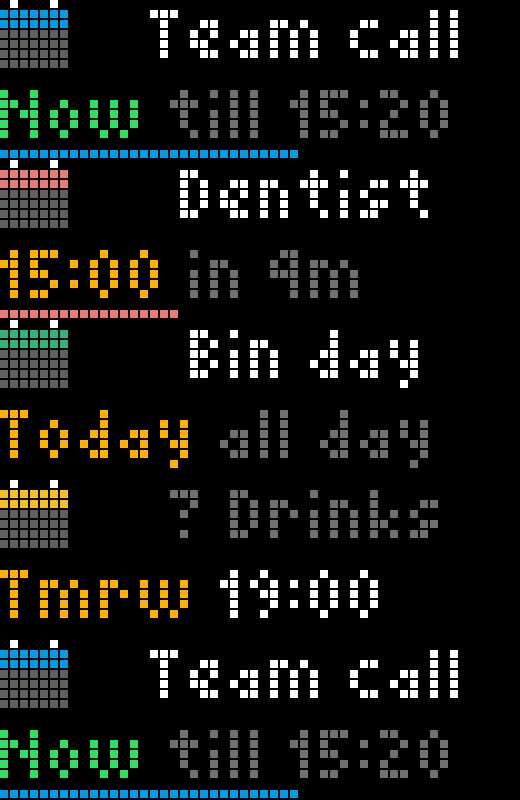
Your next Google Calendar events, with a countdown and a chime before each one.
- Topic
- Smarthome
- Includes
- Script
Runs on
- Does not run on 32×8 (TC001 & DIY) Made for 52×16 (TC002).
- Runs on 52×16 (TC002)
- Does not run on 32×8 with AWTRIX 3 (TC001 & DIY) Made for AWTRIX NG.
Choose your display in the next step.
Script description
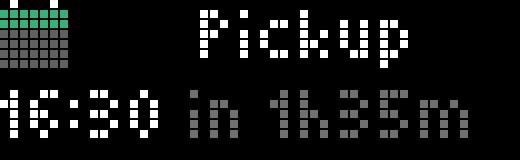
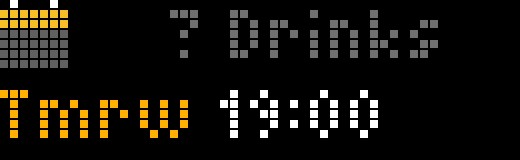
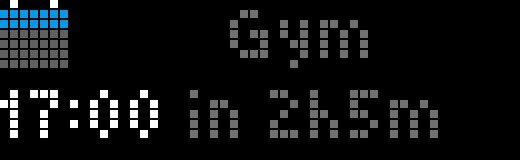
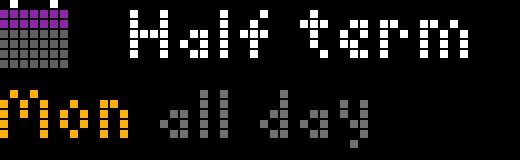
See what's coming up without picking up your phone. Up Next shows your next Google Calendar event, when it starts and how long until then, in the event's own colour.
🌍 Speaks your language: English, Deutsch, Français, Español, Italiano and Nederlands. Pick one in the settings.
What you need: a personal Google account (gmail.com). There's no Google Cloud project, API key or payment to set up. Work and school accounts often don't allow this kind of script; if yours doesn't, share your work calendar with a personal account and use that. Setup takes about five minutes on a computer, once.
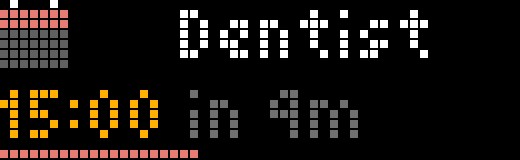
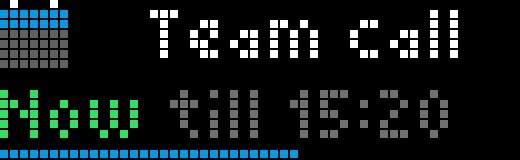
- Countdown: "15:00 in 4m" turns amber as it gets close, and the bottom row empties over the last 10 minutes. During an event it shows how much time is left.
- Chime: a short tune a few minutes before each event, and the app jumps on screen so you don't miss it.
- Look ahead: turn the knob to step through your next eight events, today and beyond.
- Knows what matters: events you've said Maybe to show in grey with a ?, and don't chime. Free time is hidden, and declined events and working locations are left out.
How it works
The clock can't sign in to Google, so a small script in your own Google account does that part. It's called the bridge: it reads your calendar and hands the clock a short list of what's coming up. It can only read your calendars, never change them, and nothing goes through anyone else's server.
Setup
1. Make the bridge (on a computer)
- Go to script.google.com and press New project. Click Untitled project at the top and name it Up Next.
- Open Project Settings (⚙ on the left) and tick Show "appsscript.json" manifest file in editor. Go back to the Editor (
<>on the left). - Click appsscript.json, delete what's in it, and paste in the first file below.
- Click Code.gs, delete what's in it, and paste in the second file below. Press the save icon.
- Press Deploy → New deployment. Next to Select type, press the gear and choose Web app. Check it says Execute as: Me and Who has access: Anyone.
- Press Deploy, then Authorize access and choose your Google account. Google warns that it hasn't verified this app, because you made it yourself: press Advanced → Go to Up Next (unsafe). It only asks to See and download any calendar you can access. Press Allow.
- Copy the Web app URL. It ends in
/exec. Open it in your browser to check: you should see your next events as text.
2. Connect the clock
On the clock's web page, open the Apps tab, press ⚙ next to Up Next, paste the link into Bridge URL and save. Set Language there too.
Both files are also inside the app: open Up Next on the clock's Scripts tab and copy them from the top of the script.
Anyone with the bridge link can see your event names and times for the next couple of days, so keep it to yourself.
appsscript.json
{
  "timeZone": "Etc/UTC",
  "dependencies": {
    "enabledAdvancedServices": [{"userSymbol": "Calendar", "serviceId": "calendar", "version": "v3"}]
  },
  "oauthScopes": ["https://www.googleapis.com/auth/calendar.readonly"],
  "webapp": {"executeAs": "USER_DEPLOYING", "access": "ANYONE_ANONYMOUS"},
  "exceptionLogging": "STACKDRIVER",
  "runtimeVersion": "V8"
}
Code.gs
// Up Next bridge: sends your next calendar events to the clock as a small JSON list.
// It can only read your calendars: appsscript.json asks Google for read-only access.
// Setup steps are in the README.

var CALENDARS = [];  // calendar IDs, e.g. ["me@gmail.com", "family123@group.calendar.google.com"]. Empty: every calendar ticked in Google Calendar
var DAYS = 2;        // how many days ahead to look
var MAX = 8;         // how many events to send

// Google Calendar's event colours, by colour ID
var EVENT_COL = {"1": "#7986CB", "2": "#33B679", "3": "#8E24AA", "4": "#E67C73", "5": "#F6BF26", "6": "#F4511E",
                 "7": "#039BE5", "8": "#616161", "9": "#3F51B5", "10": "#0B8043", "11": "#D50000"};

function doGet() {
  var tz = Calendar.Settings.get("timezone").value;  // your Google Calendar time zone
  var now = new Date();
  var today = midnight(ymd(now, tz), tz);
  var until = new Date(today + (DAYS + 1) * 864e5);
  var cals = Calendar.CalendarList.list({maxResults: 250}).items.filter(function (c) {
    return CALENDARS.length ? CALENDARS.indexOf(c.id) >= 0 : c.selected && !c.hidden;
  });
  var out = [];
  cals.forEach(function (cal) {
    var evs = Calendar.Events.list(cal.id, {timeMin: now.toISOString(), timeMax: until.toISOString(),
                                            singleEvents: true, orderBy: "startTime", maxResults: 50}).items || [];
    evs.forEach(function (ev) {
      if (ev.eventType == "workingLocation") return;   // "Home"/"Office" every day: noise on a clock
      var me = (ev.attendees || []).filter(function (a) { return a.self; })[0];
      var answer = me ? me.responseStatus : "accepted";
      if (answer == "declined") return;
      var all = !ev.start.dateTime;
      var s = all ? midnight(ev.start.date, tz) : Date.parse(ev.start.dateTime);
      var e = all ? midnight(ev.end.date, tz) : Date.parse(ev.end.dateTime);
      var m = all ? s : midnight(ymd(new Date(s), tz), tz);
      out.push({
        t: (ev.summary || "(No title)").slice(0, 60),
        s: s, e: e, a: all ? 1 : 0,
        m: m,                                            // midnight of the start day
        h: Utilities.formatDate(new Date(s), tz, "HH:mm"),
        z: Utilities.formatDate(new Date(e), tz, "HH:mm"),
        f: ev.transparency == "transparent" ? 2                                           // free
           : (answer == "tentative" || answer == "needsAction" || ev.status == "tentative") ? 1  // maybe
           : 0,                                                                              // busy
        c: parseInt((EVENT_COL[ev.colorId] || cal.backgroundColor).slice(1), 16),
        // all-day events sort after the timed events of their (first remaining) day
        k: all ? Math.max(m, today) + 864e5 - 1 : s
      });
    });
  });
  out.sort(function (x, y) { return x.k - y.k; });
  out = out.slice(0, MAX).map(function (x) { delete x.k; return x; });
  return ContentService.createTextOutput(JSON.stringify(out)).setMimeType(ContentService.MimeType.JSON);
}

function ymd(d, tz) {
  return Utilities.formatDate(d, tz, "yyyy-MM-dd");
}

// "2026-10-16" -> ms at local midnight in tz. Looks the UTC offset up twice, so a
// daylight-saving change that day lands on the right side.
function midnight(day, tz) {
  var utc = Date.parse(day + "T00:00:00Z");
  var t = utc - offset(utc, tz);
  return utc - offset(t, tz);
}

// UTC offset of tz at ms, in ms
function offset(ms, tz) {
  var o = Utilities.formatDate(new Date(ms), tz, "XXX");  // "+01:00", "-05:30" or "Z"
  if (o == "Z") return 0;
  return (o[0] == "-" ? -1 : 1) * (parseInt(o.slice(1, 3), 10) * 60 + parseInt(o.slice(4, 6), 10)) * 6e4;
}
Sign in to view and copy the code of this script.
Discussion 0
Ask a question, suggest a change or share how you use it.
No comments yet. Start the conversation.
Have an idea?
Sign in to ask questions and join the conversation.