Solar Clock
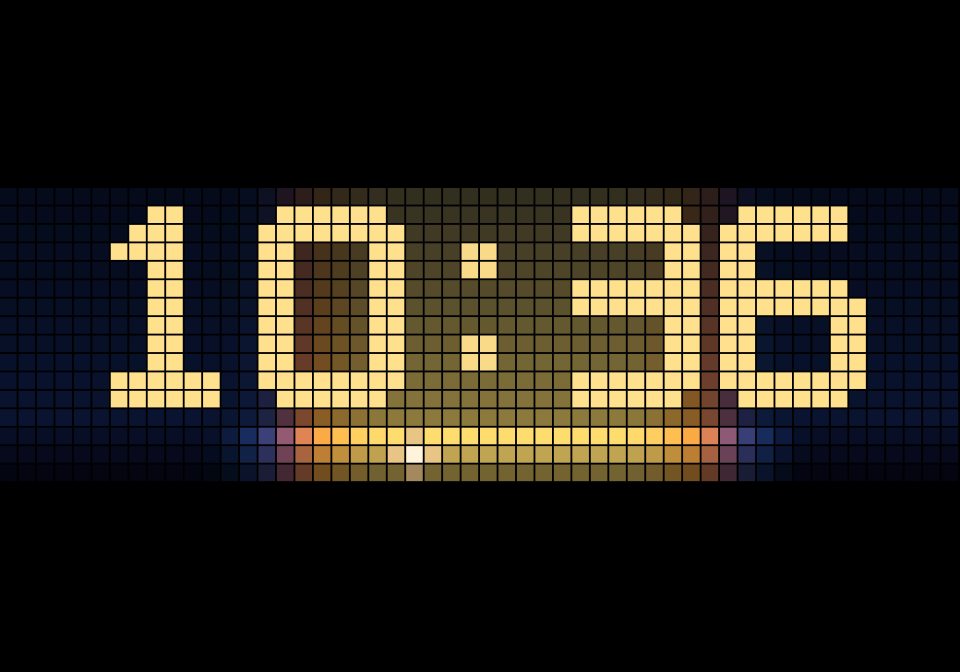
On your display
Dynamic 52×16 solar clock featuring an astronomical day/night horizon, real-time sun tracking, and adaptive ambient sky lighting.
- Topic
- Miscellaneous
- Includes
- Script
Runs on
- Does not run on 32×8 (TC001 & DIY) Made for 52×16 (TC002).
- Runs on 52×16 (TC002)
- Does not run on 32×8 with AWTRIX 3 (TC001 & DIY) Made for AWTRIX NG.
Choose your display in the next step.
Script description
SolarClock
A clock for 52×16 panels that shows the whole day as a sky. The time is drawn with custom-built digits. Behind it, a soft sky gradient and a 3-pixel horizon bar show how the sky changes from night to dawn, day, dusk and back to night. A small pulsing sun marks the current time.
Everything is calculated on the clock from your coordinates and the clock's time. There is no internet access, no Home Assistant and no MQTT involved.
Features
- Custom digits: 8×11 pixel digits with rounded corners, drawn by the script itself
- 24 h sky horizon: the 52 columns are the 24 hours of your local day, from midnight on the left to midnight on the right. Each column shows the sky colour at that time of day
- Ambient sky background: a vertical gradient above the horizon in the same colours (can be switched off)
- Sun marker: a small plus-shaped sun on the horizon bar shows "now" and pulses gently
- Digit colour follows the sun: cool blue at night, soft peach around sunrise and sunset, warm yellow during the day
- Pulsing colon: breathes with a 2 s cycle (or steady, or off)
- 12 h / 24 h with an AM/PM indicator, optional leading zero
Requirements
- AWTRIX NG on a 52×16 panel, for example the Ulanzi TC002. The layout is built for exactly 52×16 pixels, so it does not fit a 32×8 clock such as the TC001.
- The clock needs a valid time (NTP). Until then the display stays empty.
Setup
- Open the web UI of your clock and go to the Scripts tab.
- Create a new script named
SolarClockand paste the code (or install it from the Hub). - Save. The script appears in the app rotation.
- Go to the Apps tab, click the ⚙ button next to SolarClock and enter your latitude and longitude. The defaults are for Vienna and will be wrong for most places.
- The time zone comes from your clock's system settings.
Settings
| Setting | Default | Description |
|---|---|---|
| Time format | 24 | 24 or 12 (12 h mode shows AM/PM) |
| Leading zero | 1 | 1 shows a leading zero (07:05), 0 hides it |
| Colon | 1 | 0 off, 1 pulse, 2 solid |
| Ambient sky | 1 | 1 shows the sky background, 0 black background |
| Latitude | 48.2082 | Your latitude in decimal degrees |
| Longitude | 16.3738 | Your longitude in decimal degrees (east is positive) |
How the sky is coloured
The sun's elevation above the horizon decides the colour:
| Sun elevation | Sky |
|---|---|
| below -18° | night |
| -18° to -6° | deep blue (astronomical and nautical twilight) |
| -6° to -2° | blue to violet |
| -2° to 2° | violet to peach (sunrise / sunset) |
| 2° to 8° | peach to gold |
| 8° to 20° | gold to bright day yellow |
| above 20° | day |
Because the bar covers a whole day, you also see how long the days are right now. In summer the bright part is wide, in winter it is narrow.
Sign in to view and copy the code of this script.
Discussion 0
Ask a question, suggest a change or share how you use it.
No comments yet. Start the conversation.
More scripts in Miscellaneous
Something wrong with this script? Report it.
Have an idea?
Sign in to ask questions and join the conversation.