ScriptAWTRIX NG
F1 Live
On an AWTRIX display
On your display
F1Live – live Formula 1 on your AWTRIX NG clock
Which AWTRIX do you have?
See below where it runs, or choose your device.
- Topic
- News
- Includes
- Script
Runs on
- Does not run on 32×8 (TC001 & DIY) Made for 52×16 (TC002).
- Runs on 52×16 (TC002)
- Does not run on 32×8 with AWTRIX 3 (TC001 & DIY) Made for AWTRIX NG.
Choose your display in the next step.
Script description
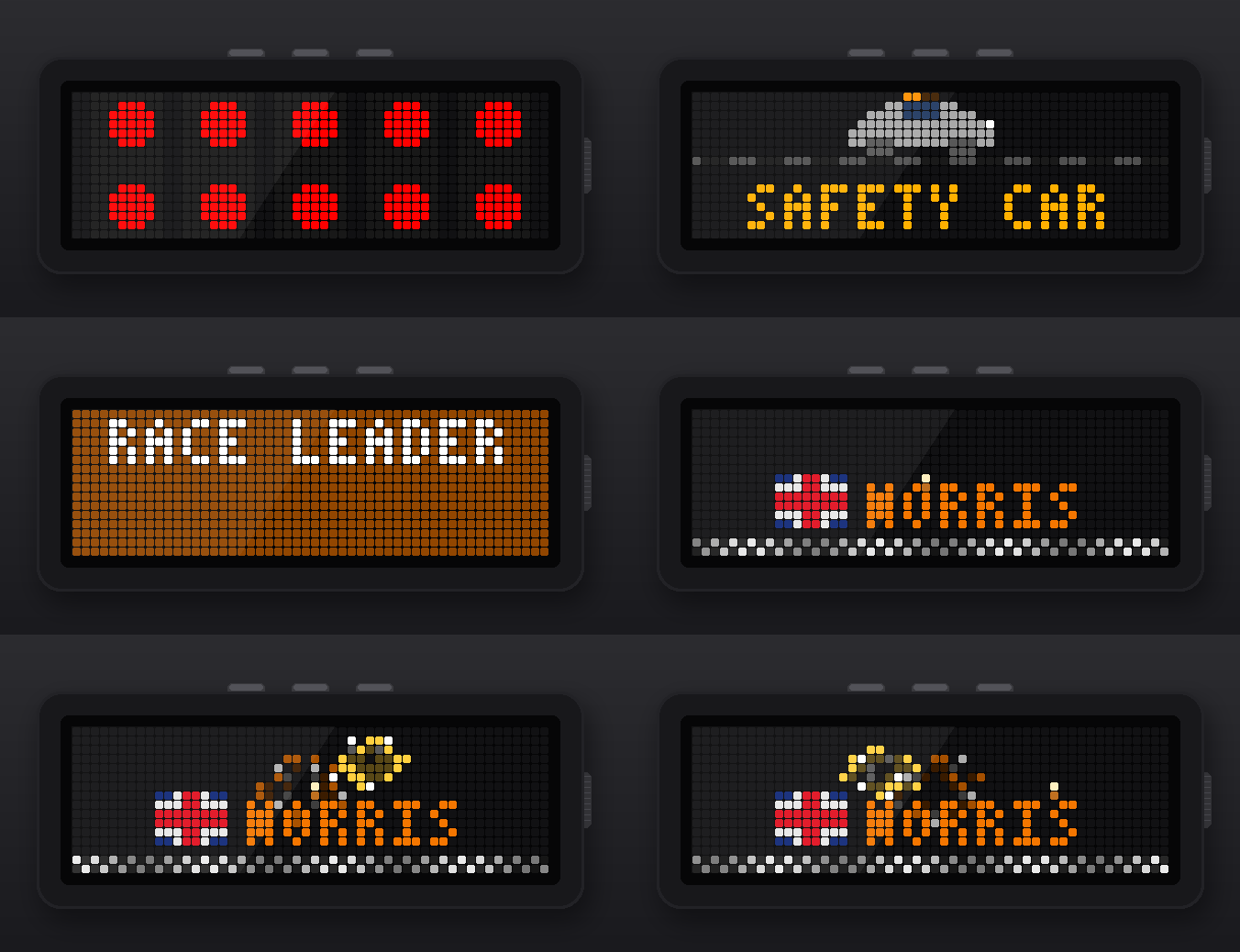
Follow every session on your clock, in sync with your TV: start lights, flags, safety car, race leader, pit stops, penalties, rain, last lap and the winner with fireworks. The app only joins the rotation when there is something to show.
What you get
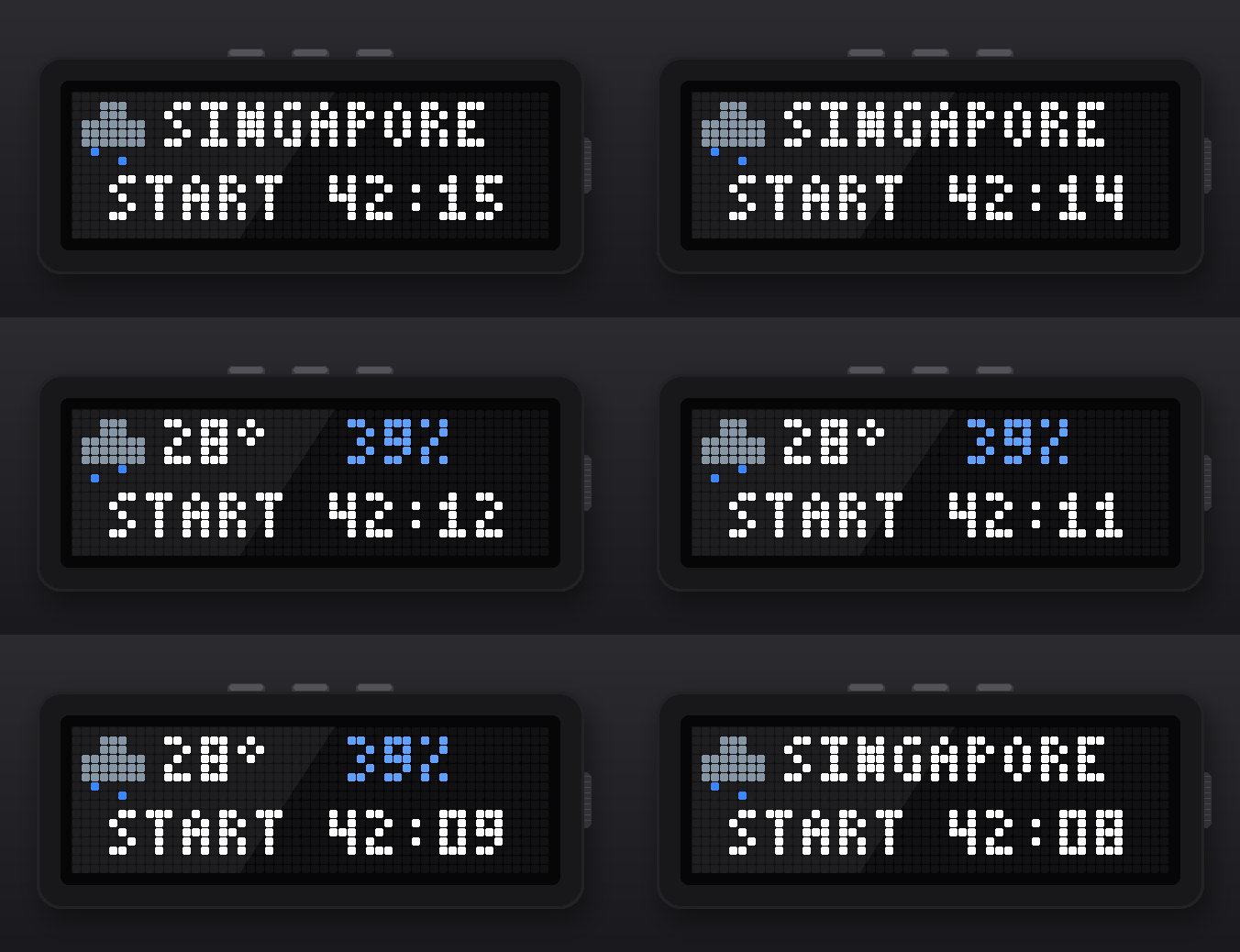
- Before the race: weather at the circuit and a countdown to the start, one hour before lights out.
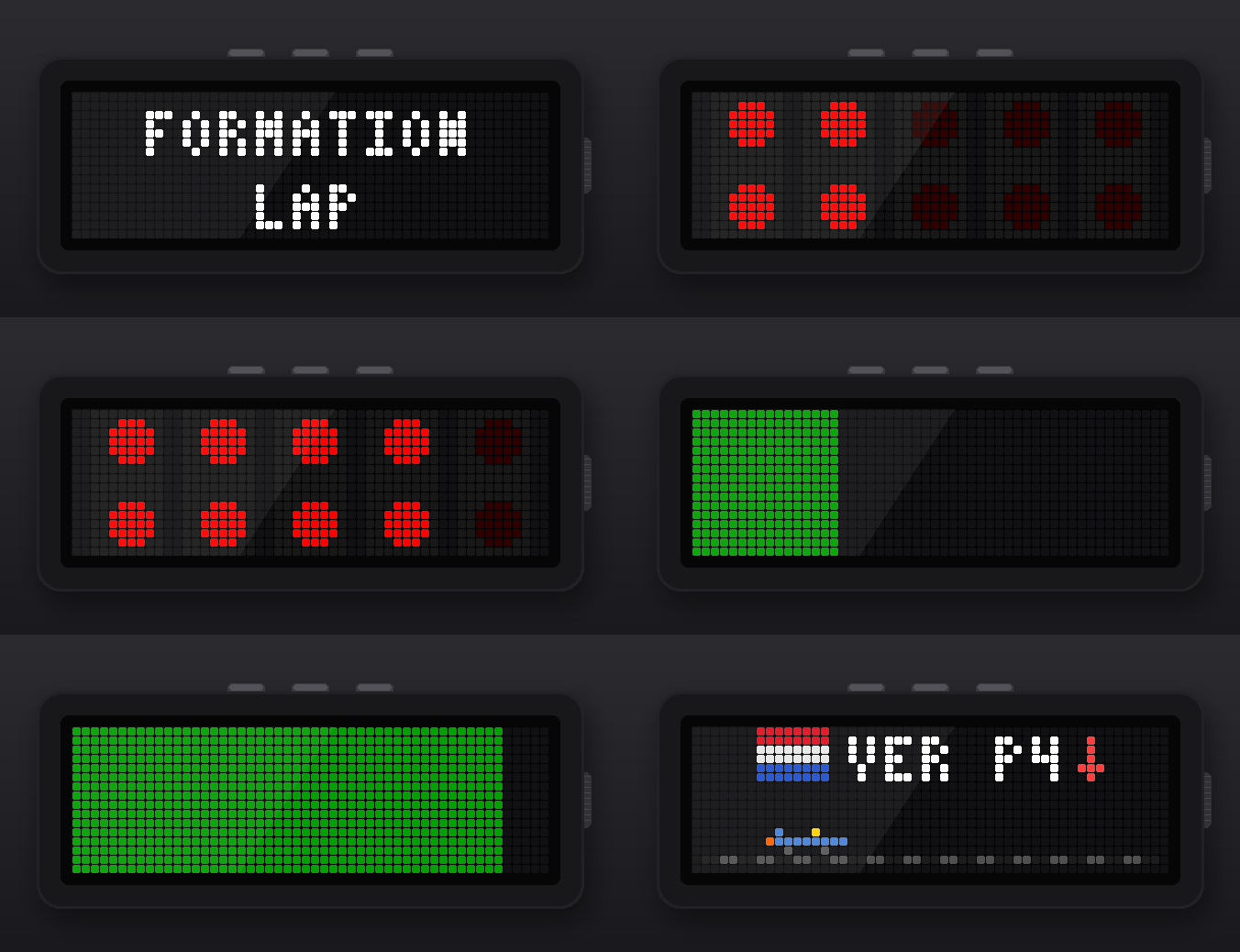
- Start: "FORMATION LAP" with the start lights coming on, then "LIGHTS OUT" the moment the race starts.
- Flags: waving green, yellow and red flags, a safety car driving in with flashing lights, and a pulsing VSC.
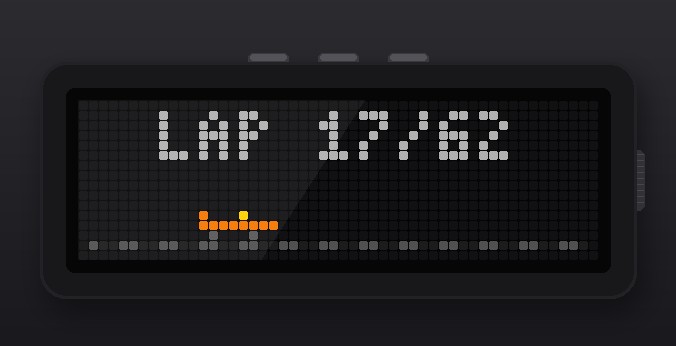
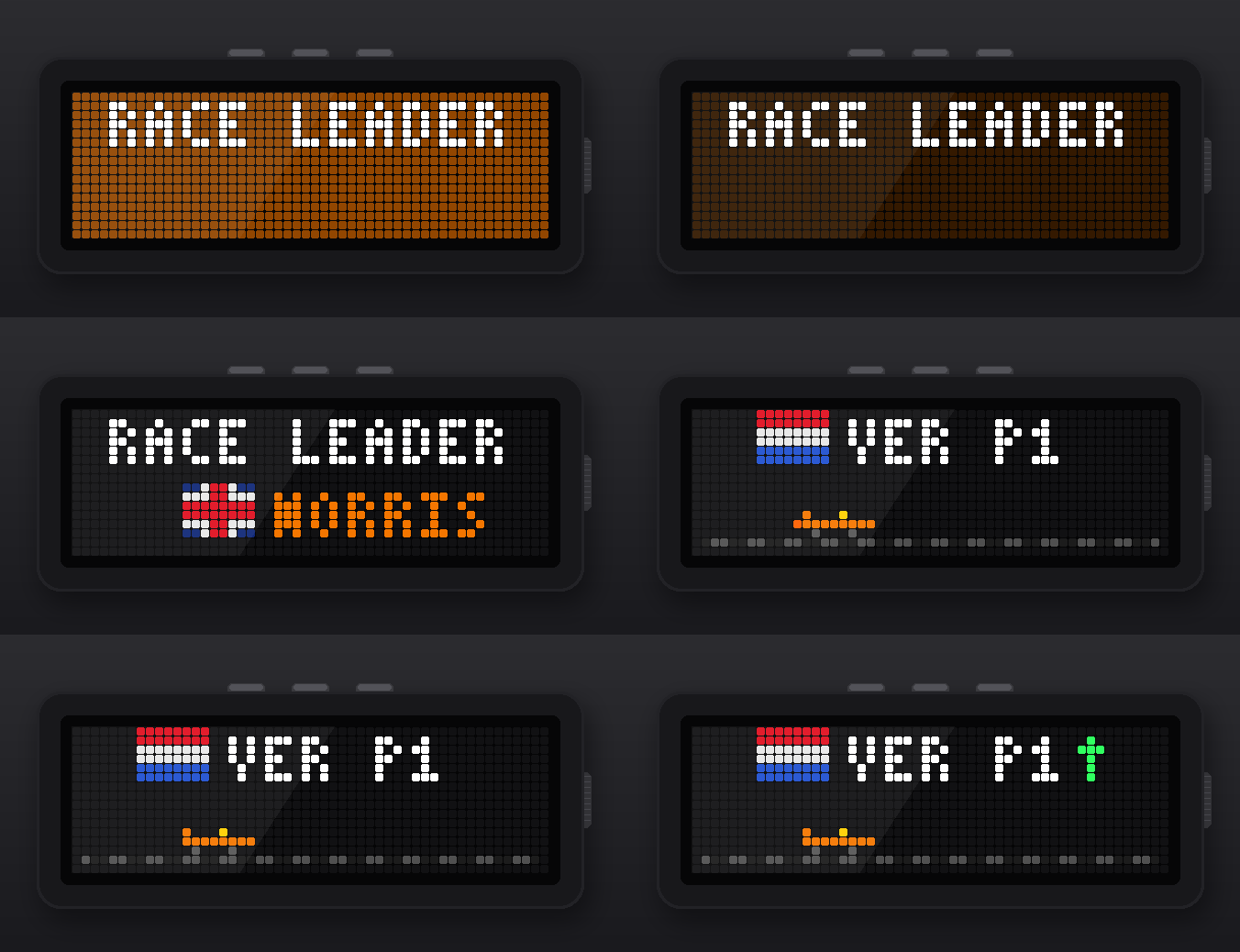
- During the race: top three with team colours and tyre compounds, lap counter, a little car driving along the track, and a coloured frame while the track is neutralised.
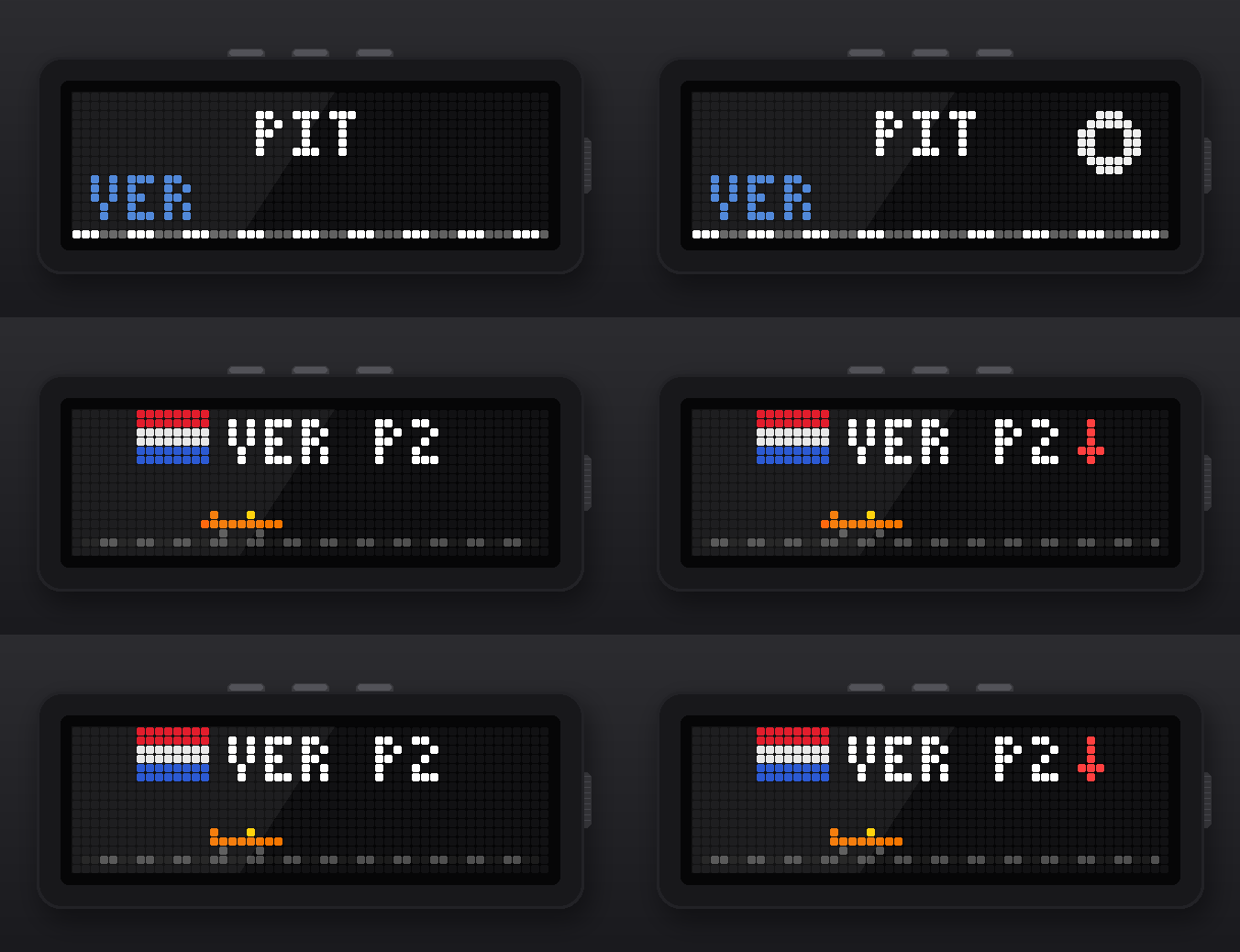
- Favourite driver: position with country flag, plus an arrow whenever they gain or lose a place.
- Events: new race leader, pit stops and penalties for the top three and your favourite, rain at the circuit, last lap.
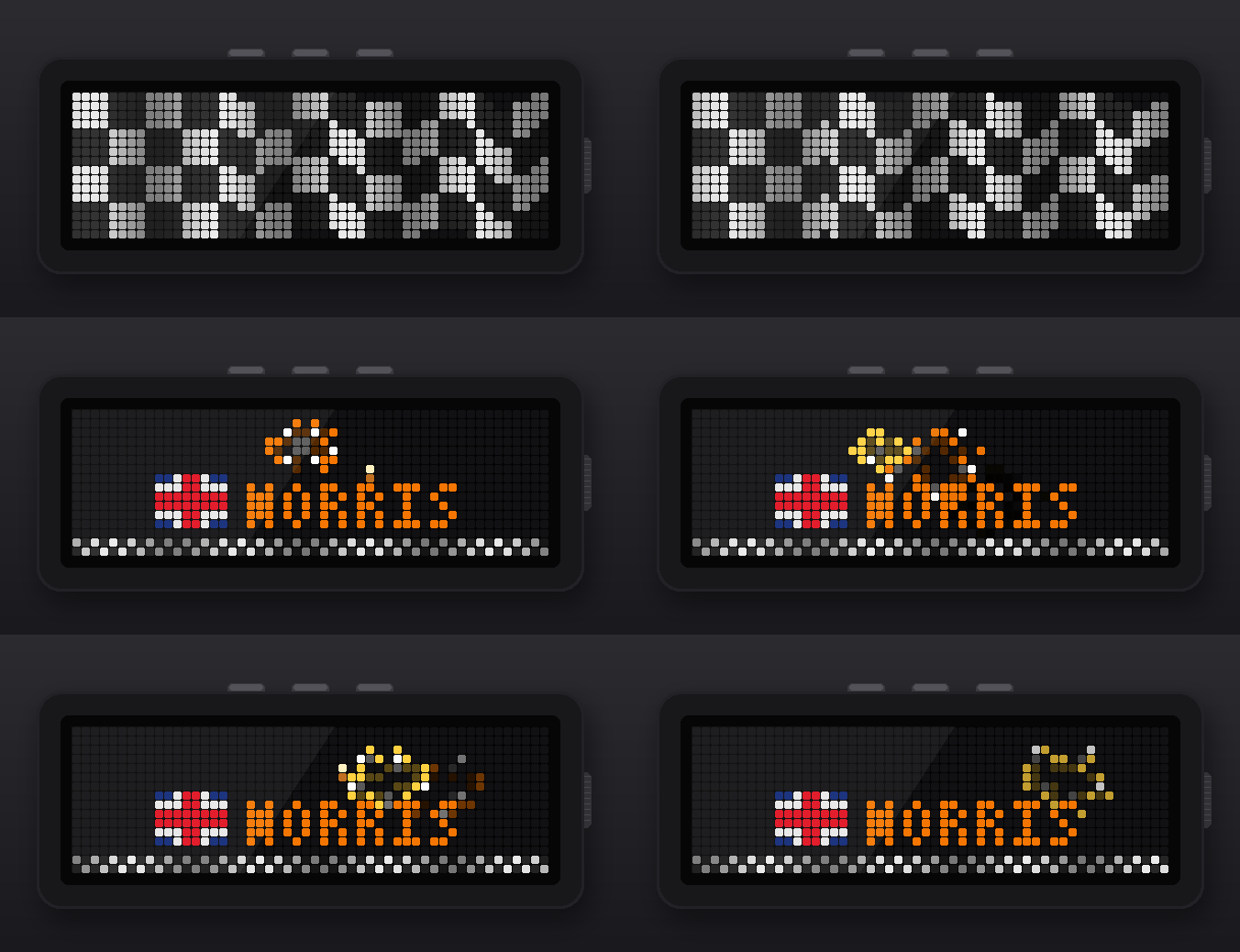
- Finish: chequered flag, the winner's name with country flag in team colour, fireworks, then the podium and championship standings.
- Qualifying: time per part (Q1/Q2/Q3), drivers knocked out, pole position.
- Indicators: while the track is yellow, VSC, SC or red, the corner indicators blink over all your other apps.
- Race control messages (optional), without the local track time.
Requirements
- AWTRIX NG on a Ulanzi TC002 (52×16 display). The layout does not fit the smaller clocks.
- Home Assistant, reachable from the clock on your local network.
- F1 Sensor (HACS, by Nicxe) with live data enabled. All data and the live delay come from F1 Sensor, so the clock stays in sync with your TV when the F1 Sensor delay is set correctly. (https://github.com/Nicxe/f1_sensor)
- A long-lived access token from Home Assistant.
Setup
- Install F1 Sensor in Home Assistant and turn on live data.
- In Home Assistant, open your profile, go to the Security tab, scroll to Long-lived access tokens and create a token.
- Install F1Live from the Hub.
- Open the app settings (gear icon on the Apps tab) and fill in:
- Home Assistant URL, preferably with the IP address, e.g.
http://192.168.1.10:8123(no slash at the end); - Long-lived access token.
- Home Assistant URL, preferably with the IP address, e.g.
- Turn on Demo to see all animations right away. Turn it off again before the next session.
About the token: please read
The token is stored in plain text on the clock and gives full access to your Home Assistant. Anyone on your network who can open the clock's web interface or API can read it. To keep the risk small:
- Set a login on the clock (HTTP authentication in the clock settings).
- Create a separate Home Assistant user just for the clock and make the token with that user, so you can revoke it on its own.
- Revoke the token in Home Assistant when you stop using the app.
- Only use the app on a network you trust. The clock talks to Home Assistant over your local network.
Settings
| Setting | What it does |
|---|---|
| Home Assistant URL / token | Connection to Home Assistant |
| Update interval during a session | How often the clock asks Home Assistant for new data (default 2 s) |
| Favourite driver | Three-letter code (VER, NOR, HAM, …) or empty |
| During a session | normal, every_minute (jumps in each minute) or stay (keeps the screen until you press a button) |
| Time on screen | How long the app stays in the rotation |
| Show the winner after the finish | Minutes the winner screen stays in the rotation |
| Race control messages | flags (yellow/red/safety car only), all, or off |
| Indicators in other apps | alternate (top and bottom blink in turn), single, or off |
| Race leader animation | On or off |
| Weather and countdown before the race | On or off |
| Demo | Plays all animations with made-up data |
Notes
- If F1 Sensor briefly loses the live connection, the app keeps the last known state and carries on as soon as the data is back.
- The clock follows exactly what F1 Sensor reports. If F1 Sensor shows a short leader change during a pit stop, so does the clock.
- No sounds and no icons need to be installed: everything is drawn by the script itself.
Sign in to view and copy the code of this script.
Community
Discussion 0
Ask a question, suggest a change or share how you use it.
No comments yet. Start the conversation.
Have an idea?
Sign in to ask questions and join the conversation.