Tital Now Playing
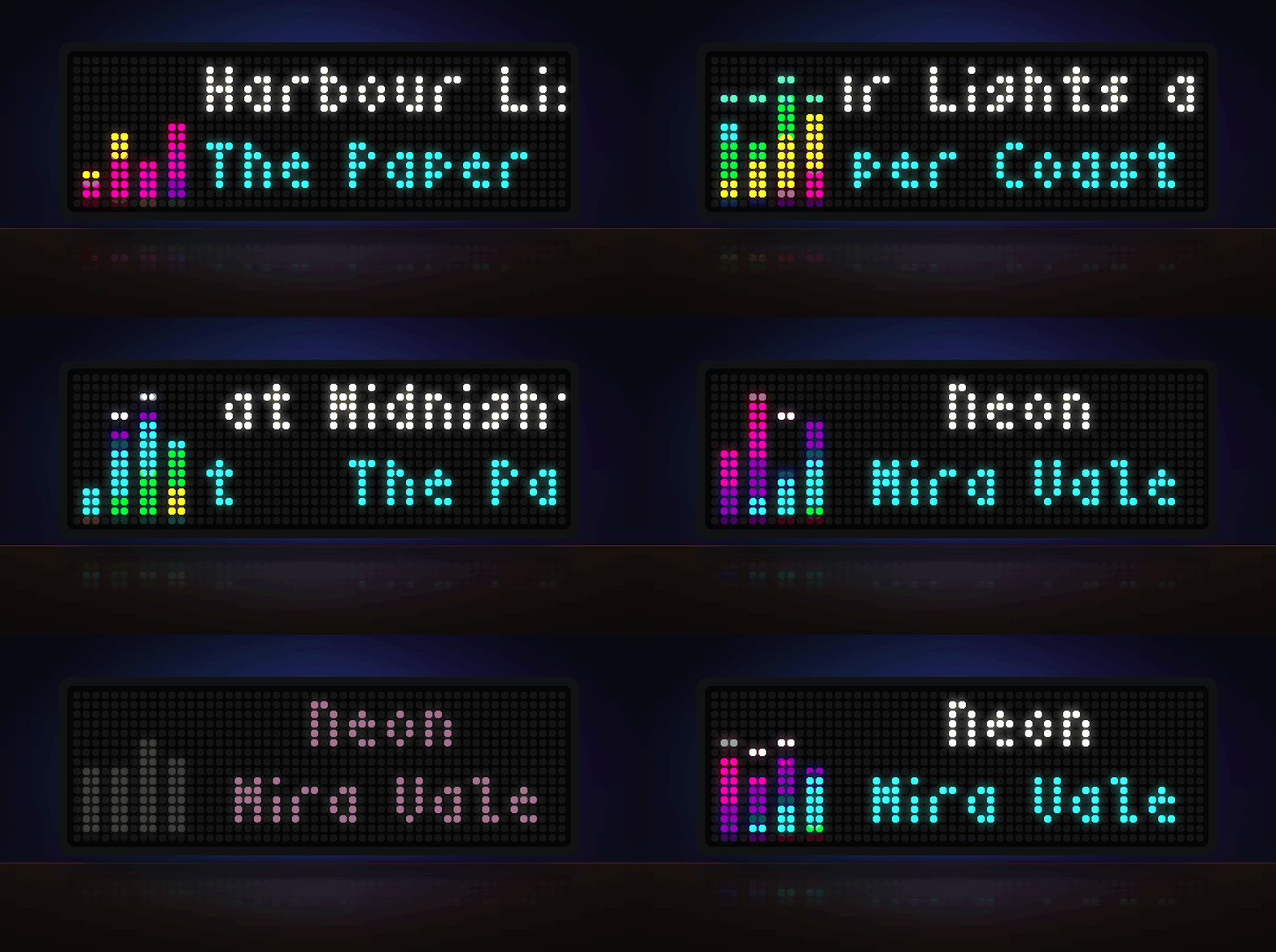
On your display
Shows the track currently playing on your Tidal account (via Last.fm), with an animated equalizer icon and fully customizable text and colours.
- Topic
- Miscellaneous
- Includes
- Script
Runs on
- Does not run on 32×8 (TC001 & DIY) Made for 52×16 (TC002).
- Runs on 52×16 (TC002)
- Does not run on 32×8 with AWTRIX 3 (TC001 & DIY) Made for AWTRIX NG.
Choose your display in the next step.
Script description
Tidal Now Playing
Shows what you are listening to on Tidal right now: track title, artist or album, with a small animated equalizer on the left. Long titles scroll smoothly, the text turns grey when playback is paused, and the app can take over the display while music is playing.
Tidal does not offer a public "now playing" API, so the app reads your listening activity through Last.fm. Your device sends every track you play to Last.fm (this is called "scrobbling"), and the clock reads it from there.
SETUP
-
Create a free Last.fm account
Sign up at last.fm (skip this if you already have an account). -
Send your Tidal plays to Last.fm
How you do this depends on where you listen. Set it up on every device you use.iPhone / iPad (built into Tidal)
- Open the Tidal app and go to Settings (gear icon).
- Open Connect and find Last.fm (it shows "Not connected").
- Tap it, sign in with your Last.fm account and confirm.
Android (needs a free scrobbler app)
The Android Tidal app no longer sends plays to Last.fm by itself, so use a scrobbler app:- Install "Pano Scrobbler" from Google Play (Scroball is an alternative).
- Open it, sign in with your Last.fm account and grant the permissions it asks for (it needs notification access to see what is playing).
- In its settings, under the apps to scrobble from, select Tidal.
- Allow Tidal and Pano Scrobbler to run in the background (disable battery optimisation for both), otherwise plays can be missed when the screen is off.
Desktop app / web player
- In Tidal open Settings, find the Last.fm option in the account/connect section, sign in to Last.fm and authorise Tidal.
Check: play a track, wait a minute and open your Last.fm profile. If the track is listed, everything works.
Menu names may differ slightly between Tidal versions. -
Create a Last.fm API key
Go to last.fm/api/account/create and fill in a name and description (the other fields can stay empty). Copy the value labelled "API key", not the "Shared secret". -
Configure the app on the clock
Upload the script, open the clock's web UI, go to Apps and press the gear icon of this app. Under Account, enter your Last.fm username and API key, then save.
The current track appears within about 15–30 seconds of starting playback.
SETTINGS
- Account: Last.fm username and API key.
- Refresh: how often Last.fm is checked; show the app only while music is playing.
- Playback: jump to this app when a track starts; stay on this app (pause the app rotation) while Tidal is playing, and resume when it stops.
- Text: what each line shows (title, artist, album or none), font, upper case, alignment, scroll speed and pause before scrolling.
- Colours: solid colour, two-colour gradient or animated colours for each line; colour of the text when paused.
- Icon: on/off, colour palette (rainbow, instagram, fire, ice, neon, sunset or a single colour), speed, peak dots, and an option to follow the real beat when the clock's microphone can hear the music.
MESSAGES ON THE DISPLAY
- "Set your Last.fm user and API key…": the account fields are empty.
- "No scrobbles on Last.fm yet…": Last.fm has no listening history; check step 2.
- LFM 10: invalid API key. LFM 6: Last.fm user not found. LFM 17: your recent listening is set to private on Last.fm (turn it off in Last.fm privacy settings).
- 429: too many requests; wait a while. E: network error.
NOTES
- Last.fm updates a few seconds after a track starts, and may keep showing a track as "playing" for a short time after you stop.
- Offline playback and TIDAL Connect speakers may not be scrobbled, depending on the device.
- Moving to another app by hand (buttons, knob or web UI) ends the "stay on this app" pause; it applies again with the next track.
- Requires a Tidal account, a Last.fm account and an internet connection on the clock.
Sign in to view and copy the code of this script.
Discussion 0
Ask a question, suggest a change or share how you use it.
No comments yet. Start the conversation.
More scripts in Miscellaneous
Something wrong with this script? Report it.
Have an idea?
Sign in to ask questions and join the conversation.