World Time Clock
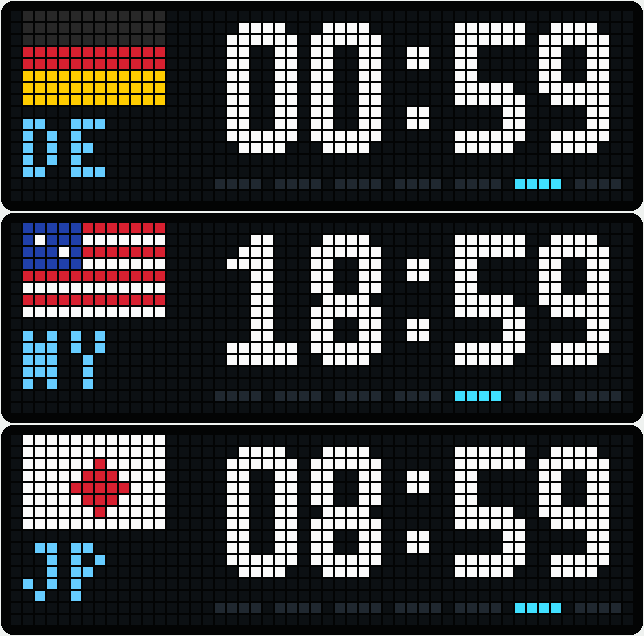
On your display
World times with pixel flags, large digits and local weekday markers. Arrange 25 display slots, add custom locations and choose instant, fade or retro flip transitions.
- Topic
- Miscellaneous
- Includes
- Script
Runs on
- Does not run on 32×8 (TC001 & DIY) Made for 52×16 (TC002).
- Runs on 52×16 (TC002)
- Does not run on 32×8 with AWTRIX 3 (TC001 & DIY) Made for AWTRIX NG.
Choose your display in the next step.
Script description
World Time Clock (TC002)
Show the time around the world with pixel flags, large digits and a weekday bar that follows each location's local date. Choose your locations, set their display order and switch between instant, fade and retro flip transitions.
Made for the Ulanzi TC002 with AWTRIX NG and a 52 × 16 display. The script runs directly on the clock. No Home Assistant, MQTT, API key, external server or additional icon downloads are required.
Features
- 25 built-in locations, plus 3 custom locations you can configure in the app settings.
- 25 display slots: choose a location for each slot to set the order. Select
Offto skip a slot. - Large, easy-to-read digits in 24-hour
HH:mmformat. - Pixel flags and location abbreviations, with an option to show abbreviations only.
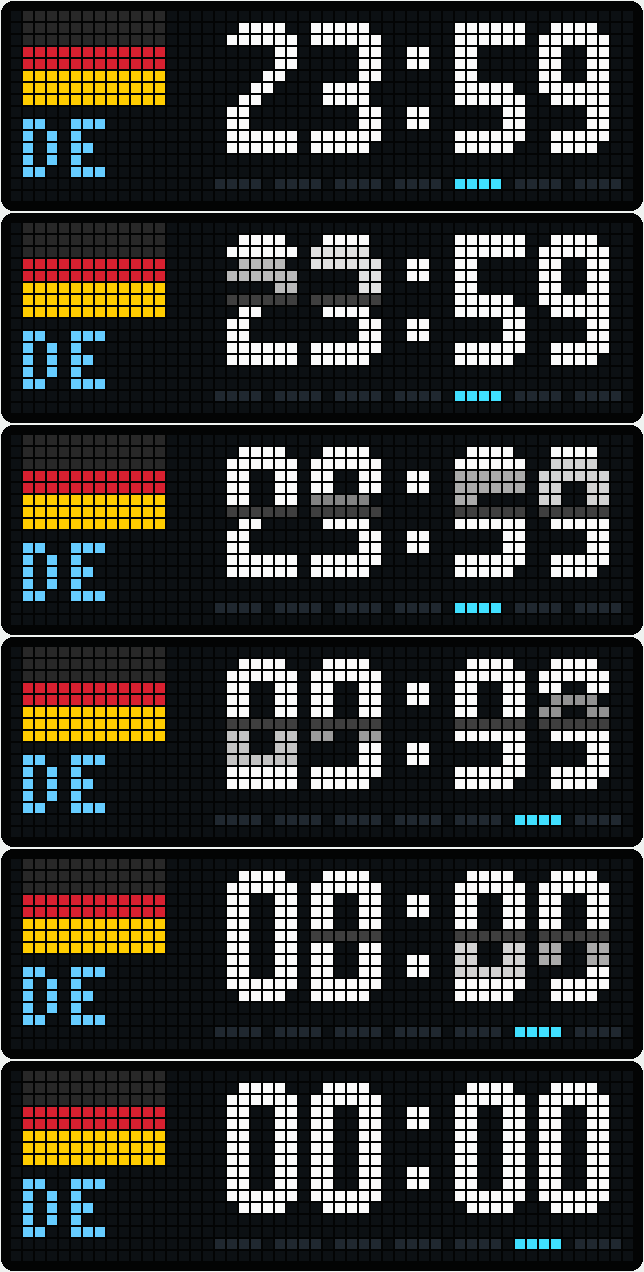
- Seven weekday markers, Monday to Sunday. The highlighted day follows the displayed location, including differences across midnight.
- Three transition modes:
normal(instant),fadeandflip(retro flip). - Adjustable display interval, fade duration, flip speed and delay between digits.
- Adjustable colors for the active and inactive weekday markers.
- Automatic daylight saving time for the built-in locations that use one of the included rules.
- Settings are stored on the clock and survive a restart.
Setup
- Click Send to AWTRIX on this page and follow the installation steps to send World Time Clock to your TC002. Alternatively, copy the complete script code from this page, open the Scripts tab in your AWTRIX web interface, create a script named
WorldTimeClock, paste the code and save it. - Open Apps, find the world clock and click its gear icon.
- Choose a location for each display slot (
Slot 1,Slot 2, and so on). SelectOfffor unused slots. - Choose your transition and display interval, save the settings and show the app on the clock.
The default sequence is Germany → Japan → New York. All other slots are Off, so the app works immediately after installation.
All settings, help texts and location names in this version are in English. Display slots are grouped under Display slots 1-8, More slots 9-16 and More slots 17-25. Display options are under Display.
Set the order
The slot number is the display order. For example:
| Slot | Location |
|---|---|
| Slot 1 | Japan |
| Slot 2 | Germany |
| Slot 3 | USA - New York |
| Slot 4 | Off |
Empty slots are skipped. If the same location is selected more than once, only its first occurrence is shown. Locations remain available in every dropdown; duplicate choices are skipped during playback.
The app shows each selected location once during its turn, then continues with the normal AWTRIX app rotation. To keep the world clock on screen, disable the other apps in the rotation.
Transitions
- normal: switch directly to the next time or location.
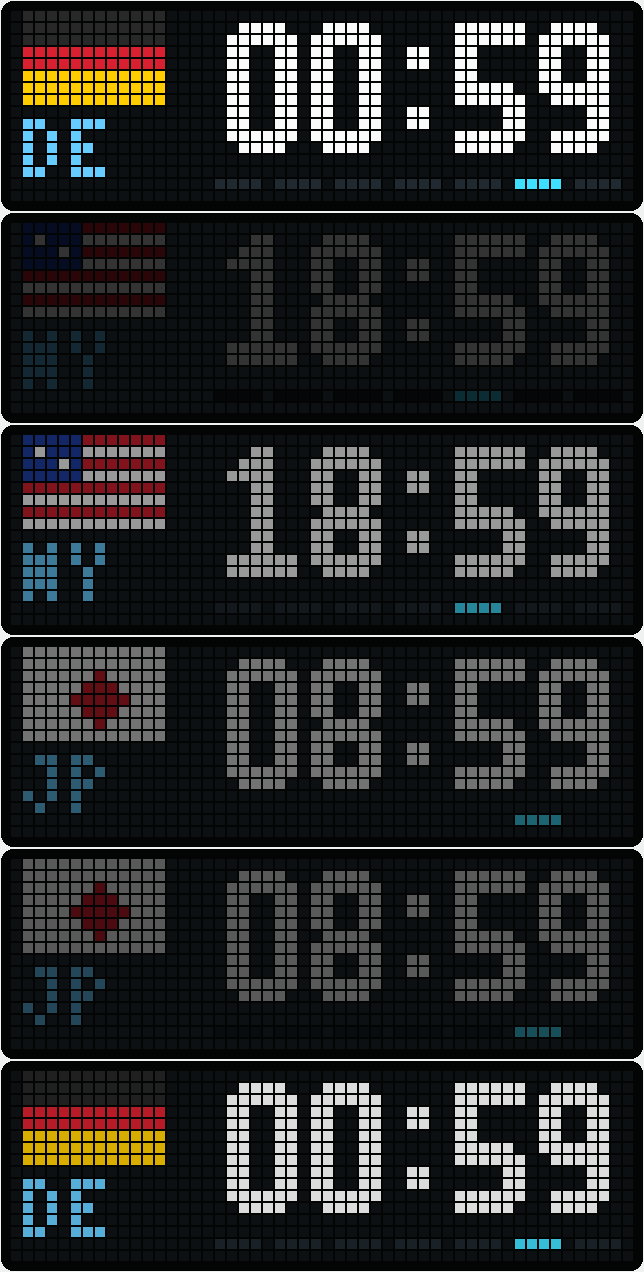
- fade: fade the current display out, then fade the next one in. The default fade duration is 600 ms.
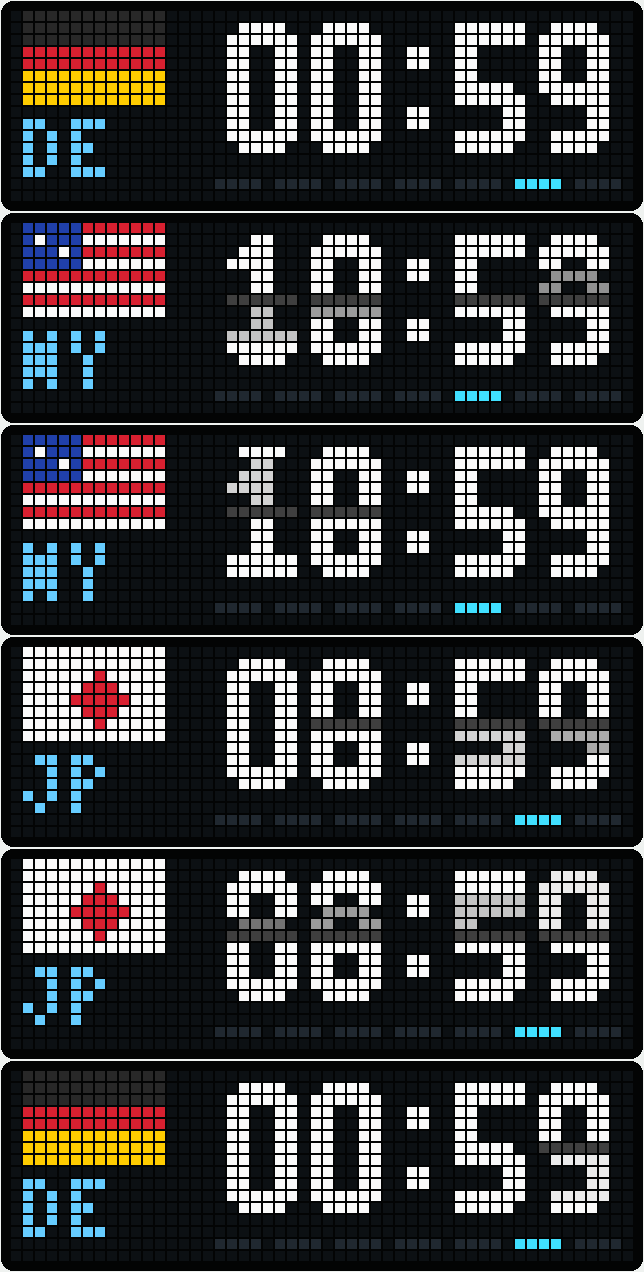
- flip: a split-flap effect with a horizontal hinge. Each digit folds down with a slight delay from left to right. The default is 500 ms per digit with a 70 ms stagger.
The selected effect applies to minute/hour changes and location changes. In flip mode, only changed digits move when the time advances; all four digits move when the location changes. The initial display appears immediately.
Time per location sets the display interval per location, from 3 to 60 seconds. Press left or right while the app is visible to move between locations manually.
Built-in locations
Australia: Adelaide, Perth and Sydney; Austria; Brazil: São Paulo; China; France; Germany; India; Italy; Japan; Nepal: Kathmandu; Netherlands; New Zealand: Auckland; Singapore; South Africa: Johannesburg; Switzerland; Thailand: Bangkok; United Arab Emirates: Dubai; United Kingdom; USA: Chicago, Denver, Honolulu, Los Angeles and New York.
For countries with multiple time zones, the selected city determines the time.
Add your own locations
Open Custom location 1, Custom location 2 or Custom location 3 in the app settings. Each custom location has five fields:
| Setting | What to enter |
|---|---|
| Location name | A name to identify the location in its settings. Leave empty to disable it. |
| Display abbreviation | An abbreviation of 1–3 letters or digits, such as ROM. |
| Standard UTC offset | The standard UTC offset in minutes, without a daylight saving adjustment. |
| Daylight saving rule | The applicable daylight saving rule, or None for a fixed offset. |
| Flag or abbreviation | One of the included country flags, or Abbreviation to show the abbreviation only. |
For example, configure Rome with abbreviation ROM, UTC offset 60, rule Europe and flag Italy. Then select Custom location 1 in a display slot and save.
UTC offset examples: UTC+1 = 60, UTC−5 = -300, UTC+5:30 = 330, UTC+5:45 = 345. The supported range is −720 to +840 minutes in 15-minute steps.
Custom locations keep the fixed dropdown names Custom location 1–3. The full name identifies the location in its settings; the clock shows its abbreviation. A custom location with an empty name is skipped.
Notes
- The name does not automatically determine a time zone. Custom locations require the correct standard UTC offset and rule.
- Included daylight saving rules are Europe (EU rule), the usual US rule, southeastern Australia as used by Sydney/Adelaide, and New Zealand as used by Auckland. Regional exceptions, other changeover rules and 30-minute daylight saving shifts are not covered automatically. Time zone rules are stored in the script and may need updating if legislation changes.
- Flags are simplified pixel drawings. There are 19 included country flags; for other countries, use an abbreviation. No custom flag upload is provided.
- The clock must have synchronized its time. Until then, the app shows
--:--. If no valid locations are selected, it showsSelect place. - If the firmware's weekday bar is also visible, disable it in the AWTRIX settings to avoid a second bar showing the device's own local weekday.
- This layout is for the TC002's 52 × 16 display, not the TC001's 32 × 8 panel or the older AWTRIX 3 firmware.
Updates
Keep the same install name when updating the script so that your saved settings remain associated with the app.
Preview animations
The preview GIFs are simulated renders, not recordings of a physical clock. They illustrate the normal, fade and flip modes, plus a flip through midnight with the weekday changing. Small font and LED appearance may differ on the device.
Sign in to view and copy the code of this script.
Discussion 0
Ask a question, suggest a change or share how you use it.
No comments yet. Start the conversation.
More scripts in Miscellaneous
Something wrong with this script? Report it.
Have an idea?
Sign in to ask questions and join the conversation.