worldclock
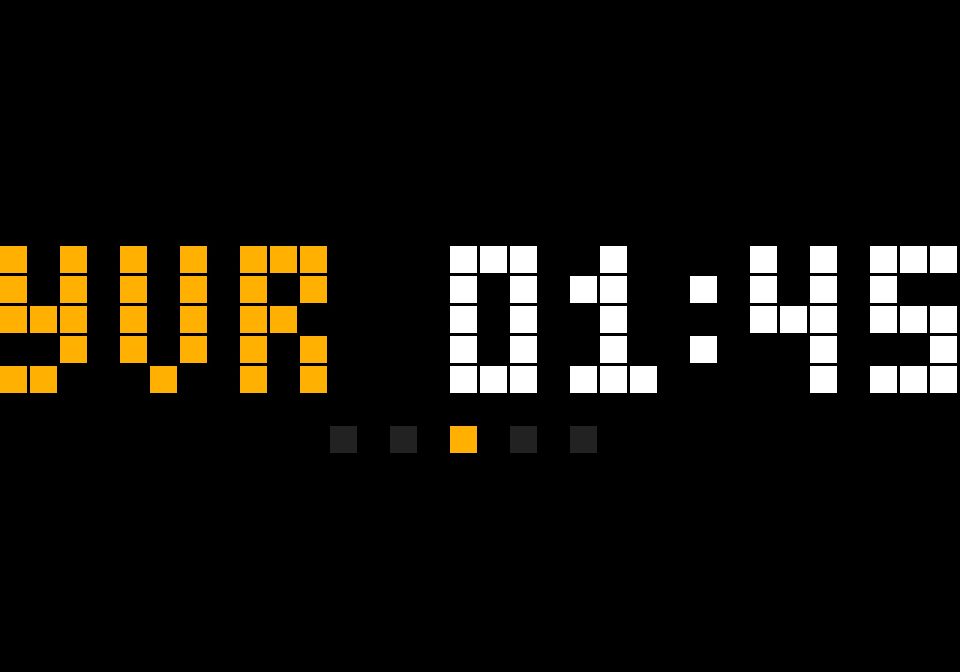
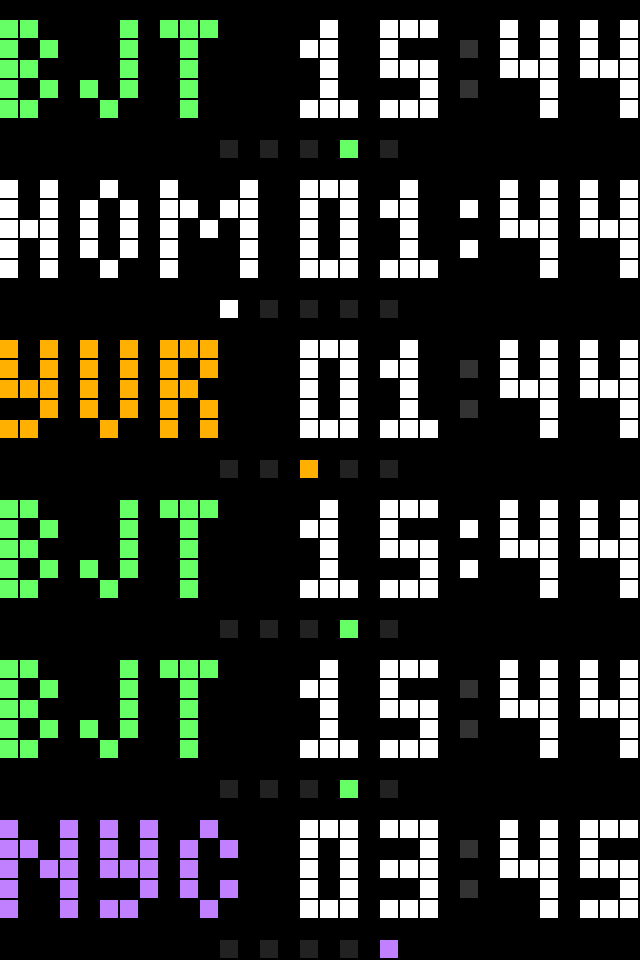
On your display
A world clock that rotates through your own time zones, with DST support and 10 built-in transition animations. One app, no network needed.
- Topic
- Miscellaneous
- Includes
- Script
Runs on
- Runs on 32×8 (TC001 & DIY)
- Runs on 52×16 (TC002)
- Does not run on 32×8 with AWTRIX 3 (TC001 & DIY) Made for AWTRIX NG.
Choose your display in the next step.
Script description
WorldClock shows the current time in several places, one after another, on the 32×8 display. It is a single Berry script: it takes one turn in the AWTRIX rotation, and inside that turn it cycles through this clock and up to five cities of your choice.
Features
• This clock plus up to 5 cities. Each city has its own name (up to 4 characters), UTC offset and DST rule. This clock is shown first and has a name of its own (default HOME).
• Automatic daylight saving time. Choose none, us, eu or au per city. The script works out the switch dates for the current year, so you never have to change offsets by hand.
• Any UTC offset. Quarter-hour steps are supported (for example 5.5 for India or 5.75 for Nepal).
• 24-hour or 12-hour format.
• 10 transition animations between cities: push_left, push_right, push_up, push_down, cover, fade, shutter, blinds, dissolve and wipe. Pick one, let cycle use a different one on every change, or choose none for an instant switch.
• Day marker. A pixel in the top-right corner is green when a city is already on the next day compared with this clock, and red when it is still on the previous day.
• Rotation dots. The bottom row shows one dot per city; the current city is lit in its own color.
• Select button. Press the middle button to jump to the next city.
• Small and gentle on memory. The script is about 7.2 KB, uses no icons and no network, and rebuilds its text only once a minute.
Good to know
• Each city's turn lasts the configured number of seconds. One turn of the app shows every city once.
• If a name and the time do not fit together in 32 pixels, the name is dropped and only the time is shown. Short names (3 characters) and the 24-hour format fit best.
• Supported DST rules: us (second Sunday of March to first Sunday of November), eu (last Sunday of March to last Sunday of October) and au (southern hemisphere, first Sunday of October to first Sunday of April). Other rules are not built in; for those, choose none and adjust the offset yourself.
• Text uses the built-in fonts, so use Latin letters and digits for names.
Setup
Requirements
• A clock running AWTRIX NG.
• The script fits the default size limit of 8 KB (scriptMaxBytes). No icons, no Hub dependencies, no internet access.
Install
- Open the web UI of your clock and go to the Scripts tab.
- Press + and type WorldClock into the name field.
- Paste the contents of WorldClock.be into the editor.
- Press Save (or Ctrl-S), then Show on the clock.
- Go to the Apps tab and press the gear icon on the WorldClock row to configure it.
Settings
Group
Setting
Default
What it does
This clock
UTC offset (standard)
-8
UTC offset of the place where the clock stands, in standard (non-DST) time.
This clock
DST
us
DST rule of that place: none, us, eu or au.
This clock
Name
HOME
Name shown for this clock. Leave it empty to hide this clock from the rotation.
Display
Seconds per city
4
How long each city is shown (1 to 30).
Display
24-hour
on
Switch off for 12-hour time with a/p.
Display
Transition
cycle
Animation between cities (see above).
Display
Transition ms
600
Animation length, 100 to 2000 ms. It is limited to half of the city time.
City 1 to 5
On
City 1-3 on, 4-5 off
Switch a city on to add it, off to remove it.
City 1 to 5
Name
UTC, YVR, BJ, LON, NYC
Up to 4 characters.
City 1 to 5
UTC offset
0, -8, 8, 0, -5
Standard-time offset in hours.
City 1 to 5
DST
none, us, none, eu, us
DST rule of that city.
Important
• Set the "This clock" offset and DST rule first. The script reads the clock's local time from AWTRIX and needs to know which time zone that is, so that it can work out the other cities. The defaults assume Vancouver (UTC-8 with US daylight saving time).
• Enter standard-time offsets. For example, New York is -5 with DST rule us; do not enter -4 in summer.
• Saving the settings restarts the app. This is normal.
Troubleshooting
• A city does not appear: check that its On switch is enabled. The dots in the bottom row show how many cities are in the rotation.
• A city shows the time but no name: the name and the time do not fit in 32 pixels. Use a shorter name or the 24-hour format.
• The display shows --:--: the clock has not received the time yet. It appears within a few seconds once the clock is connected.
• The wrong hour is shown: check the offset and DST rule under This clock first, then the city's own settings.
• The display shows ERR: in red: the message is shown next to the script on the Scripts tab. Fix the line it names and save again.
• Install is refused (507): restart the clock, delete a script you do not use, and try again.
Sign in to view and copy the code of this script.
Discussion 0
Ask a question, suggest a change or share how you use it.
No comments yet. Start the conversation.
More scripts in Miscellaneous
Something wrong with this script? Report it.
Have an idea?
Sign in to ask questions and join the conversation.