Media Desk
On your display
Your media stack on one panel, with poster art - what is downloading and how fast, what airs tonight, what is still wanted, how full the library and the disk are.
- Topic
- Multimedia
- Includes
- Script
Runs on
- Does not run on 32×8 (TC001 & DIY) Made for 52×16 (TC002).
- Runs on 52×16 (TC002)
- Does not run on 32×8 with AWTRIX 3 (TC001 & DIY) Made for AWTRIX NG.
Choose your display in the next step.
Script description
Your whole media stack on one panel — what is downloading, what airs tonight, what is still wanted, and how full the disk is. With poster art.
Panel: 52x16 · Works with: SABnzbd, NZBGet, Medusa, Sonarr, Radarr, CouchPotato · Needs: the address and API key of whichever of those you run
It only shows what you actually have
Fill in the boxes you run and leave the rest empty. A service you have not
configured is not an error and not an empty page — it simply never exists. No
grey placeholder, no "not connected", nothing. Two people with different stacks
get two different apps out of the same script.
The same rule decides when it appears at all. A page exists only while there is
something on it, so when the downloads finish and nothing airs tonight, there
are no pages left and the app drops out of the rotation entirely rather than
taking a turn to tell you it has nothing to say. It comes back the moment
something starts.
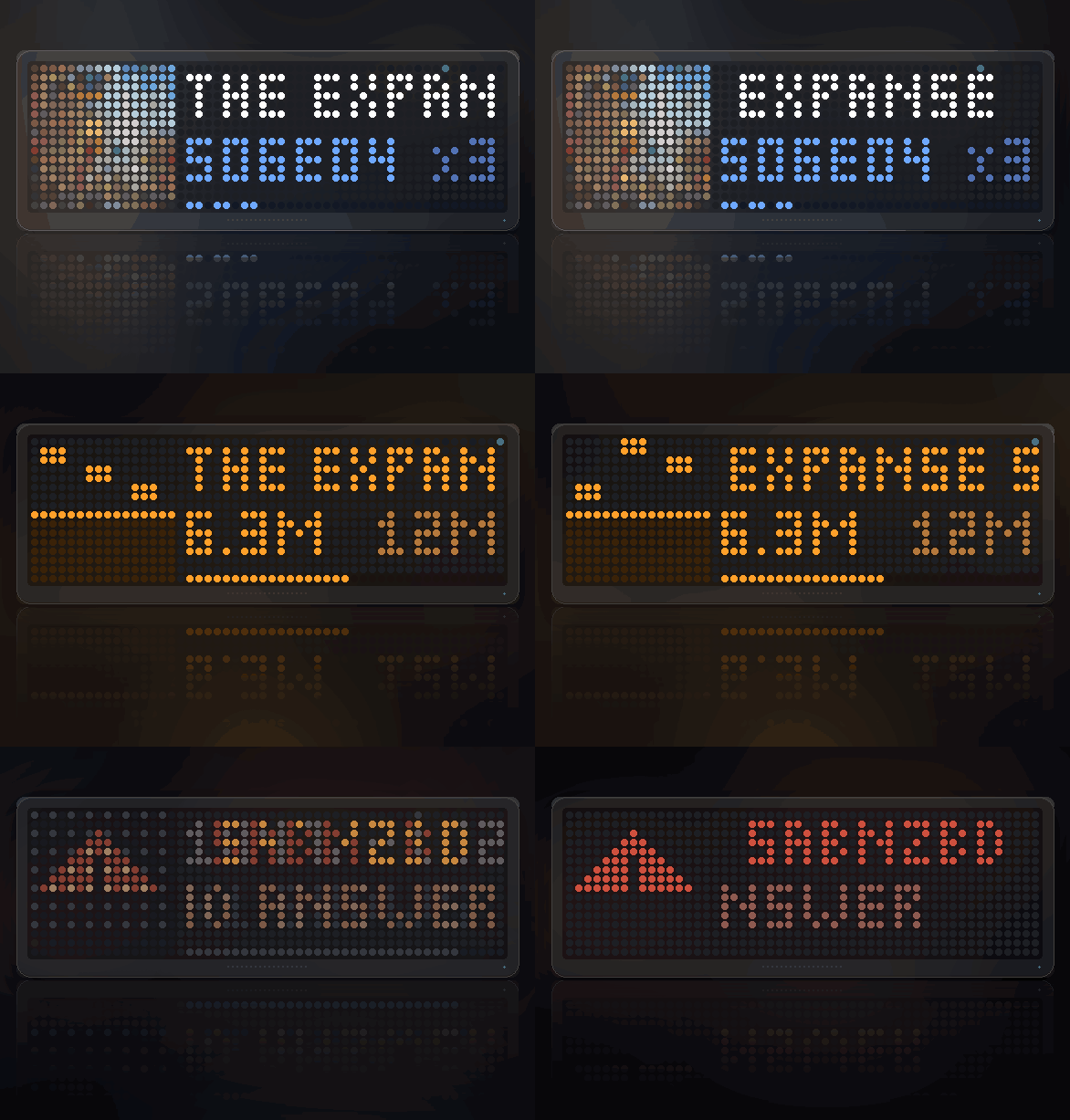
Every page has the same shape: artwork or a drawing on the left, two lines of
text, and a bar along the bottom. SELECT steps through the pages; otherwise
they turn over by themselves.
The pages
Downloading
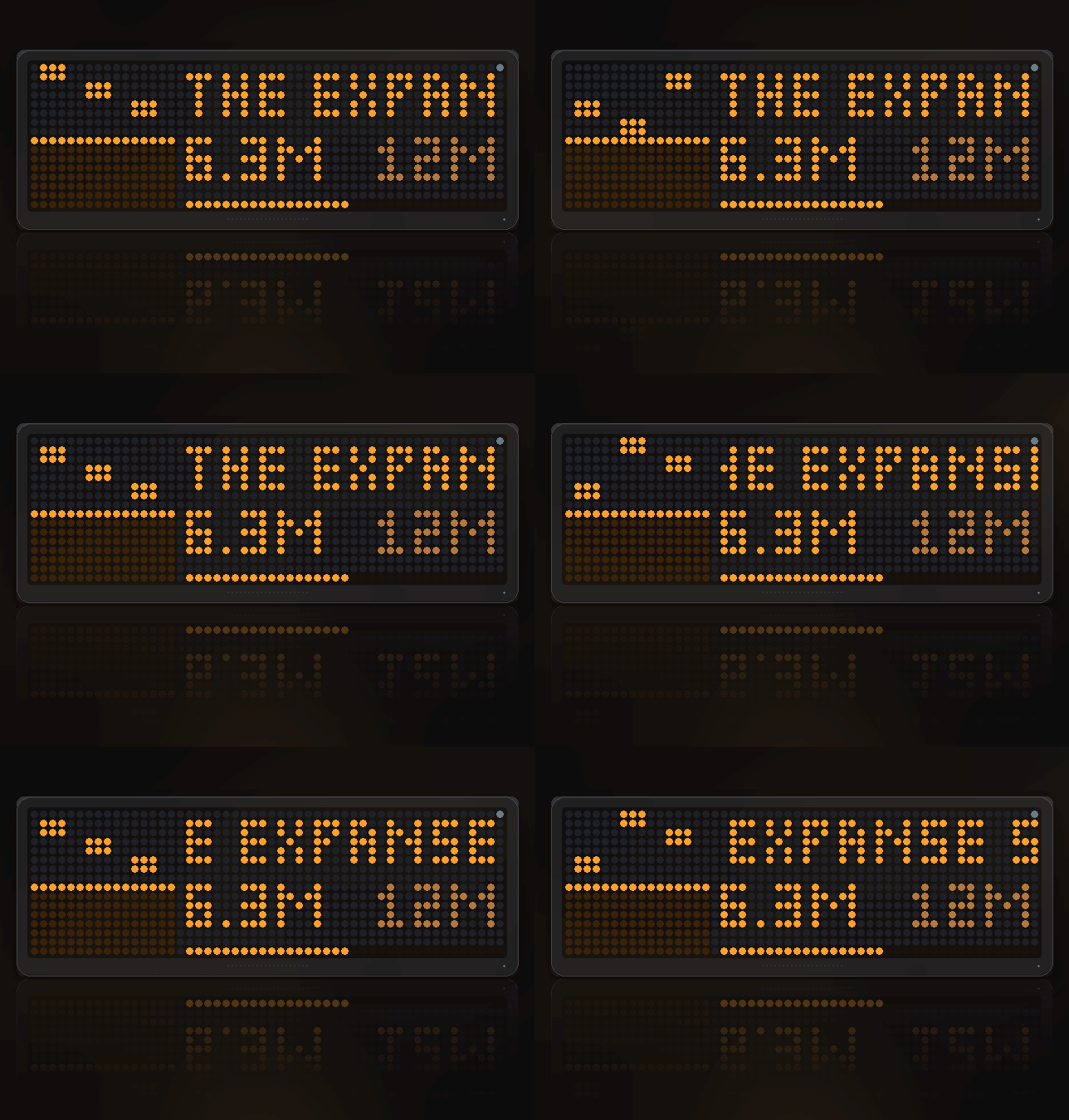
The name of what is coming down, the speed, and the time left. The tile on the
left is a well that fills as the download does — the blocks fall faster when the
transfer is faster, so a stalled download is obvious from across the room
without reading a number. The bar along the bottom is the same percentage again.
x3 beside the time means three more items are queued behind this one. HELD
instead of a speed means the queue is paused.
Airing tonight
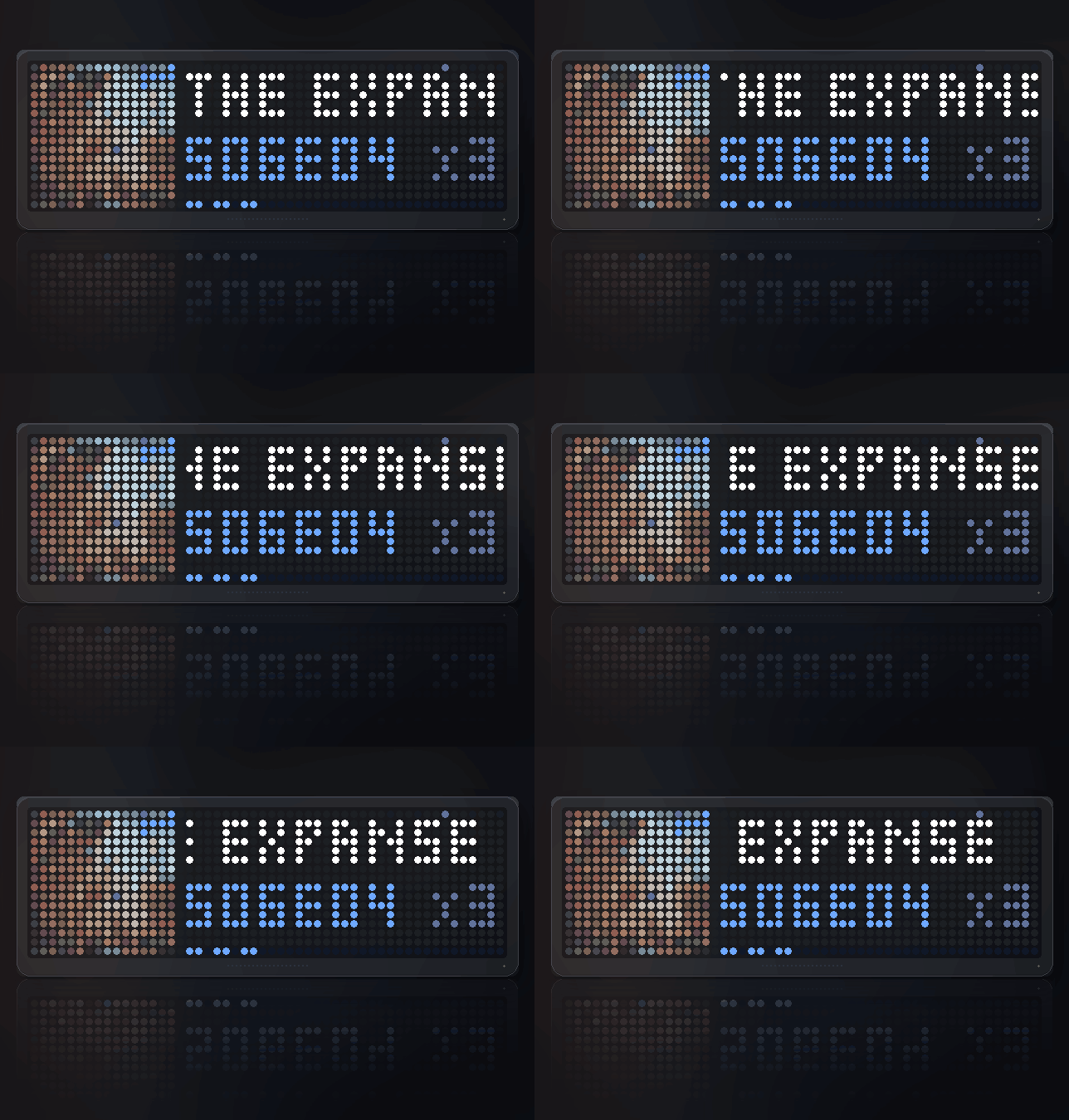
The show's own poster, its name, and which episode. S06E04 x3 means tonight's
first episode is season six episode four, and three episodes air today in total;
the marks along the bottom are one per episode. A + means there were more than
the clock could count in one go.
Shows with no artwork get a little television with static on it instead.
Library
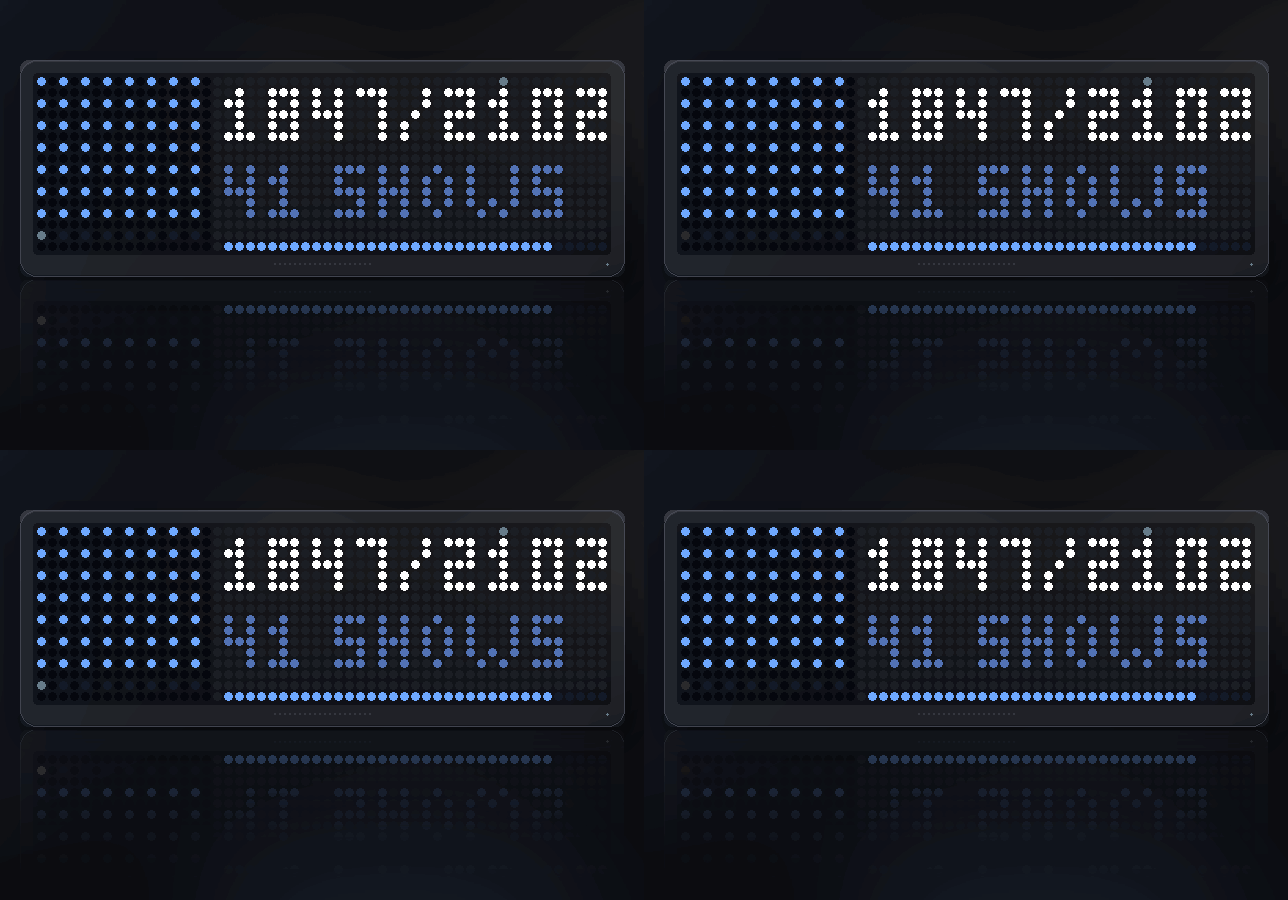
How much of what your TV manager knows about is actually on disk — 1847/2102
— with the same figure as a bar underneath, and as a grid of dots in the tile:
one dot per episode, lit for the ones you have, amber for the ones being grabbed
right now. The line below alternates between how many shows are active and how
many episodes are in flight.
Films still wanted
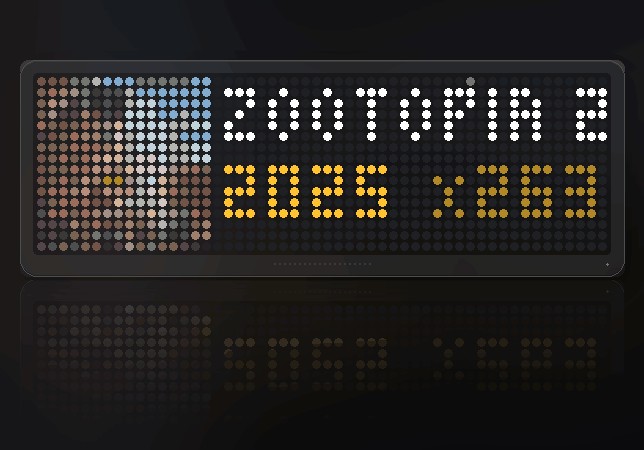
The poster, title and year of a film your movie manager is still looking for,
and x263 for how many are on that list.
Disk
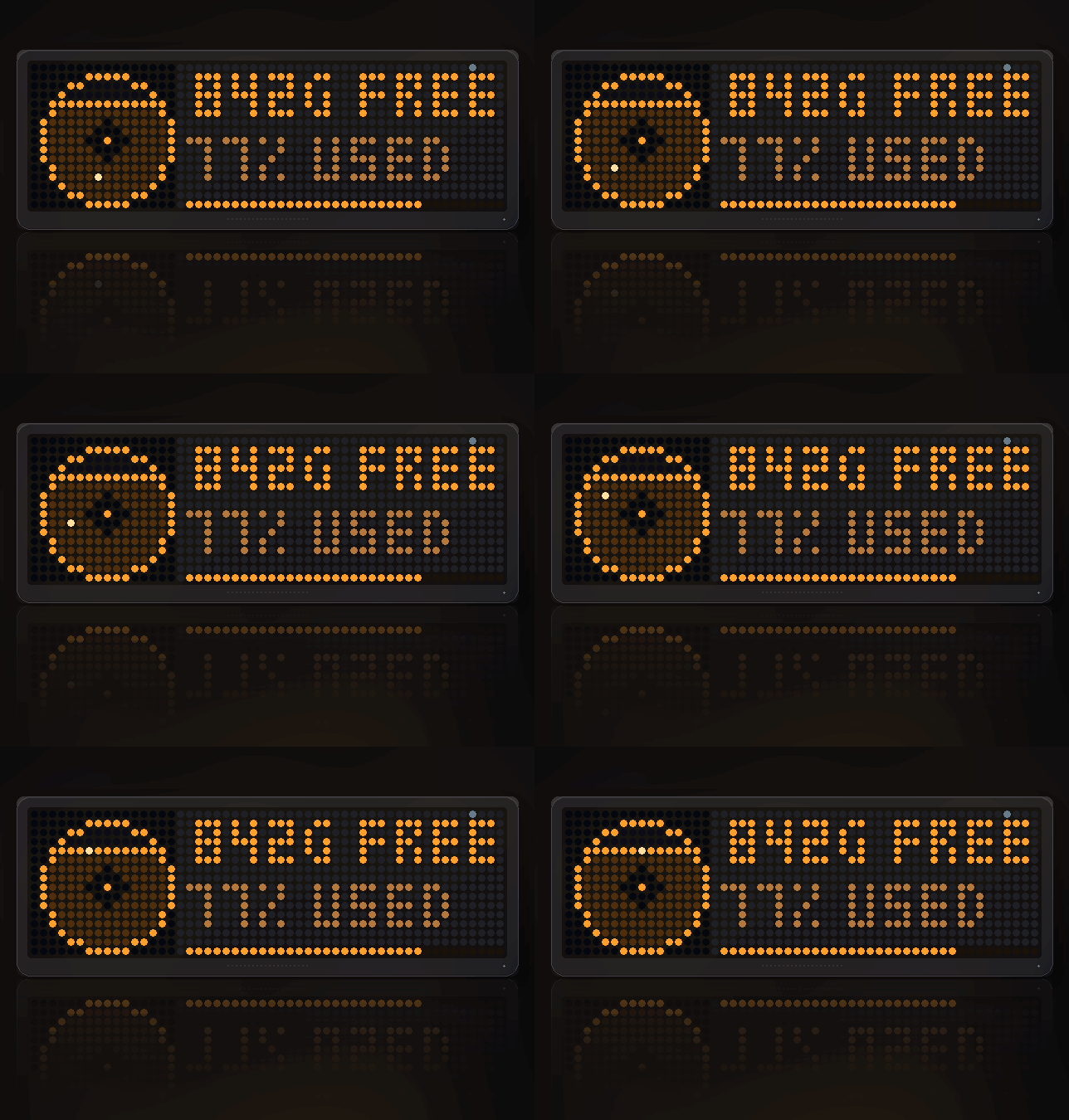
How much room is left, as a figure and as a platter filling up from the bottom.
It turns red under a tenth free, which is the point at which a queue is about to
stall.
When something stops answering
A warning triangle and the name of the box that has gone quiet. This is
deliberately slow to appear: a NAS busy importing a library stops answering for
a minute at a time, and that is not an outage. A service that has answered
before gets five minutes of silence before it is called down — but one that has
never answered is reported straight away, because that is not an outage, it is
a wrong address or a wrong key, and waiting to mention it helps nobody.
Setting it up
Each service wants two things: its address, including the port, and its API key.
| Service | Address looks like | Where the key is |
|---|---|---|
| SABnzbd | http://nas:8080 |
Config → General → API Key |
| NZBGet | http://nas:6789 |
put user:pass in the key box instead |
| Medusa | http://nas:8081 |
Config → General → API Key |
| Sonarr | http://nas:8989 |
Settings → General → API Key |
| Radarr | http://nas:7878 |
Settings → General → API Key |
| CouchPotato | http://nas:5050 |
Settings → General → API Key |
You can leave the http:// off and it will be added. Trailing slashes are
fine.
Medusa needs to be recent enough to have its v2 API — that is what returns
the series slug the poster is addressed by, and nothing older can be asked for
artwork at all.
Your keys are stored on the clock, not in the script, so nothing about your
setup travels with it.
Settings
- Show poster art — off turns every tile into a drawing. Worth switching off
on a slow network: Medusa serves its posters at full size, which is a few
hundred kilobytes each time that page comes round. Sonarr, Radarr and
CouchPotato all hand back a proper thumbnail instead. - Hide when nothing is happening — on by default. Off keeps the app in the
rotation always, showing a quiet status board when there is nothing to report. - Say so when a service stops answering — the warning page above.
- Seconds per page — 3 to 12, five by default.
Sign in to view and copy the code of this script.
Discussion 0
Ask a question, suggest a change or share how you use it.
No comments yet. Start the conversation.
More scripts in Multimedia
Something wrong with this script? Report it.
Have an idea?
Sign in to ask questions and join the conversation.