Amazon Parcels
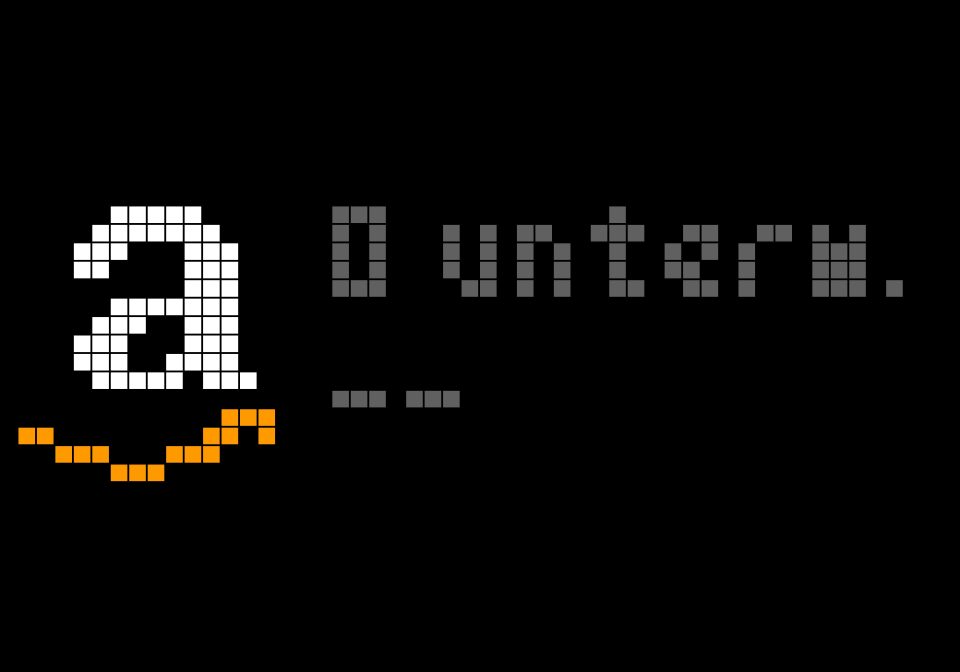
On your display
See at a glance how many Amazon parcels are on their way and how many have arrived.
- Topic
- News
- Includes
- Script
Runs on
- Does not run on 32×8 (TC001 & DIY) Made for 52×16 (TC002).
- Runs on 52×16 (TC002)
- Does not run on 32×8 with AWTRIX 3 (TC001 & DIY) Made for AWTRIX NG.
Choose your display in the next step.
Script description
Amazon Parcels
See at a glance how many Amazon parcels are on their way and how many have arrived.
Two lines on the 52×16 display of the Ulanzi TC002: parcels in transit and parcels delivered today. A line turns grey when its number is 0. Optionally, a notification pops up as soon as a new parcel is delivered. The app can hide itself from the rotation while nothing is on the way.
How it works
Amazon offers no public order API, so the app reads two plain numbers from MQTT. Any source works. This guide uses Home Assistant with the "Mail and Packages" integration, which counts parcels from your Amazon e-mails.
amazon/on_the_way: number of parcels in transitamazon/delivered: number of parcels delivered today
Both topics can be changed in the app settings.
Requirements
- Ulanzi TC002 (52×16 display)
- An MQTT broker, set up in the clock's MQTT settings
- Home Assistant with the MQTT integration connected to the same broker
- An e-mail account (IMAP) that receives your Amazon shipping e-mails
Home Assistant setup
- Install "Mail and Packages". In HACS, search for "Mail and Packages", install it and restart Home Assistant.
- Add the integration. Go to Settings → Devices & Services → Add Integration → Mail and Packages. Enter your IMAP server, login and port.
- Enable the Amazon sensors. In the integration's options, tick the Amazon sensors (parcels in transit and parcels delivered). Give Amazon the e-mail forwarding addresses if you use any.
- Find the sensor names. Open Developer Tools → States and search for
amazon_packages. The names depend on the name you gave the integration, for examplesensor.mail_amazon_packagesorsensor.imap_web_de_mail_amazon_packages. The delivered sensor usually ends in_delivered. If it does not exist, only the "in transit" line will show a number. - Create the automation. Go to Settings → Automations → Create → Edit in YAML and paste the following. Replace the sensor names with your own.
alias: Amazon -> AWTRIX
description: Publishes the Amazon parcel counts via MQTT for the AWTRIX app
triggers:
  - trigger: state
    entity_id:
      - sensor.mail_amazon_packages
      - sensor.mail_amazon_packages_delivered
  - trigger: homeassistant
    event: start
actions:
  - if:
      - condition: template
        value_template: "{{ states('sensor.mail_amazon_packages') | is_number }}"
    then:
      - action: mqtt.publish
        data:
          topic: amazon/unterwegs
          payload: "{{ states('sensor.mail_amazon_packages') }}"
          retain: true
  - if:
      - condition: template
        value_template: "{{ states('sensor.mail_amazon_packages_delivered') | is_number }}"
    then:
      - action: mqtt.publish
        data:
          topic: amazon/zugestellt
          payload: "{{ states('sensor.mail_amazon_packages_delivered') }}"
          retain: true
mode: single
- Test it. Go to Settings → Devices & Services → MQTT → Configure and listen to the topic
amazon/#. Run the automation once by hand. Both topics should show a number.
The numbers are published with the retain flag, so the clock shows the current values right after a reboot. Values like unknown or unavailable are never sent, and the clock keeps the last known number.
Settings
- MQTT topics for "in transit" and "delivered"
- Labels and colours for both lines
- Custom icon: any icon from your clock, 8–24 px wide, with an adjustable width. Leave it empty for the built-in drawn parcel.
- Only show with parcels: skip the app while both numbers are 0
- Alert on delivery: notification when the delivered count goes up
Tips
- With a 16 px wide icon, only about 34 px remain for text. Use short labels such as
inanddone. - The app has no icon files and needs no extra modules.
Sign in to view and copy the code of this script.
Discussion 0
Ask a question, suggest a change or share how you use it.
No comments yet. Start the conversation.
Have an idea?
Sign in to ask questions and join the conversation.