Pomodoro Timer
On your display
Get work Done with this Pomodoro Timer
- Topic
- Miscellaneous
- Includes
- Script
Runs on
- Does not run on 32×8 (TC001 & DIY) Made for 52×16 (TC002).
- Runs on 52×16 (TC002)
- Does not run on 32×8 with AWTRIX 3 (TC001 & DIY) Made for AWTRIX NG.
Choose your display in the next step.
Script description
AWTRIX Pomodoro Timer
A distraction-free Pomodoro timer for the Ulanzi TC002 running AWTRIX NG.
It runs directly on the clock: no companion server, MQTT broker, or build step
is required.
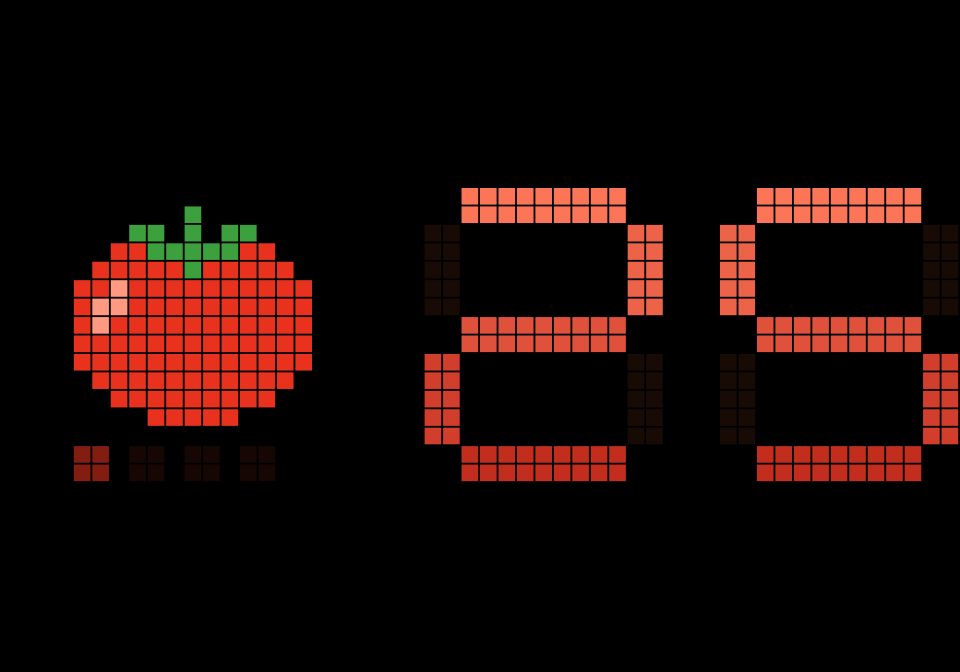
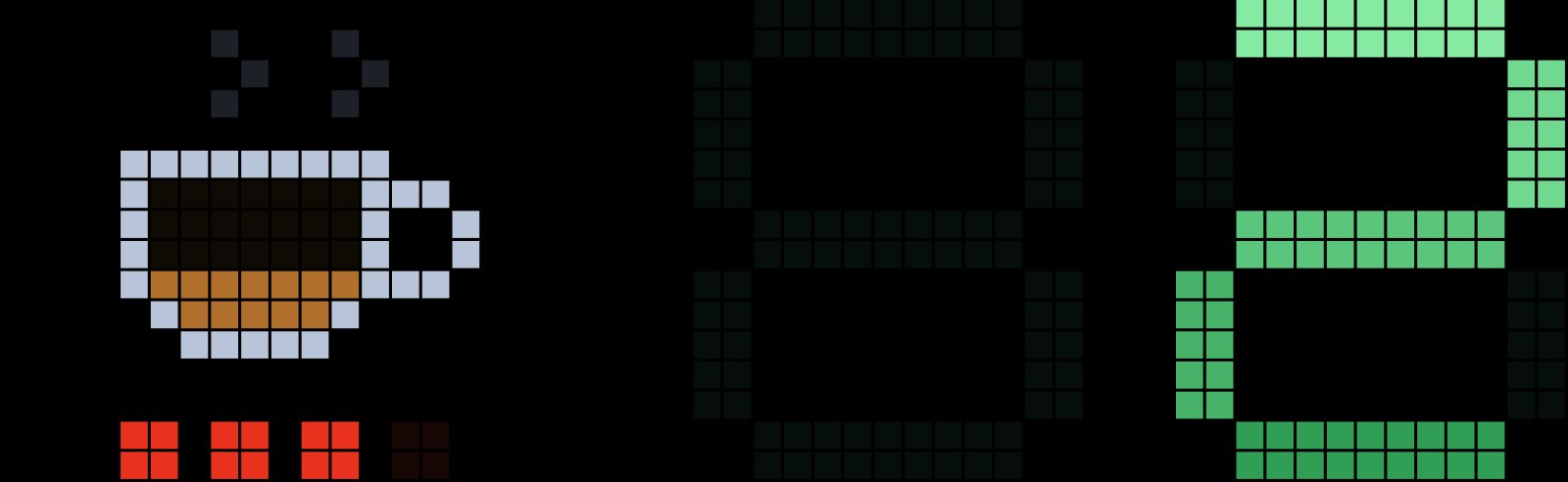
During focus sessions, a tomato gradually empties. During breaks, a cup of tea
does the same. By default, large digits show only the remaining minutes, keeping
the display quiet instead of counting down every second.
Current script version: 1.7
Script: Pomodoro-Timer.ax
Features
- Configurable focus sessions, short breaks, and long breaks.
- Large minute-only display by default, with optional seconds.
- No scrolling text or blinking digits during normal running phases.
- A gentle four-second breathing effect on the current focus dot or tea steam.
- Start, pause, resume, cancel, and reset using SELECT.
- Optional rotation pinning to keep the timer on screen.
- Visual alerts and three selectable RTTTL melodies.
- Optional automatic transitions with no extra delay for the alert.
- Persistent phase and session count, plus recovery of running timers after reboot.
“Calm” describes the display during a phase, not silent operation: sound is
enabled by default, and phase-end alerts deliberately blink and animate.
Requirements
- Ulanzi TC002 with AWTRIX NG installed and scripting enabled.
- Access to the clock's web interface.
- A 52 × 16 pixel display; the layout uses fixed coordinates.
- RTTTL playback support (
audio.rtttl) for sound. - A valid device date and time to recover a running timer after a restart.
This is an AWTRIX NG Berry app, not an app for the original Ulanzi firmware or
AWTRIX 3. The layout is not suitable for a TC001's 32 × 8 display.
No additional icons, audio files, modules, API keys, or external services are
needed. Graphics and melodies are embedded in the script.
Installation
- Download Pomodoro-Timer.ax. When downloading from GitHub,
save the raw file rather than the HTML page. - Open your clock's web interface and go to Scripts.
- Use Import to load the
.axfile into the editor. - Check the installation name, for example
Pomodoro-Timer, then press Save. - Show the app using the editor's display action or the Apps tab.
- Open the app's settings under Apps, adjust them, and save.
Alternatively, create a new script and paste the complete contents of the
.ax file into the editor. It contains plain-text Berry source.
To update, replace the source of the existing app and save under the same
installation name. AWTRIX NG preserves its store when editing and saving.
Saving settings restarts the app, so make configuration changes between phases
where possible.
How a session works
The defaults follow the familiar Pomodoro pattern:
- 25 minutes of focus
- 5 minutes of short break
- Repeat, taking a short break between focus sessions
- After the fourth completed focus session, take a 15-minute long break
- Start a new set
The dots below the icon track completed focus sessions in the current set.
Canceling a phase does not count it as completed or skip to the next phase.
Manual and automatic transitions
With Start next phase automatically disabled, the next phase waits for you.
Press SELECT during the alert to start it immediately, or let the alert finish
and start it later.
With automatic transitions enabled, the next phase starts counting as soon as
the previous phase ends. The alert plays on top of it. For example, after a
20-second alert, a five-minute break has about 4:40 remaining.
Ending the alert early does not restart that countdown.
Controls
Controls apply while the timer app is displayed. SELECT is the middle
button; LEFT/RIGHT remain available for switching apps.
| State | Action | Result |
|---|---|---|
| Ready | SELECT once | Start the displayed phase |
| Running | SELECT once | Pause |
| Paused | SELECT once | Resume with the remaining time |
| Running or paused | SELECT twice | Cancel the phase; keep the completed-session count |
| Ready | SELECT twice | Reset to focus and clear the completed-session count |
| Alert active, manual mode | SELECT | Dismiss the alert and start the next phase |
| Alert active, manual mode | LEFT or RIGHT | Dismiss the alert and switch apps without starting the next phase |
| Alert active, automatic mode | Any button | Dismiss the alert; the next phase continues running |
LEFT/RIGHT also pass through to normal navigation in automatic mode.
Single and double presses are resolved 420 ms after the last SELECT press,
so a single press has a short intentional delay.
Keeping the timer on screen
Pin during a phase is enabled by default. Starting a phase pauses app
rotation, and the timer stays pinned while running or paused.
- LEFT/RIGHT can still switch away and release rotation.
- Returning to the timer during a running or paused phase pins it again.
- Canceling releases rotation.
- Phase-end alerts temporarily hold the display regardless of the pin setting.
- After an alert, rotation is released unless another running phase is pinned.
With pinning disabled, the app normally takes a 15-second turn in rotation.
The countdown continues while another app is visible.
Display
- Focus: A red tomato empties as time passes.
- Break: A cup of tea empties, with gently breathing steam while running.
- Minutes only — default: Two large digits show remaining minutes rounded
up. For example,24:59displays25. There is no progress bar or status
text while running or paused, and the leading zero stays dark. - Seconds enabled: A smaller
MM:SSreadout and a progress bar appear.
The colon remains steady. - Paused: Digits are dimmed and the breathing effect stops.
- Phase end: Blinking digits, a chasing border, status text, and optional
repeated sound draw attention to the transition.
The settings labels and script metadata are English. Some on-device status
messages are currently German, including FOKUS, PAUSE, HALT, and
ABGEBROCHEN.
Settings
All settings are exposed through the script's @config header and can be
changed in the web interface without editing the source. The ranges below
are those declared for the UI.
| Setting | Key | Default | Range / behavior |
|---|---|---|---|
| Focus | work |
25 min | 5–90 min |
| Short break | short |
5 min | 1–30 min |
| Long break | long |
15 min | 5–60 min |
| Focus phases before long break | cycles |
4 | 2–6 |
| Start next phase automatically | auto |
Off | Next phase counts down during the alert |
| Alert tune | tune |
chime |
chime, bells, pips |
| Alert length | ring |
20 s | 5–120 s; any button dismisses it early |
| Show seconds | secs |
Off | Use MM:SS instead of large remaining minutes |
| Pin during a phase | pin |
On | Keep running or paused phases on screen |
| Sound | sound |
On | Enable alert melodies and short button-feedback tones |
| Wake the display | wake |
On | Turn the matrix on at phase end if it is off |
Restart recovery
The script stores the current phase and completed-session count. For a running
timer, it also stores the absolute end time and total phase duration, updating
them when starting or resuming and approximately every 15 seconds.
After a restart, a running timer resumes once the clock has a valid date and
time, provided the stored deadline is still in the future. Time spent rebooting
is not added back. In automatic mode, the next phase's deadline is also stored
when its alert begins, if the device time is available.
Limitations:
- Paused remaining time is not persisted. After reboot, the saved phase
is ready again with its full configured duration. - An already expired deadline does not trigger a catch-up alert or advance
the phase after reboot. - An active alert itself is not restored.
- A sudden power loss can lose recent writes before the firmware flushes its store.
Troubleshooting
| Symptom | Check |
|---|---|
| App does not appear | Confirm scripting is enabled and the app is active under Apps |
ERR: on the display |
Open Scripts for the error and source location; also check Log |
| No sound | Check Sound, device audio settings, and RTTTL support |
| Other apps no longer rotate | This is expected with Pin during a phase enabled; use LEFT/RIGHT or disable pinning |
| Timer does not resume after reboot | Check the device date/time and the recovery limitations above |
| Display is clipped | The script requires the TC002's 52 × 16 layout |
After repeated playback errors, the script disables further sound attempts
until the app restarts.
Testing and repository notes
There is currently no automated test suite or build configuration. To check
the script on your firmware:
- Configure short durations and verify start, pause, resume, cancel, and reset.
- Verify both minute-only and seconds displays.
- Switch away and back to check pinning and background countdown.
- Test alerts with each button, with automatic transitions both off and on.
- Restart during a running phase with a valid device time and check recovery.
- Restore your preferred everyday settings.
Pomodoro-Timer.ax is the source/distribution file and belongs in version
control. .gitignore excludes macOS metadata and temporary editor files,
not .ax or .be scripts.
Contribute
Feel free to contribute :)
License
This project is released under the MIT License.
Copyright (c) 2026 RalfA.
You may use, modify, and redistribute the script, including in other
projects, as long as the copyright notice and license text are kept.
References
Sign in to view and copy the code of this script.
Discussion 0
Ask a question, suggest a change or share how you use it.
No comments yet. Start the conversation.
More scripts in Miscellaneous
Something wrong with this script? Report it.
Have an idea?
Sign in to ask questions and join the conversation.