Paperless Count
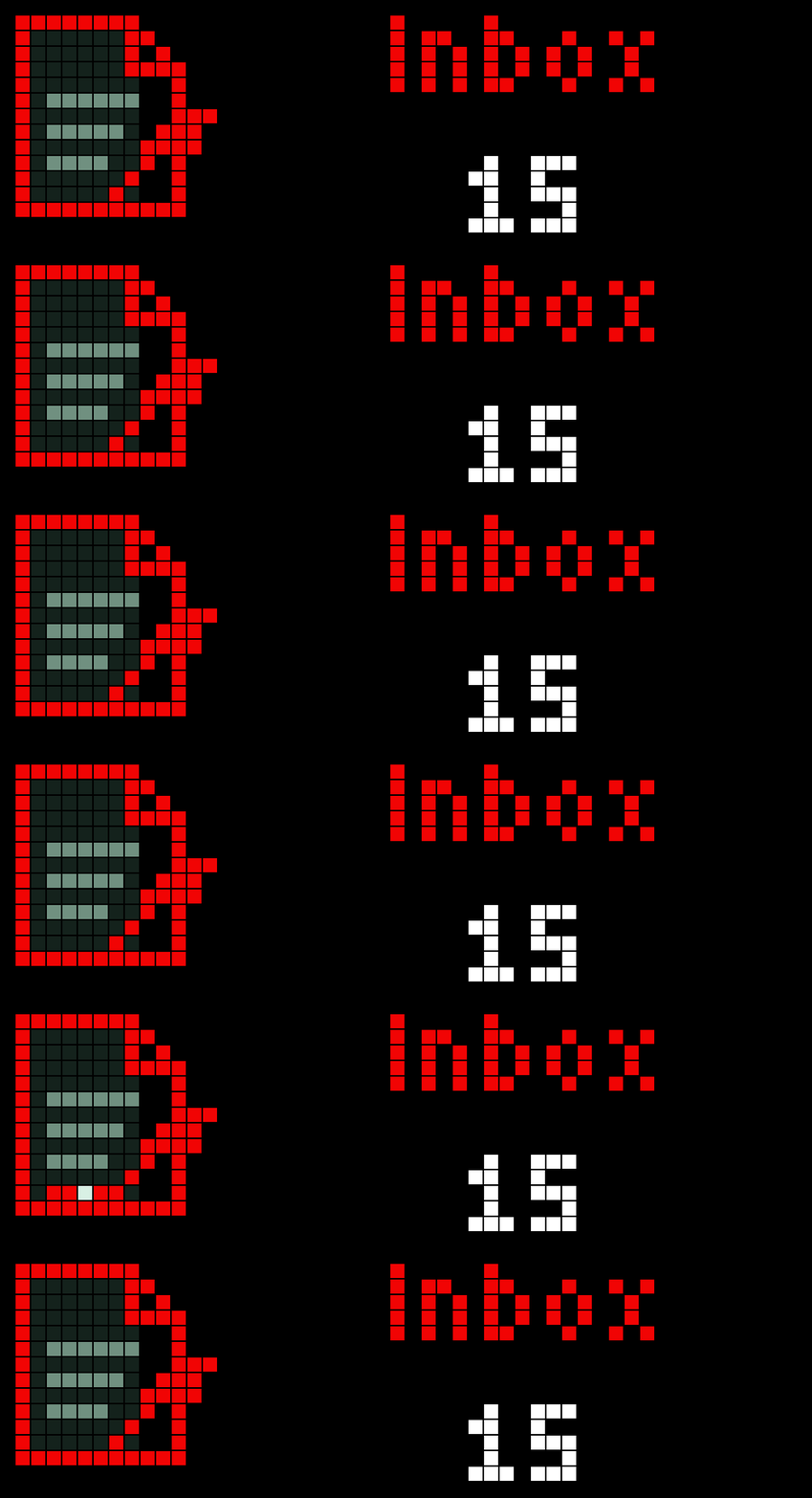
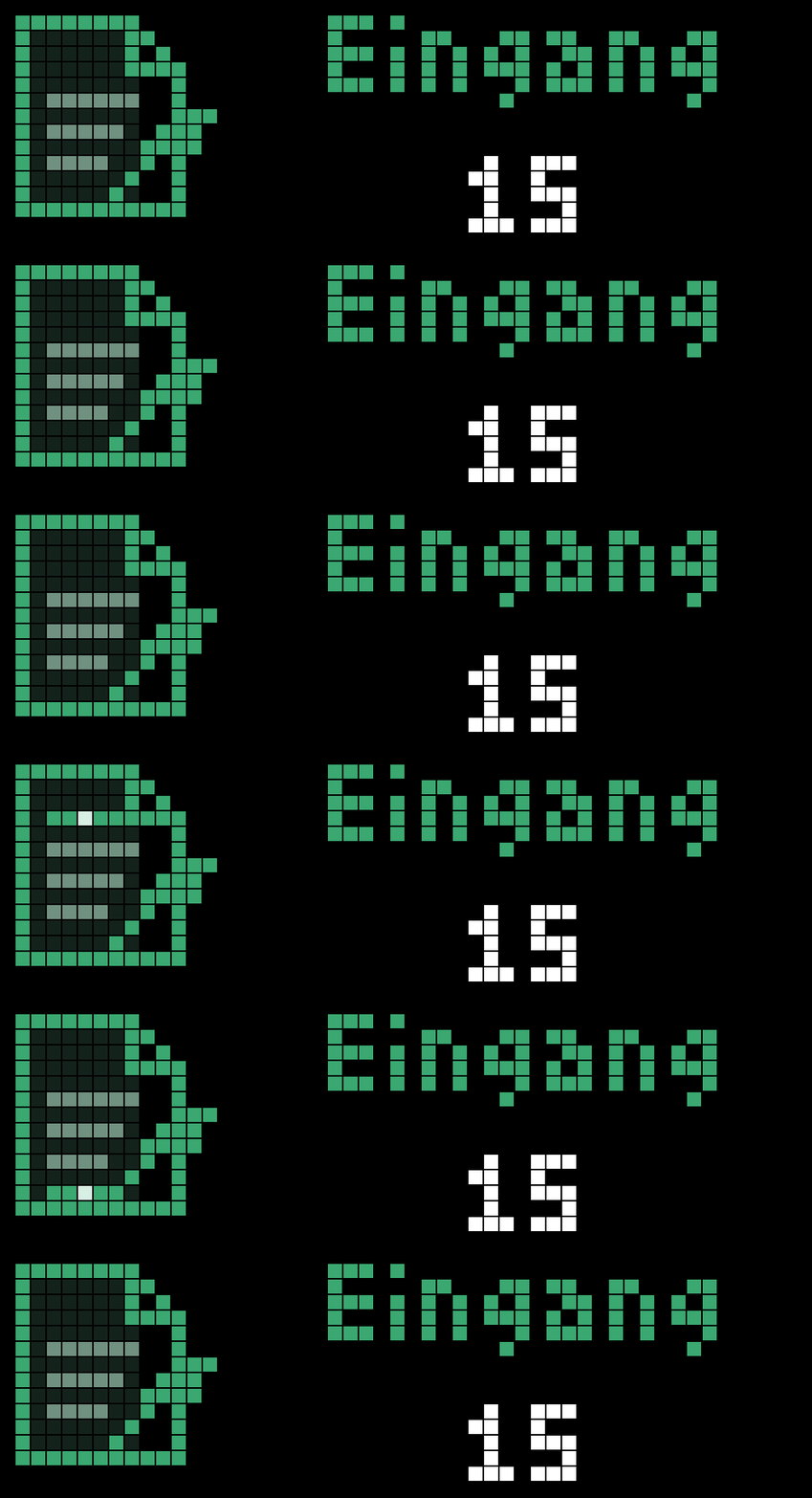
On your display
Keep an eye on your Paperless-NG documents directly on your TC002. Display document counts by tag, full-text search or custom API filters, with a customizable heading, optional animations and support for your own icons.
- Topic
- Miscellaneous
- Includes
- Script
Runs on
- Does not run on 32×8 (TC001 & DIY) Made for 52×16 (TC002).
- Runs on 52×16 (TC002)
- Does not run on 32×8 with AWTRIX 3 (TC001 & DIY) Made for AWTRIX NG.
Choose your display in the next step.
Script description
Paperless Count — Animated Document Counter
Keep an eye on your Paperless-NG documents directly on your TC002. Display document counts by tag, full-text search or custom API filters, with a customizable heading, optional animations and support for your own icons.
Your document workflow, at a glance
Paperless Count brings your Paperless-NG document count to the TC002’s 52×16 display. Track your inbox, monitor documents awaiting review or display the number of documents matching a specific search, without opening your browser.
Use the built-in document-and-leaf icon with subtle animations, or personalize the display with an installed static or animated custom icon.
Features
- Four selection modes
- Tag name: count documents assigned to an exact, case-sensitive tag name.
- Tag ID: select a tag by its numeric ID.
- Full-text search: enter a search expression as plain text.
- Custom API filters: specify advanced document filters as a query-string fragment.
- Customizable heading: use labels such as
INBOX,INVOICESorTO REVIEW. Longer headings scroll; an empty value hides the heading. - Built-in document-and-leaf icon: no external icon download required.
- Custom icon support: select an icon already installed on the clock by its ID or name.
- Two custom icon layouts
- 8×8: vertically centered in the compact icon area.
- 16×16: fills the display height, with the heading and count positioned to its right.
- Animated custom icons: use an installed animated GIF for a personalized appearance.
- Optional built-in animations: a document-scanning effect, moving amber dots during requests and a brief sparkle after successful refreshes.
- Configurable refresh interval: specified in minutes, with a default of 10 minutes.
- Manual refresh: press the middle/select button while the app is visible.
- Optional hide-on-zero: keep the app out of the rotation when there are no matching documents.
- Clear error reporting: short messages on the display and detailed diagnostics in the AWTRIX log.
- Customizable accent colour: adjust the built-in icon and heading colour.
Setup
- Add the script through the AWTRIX web interface.
- Open the app settings.
- Enter your Paperless base URL and API token.
- Choose a selection mode and enter the corresponding tag, search text or API filters.
- Adjust the heading, refresh interval and display options.
- Optionally configure a custom icon and select its actual dimensions.
Connection settings
- Paperless base URL: include
http://orhttps://, the port if needed and any installation subpath. Do not append/api. - Paperless API token: enter the token only, without the
Tokenprefix.
Selection examples
| Mode | Setting | Example |
|---|---|---|
| Tag name | Tag name | Inbox |
| Tag ID | Tag ID | 12 |
| Full-text search | Full-text search | electricity invoice |
| Custom API filters | Custom API filters | tags__id__all=12 |
For full-text search, enter plain text without the query= prefix. The app handles URL encoding.
For custom API filters, enter encoded key=value pairs separated by &, without a leading ?, endpoint or full URL. Encode spaces as %20. Do not include leading or trailing spaces.
Tag settings are ignored when using search or custom-filter mode. Pagination is managed by the app.
Custom icons
Using your own icon
- Install the desired icon on your clock.
- Enter its ID or name under Custom icon ID or name, without a path or file extension.
- Select its actual dimensions under Custom icon size:
8x8for an 8×8 asset.16x16for a 16×16 asset.
The size setting controls placement, not scaling. Selecting 16x16 does not enlarge an 8×8 icon.
The app does not download icons automatically. The selected icon must already be installed on the device.
Animation behaviour
- No custom icon: the built-in icon is used, with optional scanning, refresh and success animations.
- Custom icon configured: the app’s built-in animations are disabled, allowing the custom icon to take their place.
- Animated custom GIF: its own animation remains independent of the app’s Enable animations setting.
- Custom icon unavailable: the app displays the built-in static fallback and logs a warning once per app restart.
Custom icons retain their original colours; the accent-colour setting does not recolour them.
Error handling
Errors replace the count with a short status message and show ERROR above it. Detailed diagnostics are written to the AWTRIX log.
Examples include:
CONFIG: missing or invalid configuration.AUTH: API authentication rejected.DENIED: insufficient permissions.NET: no HTTP response.NO TAG: no exact tag-name match found.QUERY: the server rejected the request.DATA: an unexpected or invalid API response.SERVER: a server-side error.
Errors remain visible even when Hide when count is zero is enabled.
Requirements and compatibility
- Display: TC002, 52×16 pixels.
- Target firmware: AWTRIX-NG 1.2.3 or newer.
- Paperless: a reachable Paperless-NG instance with API token authentication.
- Permissions: the token’s user must be able to access the relevant documents and, in tag modes, the relevant tags.
- Custom icons: installed 8×8 or 16×16 assets, if used.
Available search syntax and API filters depend on your Paperless version.
Custom-filter validation checks syntax, not whether the server supports each parameter. An unsupported filter may be ignored by the server. Compare custom-filter results against the Paperless interface before relying on the displayed count.
Security
Designed for use on a trusted private network.
- The API token is stored in persistent app configuration, not an encrypted secret store.
- Protect access to the clock’s web interface.
- The firmware’s scripting HTTPS client does not verify server certificates.
- Exception diagnostics may contain implementation details. Review logs before sharing them publicly.
Version history
1.4.1
- Added custom icon selection by installed ID or name.
- Added a static built-in fallback and warning log for unavailable icons.
- Disabled built-in app animations when a custom icon is configured.
- Added explicit support for 8×8 and 16×16 custom icon layouts.
- Added the Custom icon size setting.
1.3.0
- Added optional document-scanning animation.
- Added moving amber dots during API requests.
- Added a brief sparkle after successful refreshes.
Sign in to view and copy the code of this script.
Discussion 0
Ask a question, suggest a change or share how you use it.
No comments yet. Start the conversation.
More scripts in Miscellaneous
Something wrong with this script? Report it.
Have an idea?
Sign in to ask questions and join the conversation.