Now Playing for Spotify



On your display
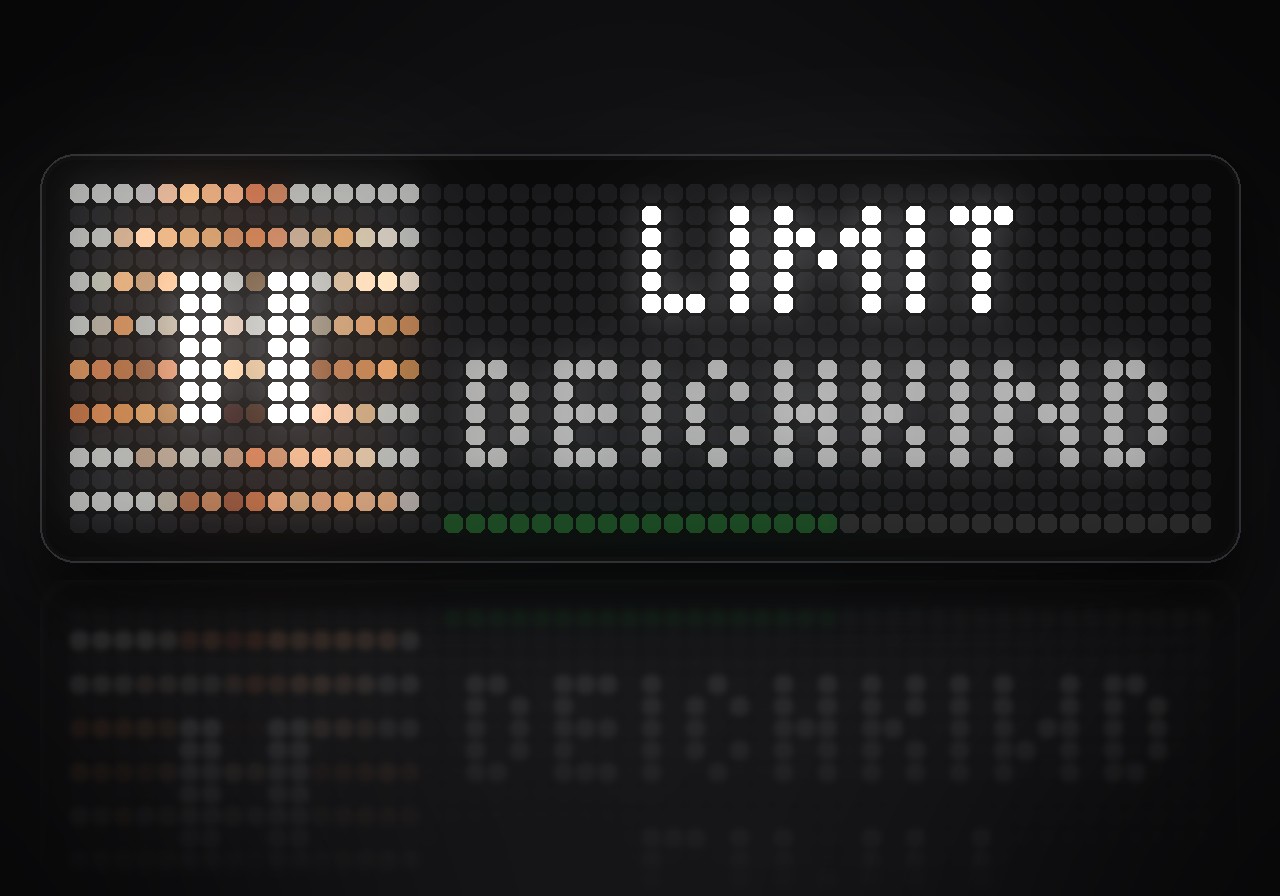
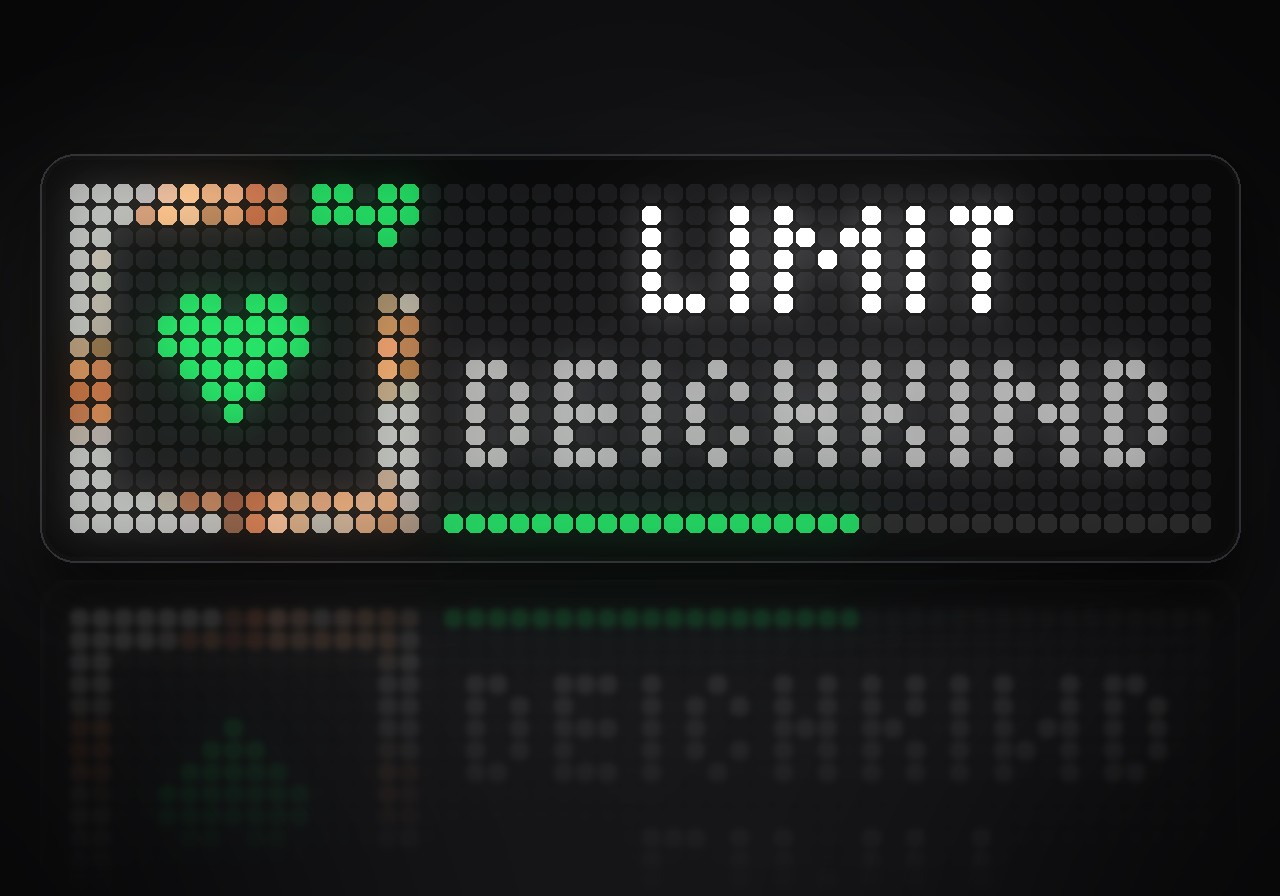
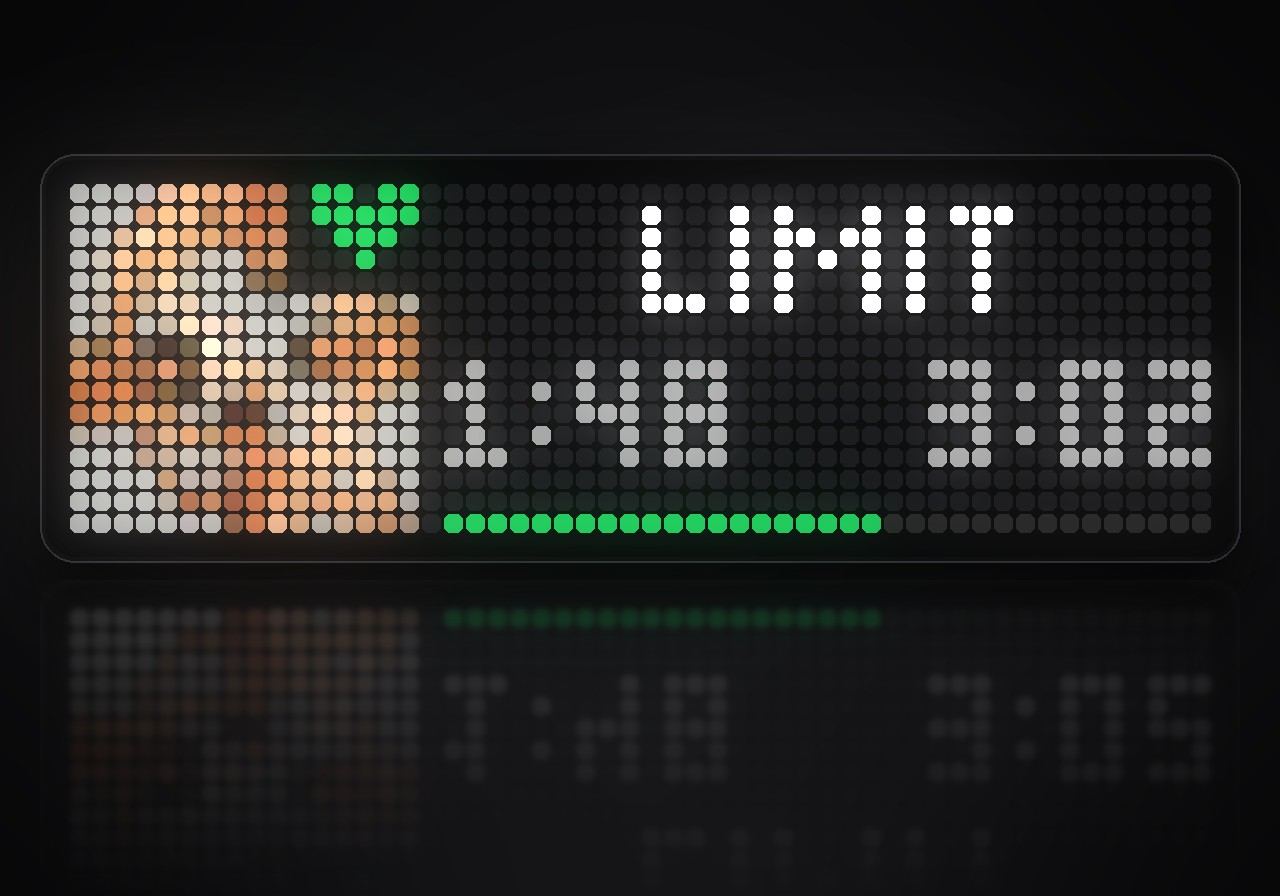
Your Spotify on the Ulanzi TC002: album cover, song, artist and live progress . Pause, skip and save songs with the clock's buttons, and turn the knob for Spotify's volume.
- Topic
- Miscellaneous
- Includes
- Script
Runs on
- Does not run on 32×8 (TC001 & DIY) Made for 52×16 (TC002). Needs an AWTRIX that signs in to services.
- Runs on 52×16 (TC002) Sign-in: open the app's settings on your AWTRIX, enter your client ID and press Sign in.
- Does not run on 32×8 with AWTRIX 3 (TC001 & DIY) Made for AWTRIX NG.
Choose your display in the next step.
Flow description
What's playing, right on your clock. Now Playing for Spotify puts your Spotify on the TC002: the album cover, the song, the artist and how far the song has got. Pause, skip and save songs with the clock's buttons, and turn the knob for Spotify's volume. It runs on the clock itself, with no phone app and no server of your own.
What's inside
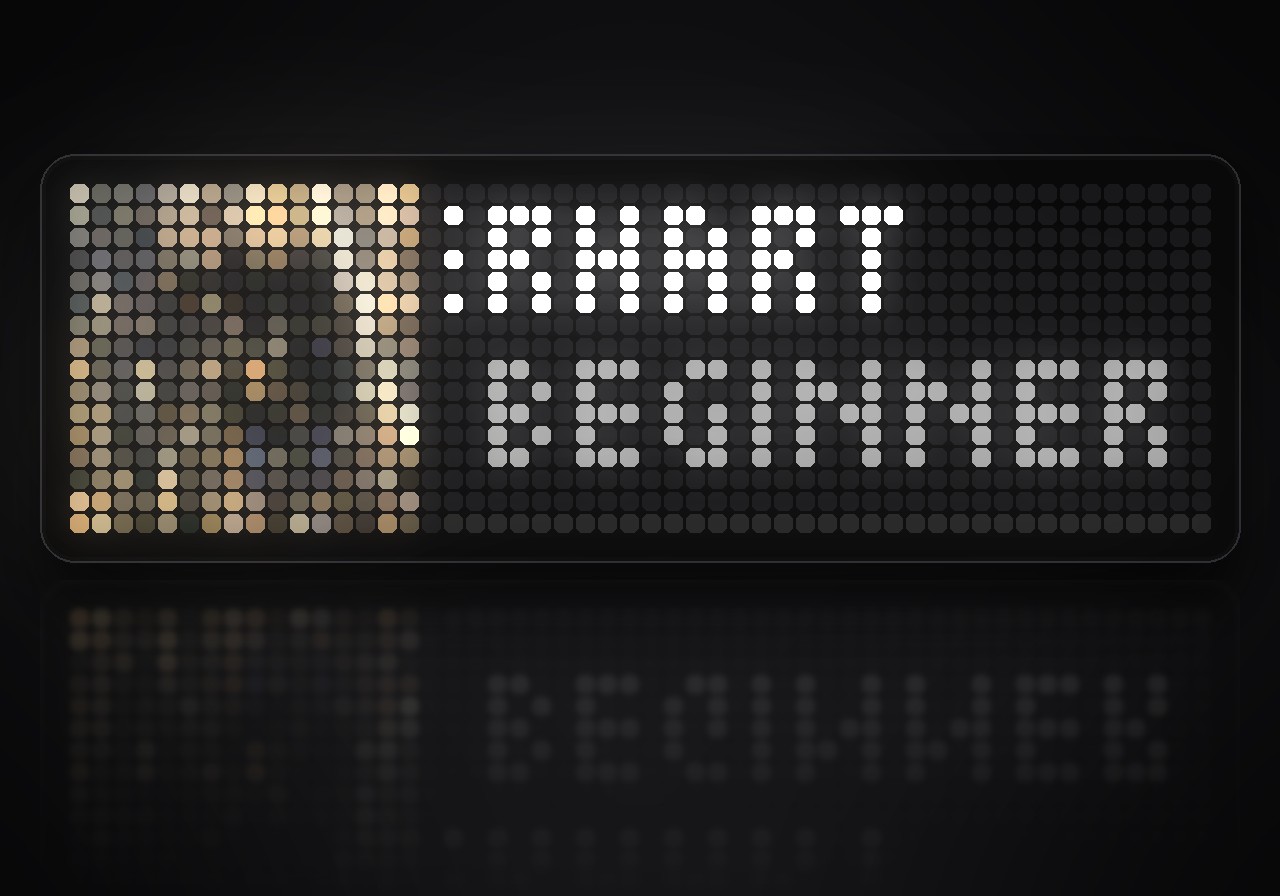
- Album cover in color: the cover of the song, or the show's picture for a podcast, next to the title and artist. Long titles scroll.
- Live progress: the bar along the bottom follows the song second by second.
- Control from the clock: play and pause, the next and the previous song, all with the three buttons.
- Save songs: press the middle button twice, and the song lands in your library. A heart on the cover shows the songs you saved.
- Volume on the knob: turn it to set Spotify's volume, with a bar on the panel.
- Stays out of the way: while nothing plays, the app leaves the rotation by itself.
- New song notice: if you like, a short notice with the cover when the song changes while another app is shown.
What you need
- An Ulanzi TC002 with AWTRIX NG 1.1.7 or later.
- A Spotify account. Playback control and saving need Spotify Premium.
- A free Spotify developer app for the sign-in. You create it once in a few minutes:
- Open the Spotify for Developers dashboard and create an app. Name and description are up to you.
- Enter the redirect URL
https://awtrix.de/oauth/callbackand tick Web API. - Copy the Client ID. No client secret is needed.
Spotify lets a developer app be used only when its owner has Premium, and by up to five Spotify accounts; add the others under User Management in the dashboard.
How to use it
Open the web UI of your clock, go to Apps, press the gear next to NowPlaying, open Sign-in, paste the client ID and press Sign in. Allow access on Spotify's page, and the clock shows what plays from then on.
| On the clock | What it does |
|---|---|
| Middle button | play or pause |
| Middle button, twice | save the song, or remove it again |
| Hold right / hold left | next song / back to the start, then the song before |
| Left / right, short | the next or previous app, as always |
| Turn the knob | Spotify's volume |
Spotify cannot set the volume of a phone it plays on; there the knob keeps setting the clock's own volume. The web player, the desktop app and most speakers take it.
Settings
Open the gear next to NowPlaying in the web UI's Apps list:
- Display: artist, album or time on the second line, the album cover on or off, and the accent color.
- Rotation: show the app only while music plays, also while paused, or always; announce new songs; how often it asks Spotify.
- Buttons: let the buttons and the knob control Spotify, or keep them for the clock.
Sign in to view and copy the code of this flow.
Discussion 0
Ask a question, suggest a change or share how you use it.
No comments yet. Start the conversation.
More flows for AWTRIX NG Scripts or Miscellaneous
Something wrong with this flow? Report it.
Have an idea?
Sign in to ask questions and join the conversation.