Claude Usage
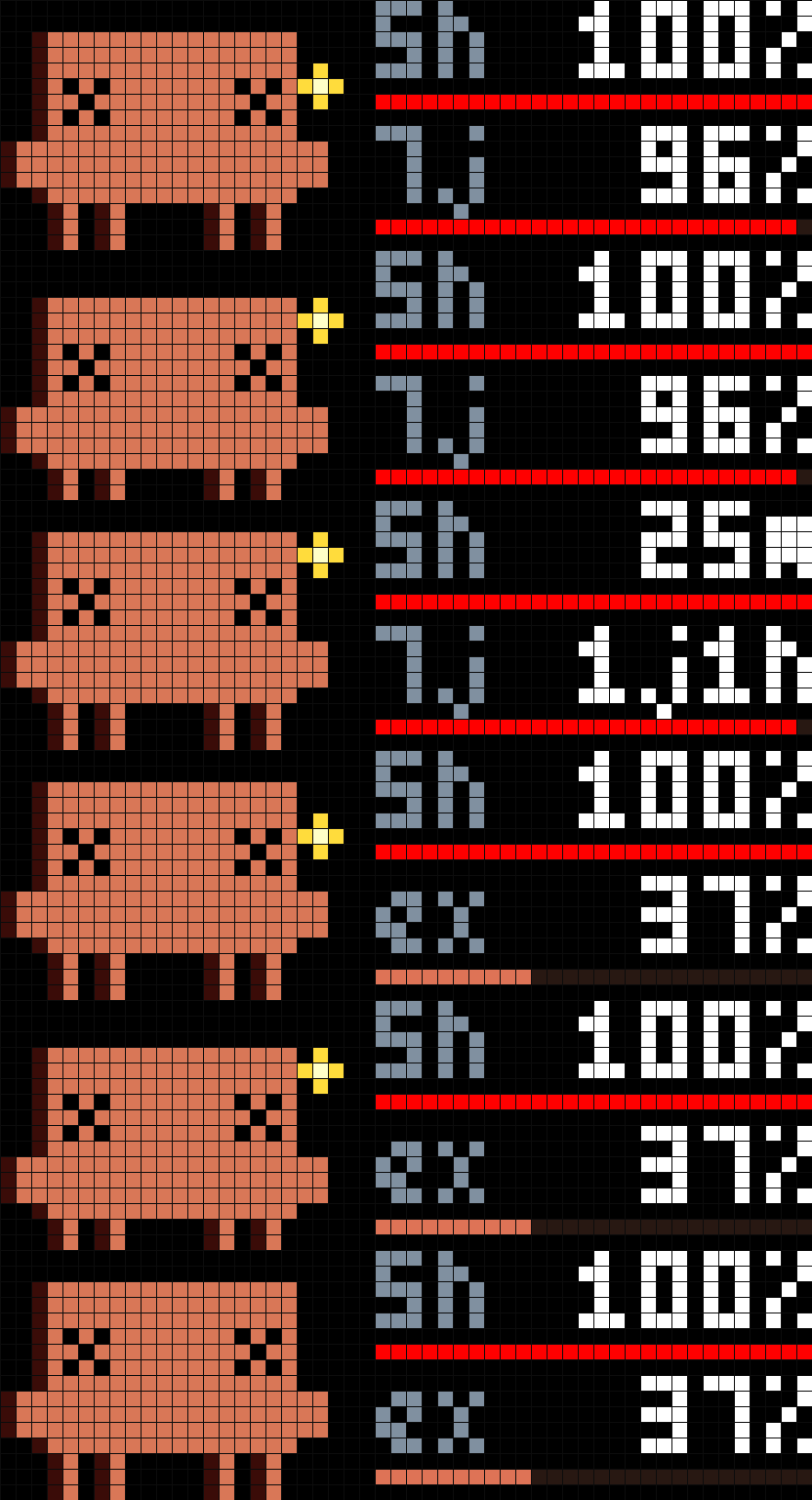

On your display
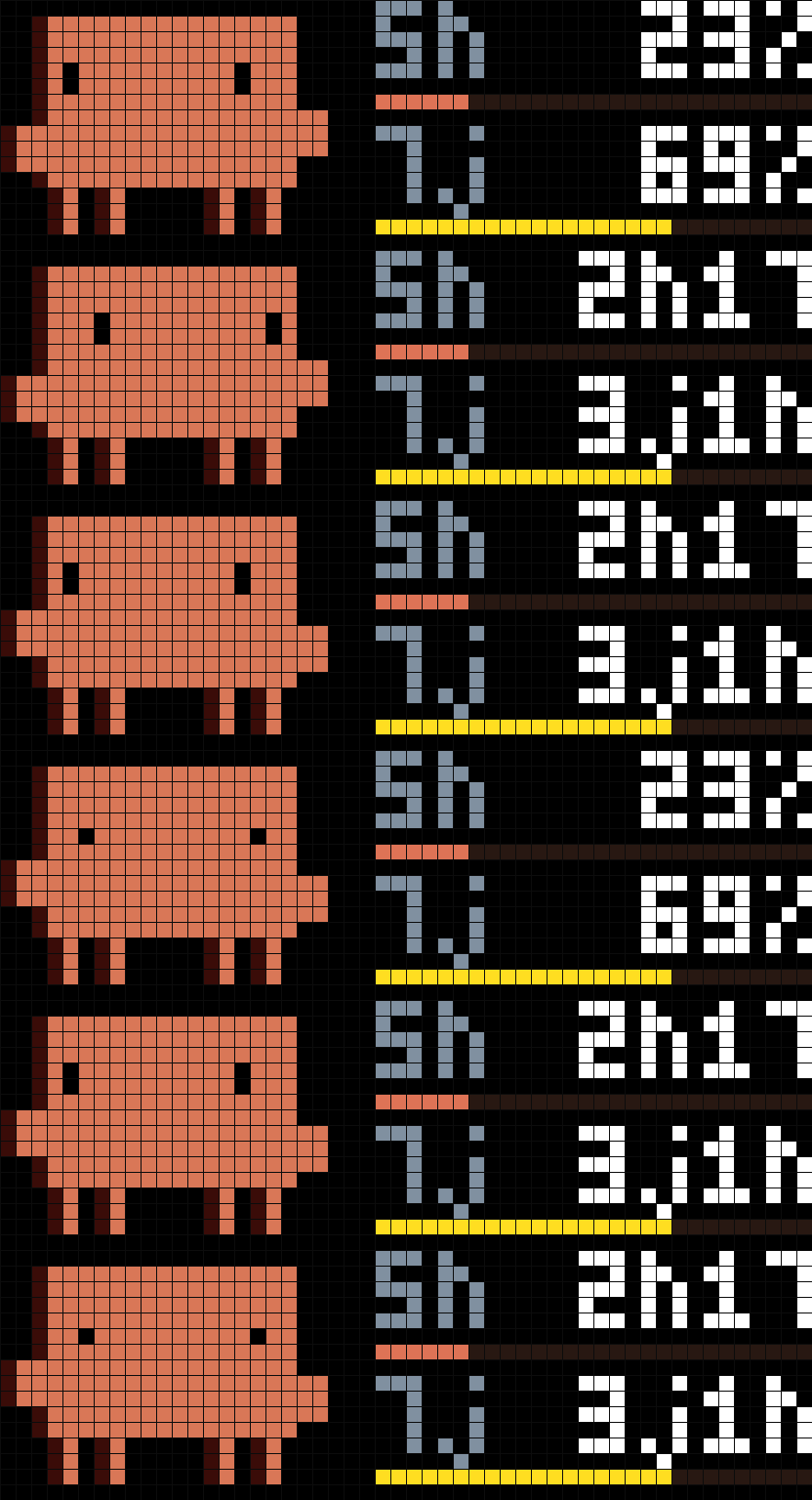
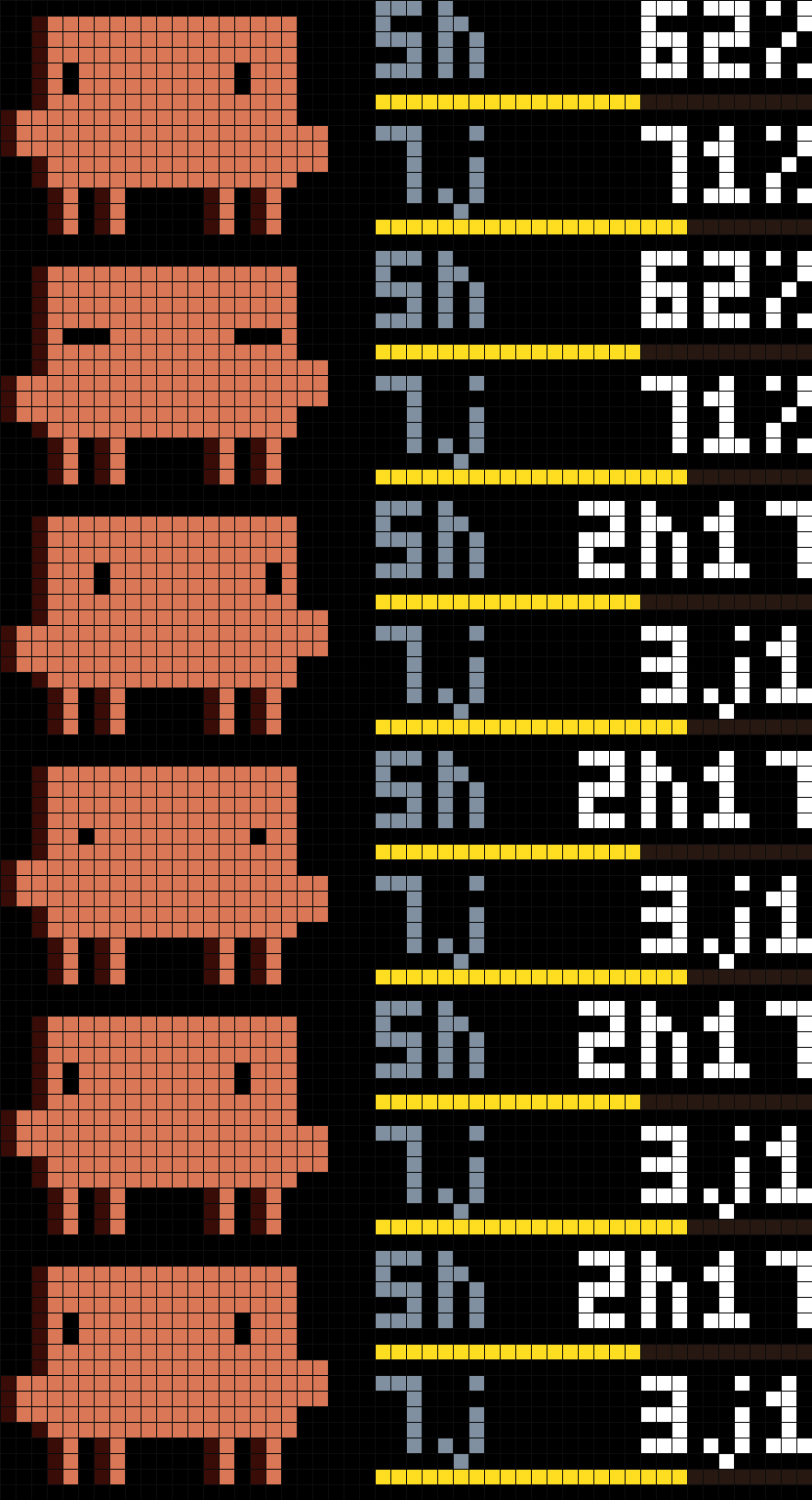
Claude plan usage on your 52x16 clock: 5 h session % and weekly %, reset timers, with a mood-changing pixel mascot. Polls a JSON URL you provide (bring your own backend).
- Topic
- Miscellaneous
- Includes
- Script · 4 icons
Runs on
- Does not run on Ulanzi TC001 Needs a panel of at least 52×16; its panel is 32×8.
- Runs on Ulanzi TC002
- Runs on ESP32 (DIY) Needs a panel of at least 52×16.
- Runs on ESP32-S3 (DIY) Needs a panel of at least 52×16.
- Does not run on Ulanzi TC001 with AWTRIX 3 Made for AWTRIX NG.
- Does not run on ESP32 (DIY) with AWTRIX 3 Made for AWTRIX NG.
Choose your display in the next step.
Flow description
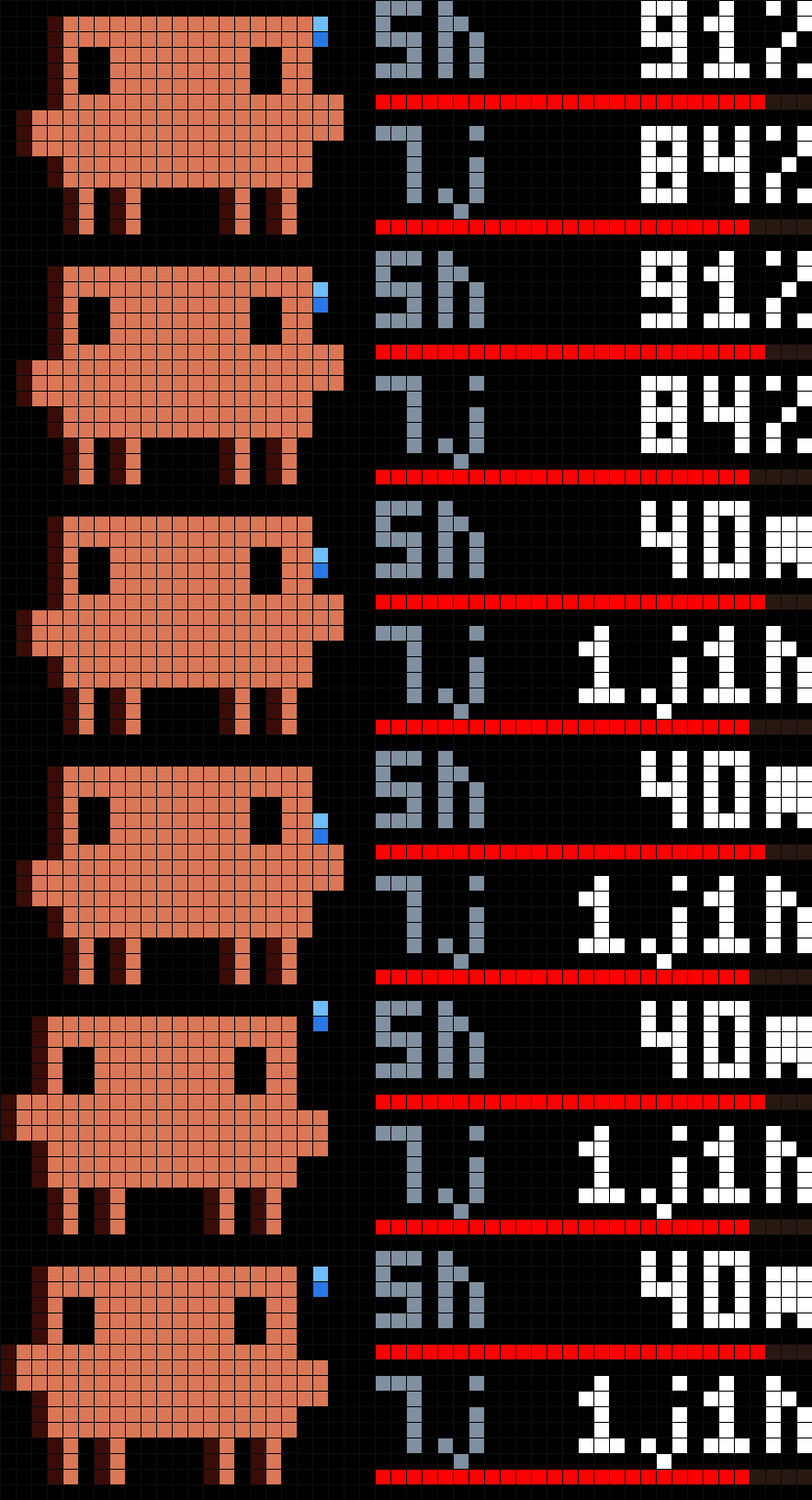
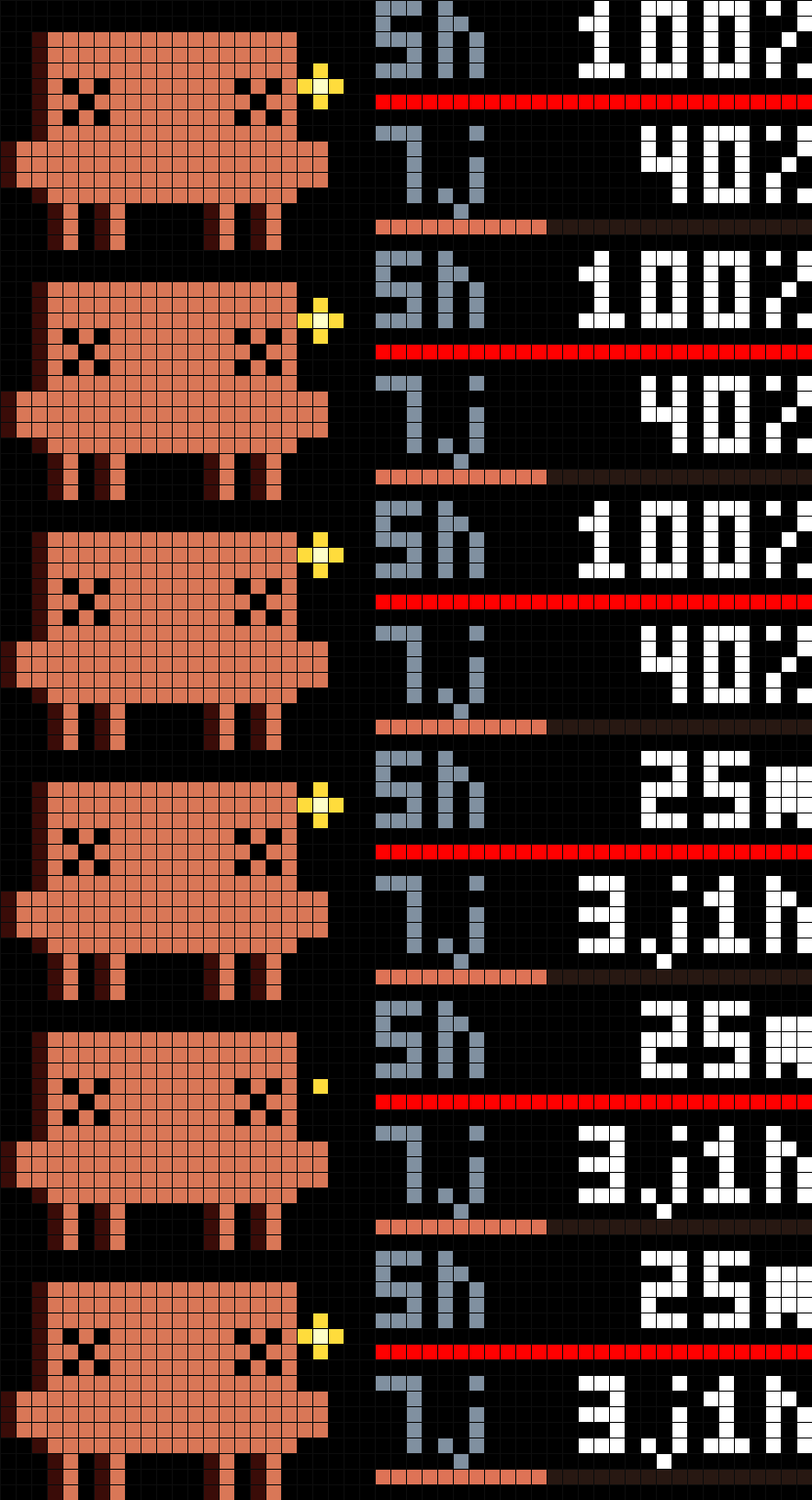
Your Claude plan usage on your AWTRIX clock: the 5 h session and the weekly percentage at the same time, on two rows, then the time left before each reset, next to a small pixel mascot whose mood follows how full your quota is. The numbers and bars turn from orange to yellow to red as you approach the limits.
Built for the Ulanzi TC002 (52x16 panel). The screens are laid out for 52x16 with fixed positions, see the notes at the end.
Read this first: where the data comes from
The app does not talk to Anthropic. It polls a URL that you provide (with one optional HTTP header, e.g. an API key) and displays whatever JSON that URL returns (contract below).
Anthropic does not offer a public API for subscription usage limits. You need your own backend that returns this JSON; the data source, and whether it complies with Anthropic's terms, is your responsibility. A simple way to test is a static JSON file or a mock endpoint.
This page deliberately does not explain how to fetch the numbers. It only covers the clock side.
Requirements
- A clock running an AWTRIX build with the Berry scripting engine (for the Ulanzi TC002: the AWTRIX NG port, e.g. sanderdw/awtrix-ng-tc002).
- An HTTP(S) URL, reachable from the clock, that returns the JSON described below.
The JSON contract
The clock does an HTTP GET and expects status 200 and a JSON object. All fields are optional; a value that is missing or null is shown as -- (or its screen is skipped, see below).
| Field | Type | Unit | Meaning |
|---|---|---|---|
s |
number or null | % (0-100) | 5 h session usage. Top row "5h" |
sr |
number or null | minutes | Time until the session resets. Top row on the time screen |
w |
number or null | % (0-100) | Weekly usage. Bottom row "7j" |
wr |
number or null | minutes | Time until the weekly reset. Bottom row on the time screen |
x |
number or null | % (0-100) | Extra usage (e.g. paid overage). Row "ex", shown once at the end |
err |
string or null | null / absent = fine; "setup", "auth" or "api" = error screens (see below) |
|
ws, wo, age |
any | Accepted but ignored by the app |
Rules:
- Numbers may be integers or decimals (decimals are truncated).
null, a missing field, or a non-number (e.g. a string) means "no value": it is drawn as--. Percentages above 100 are drawn as 100. - The reset minutes are relative to the moment the clock received the JSON; the clock counts them down on its own between polls (every 5 minutes).
- If the body is not a JSON object, or the status is not 200, the poll counts as failed (see "Errors and stale data").
Example:
{
  "s": 23,
  "sr": 137,
  "w": 69,
  "wr": 4410,
  "x": null,
  "err": null
}
Test it without any backend
Only to check the display. Save the example above as claude-usage.json and serve it with any web server, for instance from a PC of your LAN:
python -m http.server 8080
then use http://YOUR-PC-IP:8080/claude-usage.json as URL. Or, with n8n: import the small test workflow at the end of this section (Webhook, Edit Fields, Respond to Webhook), edit the numbers in Edit Fields, publish it and use http://YOUR-N8N:5678/webhook/claude-usage as URL. It only serves fixed example values; it does not fetch any real data. Change the values (e.g. "s": 91) to see the colours and the mascot change. The app polls every 5 minutes: after editing the JSON, change a setting or re-save the script to force a new read.
n8n test workflow (import it in n8n: Workflows > Import from file, or paste it into the editor):
{
  "name": "Claude Usage test endpoint for AWTRIX",
  "nodes": [
    {
      "parameters": {
        "httpMethod": "GET",
        "path": "claude-usage",
        "responseMode": "responseNode",
        "options": {}
      },
      "name": "Webhook",
      "type": "n8n-nodes-base.webhook",
      "typeVersion": 2,
      "position": [
        0,
        0
      ],
      "id": "aaf33cd2-d093-4268-b0e6-6e3570083f27",
      "webhookId": "3a6c87bc-3bd3-4f09-b721-7d8a604a994b"
    },
    {
      "parameters": {
        "assignments": {
          "assignments": [
            {
              "id": "981052a9-0b89-4879-8a4a-fd8d4bf1a8e3",
              "name": "s",
              "value": 23,
              "type": "number"
            },
            {
              "id": "b8703cfb-0672-422b-a6e1-66b85bb8408e",
              "name": "sr",
              "value": 137,
              "type": "number"
            },
            {
              "id": "ed766951-a134-4f4b-9065-3ea9a2eca1e9",
              "name": "w",
              "value": 69,
              "type": "number"
            },
            {
              "id": "12cc77d6-f6b4-4f71-afa0-bd84fee4af01",
              "name": "wr",
              "value": 4410,
              "type": "number"
            }
          ]
        },
        "options": {}
      },
      "name": "Edit Fields",
      "type": "n8n-nodes-base.set",
      "typeVersion": 3.4,
      "position": [
        240,
        0
      ],
      "id": "79129711-994d-46d2-a26a-8c032e743e75"
    },
    {
      "parameters": {
        "respondWith": "json",
        "responseBody": "={{ $json }}",
        "options": {}
      },
      "name": "Respond to Webhook",
      "type": "n8n-nodes-base.respondToWebhook",
      "typeVersion": 1.1,
      "position": [
        480,
        0
      ],
      "id": "7fead935-46ca-4be3-8d6d-0e32627a6c8e"
    },
    {
      "parameters": {
        "content": "## Claude Usage test endpoint\nEdit the numbers in \"Edit Fields\", then publish the workflow.\n\n- s / w = percent used (session / week)\n- sr / wr = minutes until the respective reset\n\nOptional fields x (extra usage, number) and err (error text) can be added as additional fields in \"Edit Fields\".\n\nThis is only a test source: it serves fixed example values and does not fetch any real data.",
        "height": 300,
        "width": 420
      },
      "name": "Sticky Note",
      "type": "n8n-nodes-base.stickyNote",
      "typeVersion": 1,
      "position": [
        0,
        -340
      ],
      "id": "c45d9710-d6f9-40a5-aa12-1fdd796e7bd4"
    }
  ],
  "connections": {
    "Webhook": {
      "main": [
        [
          {
            "node": "Edit Fields",
            "type": "main",
            "index": 0
          }
        ]
      ]
    },
    "Edit Fields": {
      "main": [
        [
          {
            "node": "Respond to Webhook",
            "type": "main",
            "index": 0
          }
        ]
      ]
    }
  },
  "settings": {
    "executionOrder": "v1"
  },
  "pinData": {}
}
Setup: clock
- Install the script from this page (it is the compact version of the code, because the commented source is over the 8 KiB script limit).
- Open the app settings and set JSON URL (e.g.
http://YOUR-SERVER/claude-usage.json). - Header value (secret): the app only polls when this field is not empty (it sends the header
Header name: Header valueon every request). If your URL needs no authentication, enter any dummy value (e.g.x); the server can ignore the header. - Icons: the script uses four 22x16 mascot GIFs (
claude_ok,claude_mid,claude_high,claude_ko). They are shared on this site: claude_ok, claude_mid, claude_high, claude_ko. Download them and upload each one to the clock (web interface, Icons) under exactly these names before the first run. The script header has an@iconsline so the clock can offer to install them by name.
Settings
| Setting | Default | Range | Meaning |
|---|---|---|---|
| JSON URL | http://YOUR-SERVER/claude-usage.json |
The URL to poll | |
| Header name | X-Api-Key |
Name of the HTTP header sent with each request | |
| Header value (secret) | empty | Header value; must be non-empty for the app to poll | |
| Seconds per switch | 3 s | 1-10 | How long each screen (percentages, then times) stays |
| Switches % / time | 3 | 1-10 | How many times the pair "percentages, times" is shown per pass |
| Warning threshold | 50 % | 1-99 | Number and bar turn yellow from here |
| High threshold | 80 % | 1-100 | Number and bar turn red from here |
The clock polls every 5 minutes; after a failed poll it retries after 1 minute.
Screens
The mascot (22 px) is always on the left; the content starts at column 24. The content is two rows of 8 px: the top row is the 5 h session (label 5h), the bottom row is the week (label 7j). Each row has its label on the left, the value right-aligned, and a thin 1 px bar underneath.
| Screen | Shown when | What |
|---|---|---|
| A, percentages | s or w present |
Both percentages, in the colour of their level (orange, yellow, red); the bars show the percentage |
| B, reset times | sr or wr present |
Both times left before reset, in white ("45m", "2h05", "3j4h" = 3 days 4 hours); the bars keep the colour of the percentage |
| C, extra | x present |
Replaces the bottom row with ex and the extra-usage percentage, shown once at the end |
A pass runs A, B, A, B... (the pair is repeated "Switches % / time" times, each screen for "Seconds per switch" seconds), then C once if present. If only A or only B exists it stays on screen for the whole time. With the defaults, a pass is 3 x 2 x 3 s = 18 s (+ 3 s with x). The screens do not loop: after the last one the app stays on it until the next app. Before the first data arrives, only the mascot is shown.
The labels are 5h (5 hours) and 7j. "j" stands for "jours" (days, French); the same j is used in the time format ("3j4h"). Edit them in the script if you prefer 7d.
Colours
- Percentage rows: orange (below the warning threshold), yellow (from "Warning threshold"), red (from "High threshold"). A missing value is drawn as grey
--. - Mascot:
claude_okbelow the warning threshold,claude_midfrom it,claude_highfrom the high threshold,claude_koat 100 %. It follows the worst ofsandw, on every screen.
Errors and stale data
err: "setup": a single SETUP screen (orange), mascotclaude_ko. Meant for "the backend is not configured yet".err: "auth": a single AUTH screen (red), mascotclaude_ko. Meant for "the backend's credentials were rejected".err: "api": the app keeps showing the last good values (also remembered across reboots) and a red dot lights up in the bottom right corner. If no good values exist yet, an API screen (red, mascotclaude_high) is shown.- A failed poll (network error, status other than 200, body that is not a JSON object): same red dot, last values kept, retry in 1 minute.
- After a reboot the cached values are shown with the reset minutes counting from the boot.
Notes
- Panel size. The layout is designed for the 52x16 panel of the TC002: positions and sizes are fixed (mascot 22x16, content from column 24, two 8 px rows). The script does not read
width()/height(). On a 32x8 matrix it is untested and will need layout changes. - Language. The weekly row is labelled
7jand days are shown asjin the time format, both French; edit them in the script if you prefer. - Fan-made mascot. The four mascot icons are my own pixel-art drawings. This is an unofficial fan project, not affiliated with or endorsed by Anthropic. "Claude" and related marks belong to their owner.
Sign in to view and copy the code of this flow.
Discussion 0
Ask a question, suggest a change or share how you use it.
No comments yet. Start the conversation.
More flows for AWTRIX NG Scripts or Miscellaneous
Something wrong with this flow? Report it.
Have an idea?
Sign in to ask questions and join the conversation.