Home Assistant weather forecast
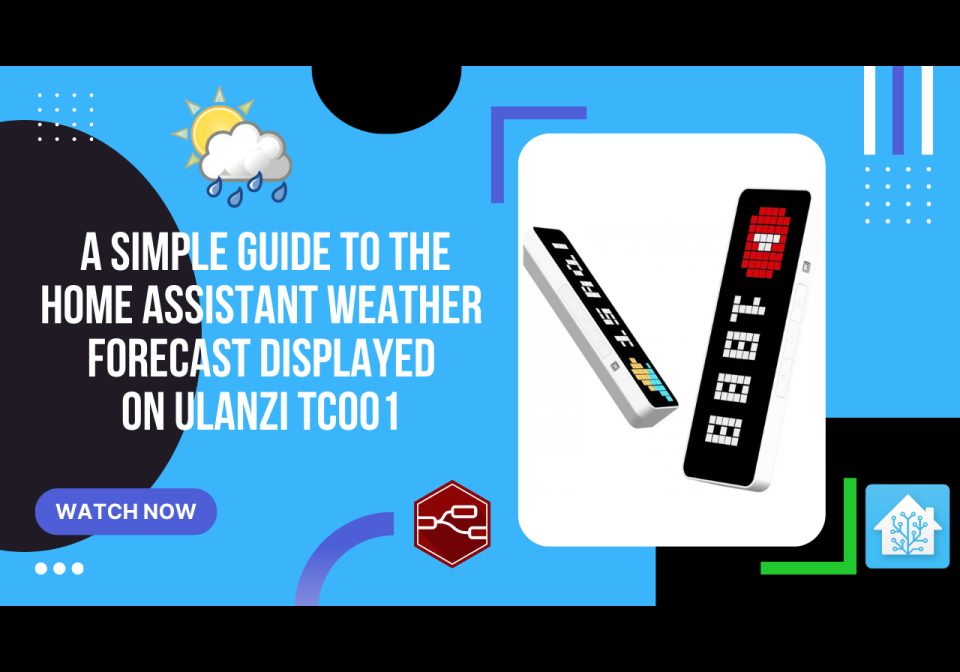
Use with Node-RED
A simple guide to the Home Assistant weather forecast displayed on Ulanzi TC001 This Node-RED flow is designed to fetch the current weather state from Home Assistant, specifically from the `weather.home` entity. It processes attributes such as temperat
- Topic
- Smarthome
- Includes
- Flow
Runs on
- Does not run on 32×8 (TC001 & DIY) Made for AWTRIX 3.
- Does not run on 52×16 (TC002) Made for AWTRIX 3.
- Runs on 32×8 with AWTRIX 3 (TC001 & DIY)
Is this your flow?
If you created this flow, open your saved edit link to add it to your account. You can then manage it whenever you sign in. Adding it to your account replaces the edit link.
Flow description
Video tutorial: https://www.youtube.com/watch?v=k7aorpEz3yU
Here is a structured tutorial:
Part 1: Setting up Home Assistant Automation for Weather Data
- Trigger Setup: In Home Assistant, create a time-based automation to execute every 10 minutes.
- Action Configuration: Utilize the
mqtt.publishservice to send the weather data. Format the payload with necessary weather attributes (temperature, condition, etc.).
{
  "text": "Temp {{ state_attr('weather.home', 'temperature') }}°C, Humidity {{ state_attr('weather.home', 'humidity') }}%, Wind {{ state_attr('weather.home', 'wind_speed') }}km/h, Pressure {{ state_attr('weather.home', 'pressure') }}hPa",
  "icon": "53288",
  "rainbow": false,
  "duration": 30
}
- MQTT Topic: Define a unique MQTT topic for this automation.
- pattern:
prefix/custom/name_of_the_panel
Part 2: Creating a Node-RED Flow for Ulanzi TC001 Display
- Trigger Node: Use an Inject node set to trigger every 10 minutes.
- Weather Data: Utilize an "api-current-state" node to fetch the latest weather state from
weather.home. - Data Formatting: Add a Function node where you convert weather states into messages, using a mapping object (iconMap) for weather conditions to icon IDs specific to Ulanzi TC001.
- MQTT Communication: Add an "MQTT out" node configured with your broker details, and set to publish the formatted message to the Ulanzi TC001.
This process includes fetching weather updates from Home Assistant, formatting them appropriately in Node-RED, and then sending the formatted data to the Ulanzi TC001 display via MQTT. Remember to adjust the mapping between weather states and icon IDs according to your display's requirements and the available icons.
Assets: icons you will find here: https://developer.lametric.com/icons. So just use it according to your needs.
The flow is in json format that you can import to Node-RED. Remember to change the IP address and topic everywhere according to the explanation in the video.
Sign in to view and copy the code of this flow.
Discussion 0
Ask a question, suggest a change or share how you use it.
No comments yet. Start the conversation.
Have an idea?
Sign in to ask questions and join the conversation.